Connecting AI agents via MCP
This guide describes how to connect IDE assistants and AI agents (for example, Cursor) to your search stores on the Data and Search Platform through the Model Context Protocol (MCP). Connected agents can search your indexed documents and use the results directly.
What MCP is for
MCP gives an agent mostly read-only access to your indexed content. An agent can search, list stores, files, and workflows, run an existing workflow, poll its status, and generate a temporary download link. It cannot create search stores or upload files. Do those first with the platform CLI (see Creating search stores and Ingesting files).
Prerequisites
-
The Data and Search Platform is deployed:
https://sherlock.{ingressDomain} -
You have a search store with at least one completed ingestion run.
-
You have a valid authorisation token (see Get an authorisation token).
Get an authorisation token
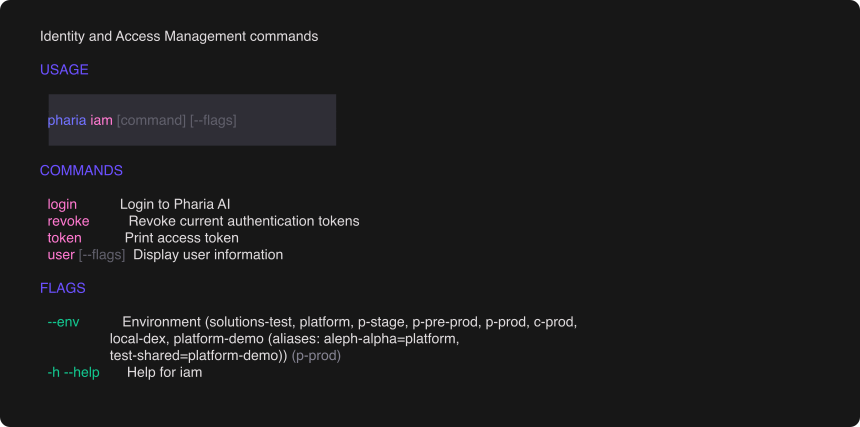
The Aleph Alpha APIs require a valid authorisation token. Log in and get a token with the platform CLI (pharia):
pharia iam login    # one-time OAuth login via your browser
pharia iam token    # print the cached access token
The CLI caches the token per environment and refreshes it automatically, so you can pass it directly to your MCP client configuration:
TOKEN=$(pharia iam token)Select the environment with the global --env flag, for example pharia --env aleph-alpha iam login.
Connect Cursor
Add the Data and Search Platform as an MCP server in Cursor’s MCP settings:
{
  "mcpServers": {
    "data-search": {
      "url": "https://sherlock.{ingressDomain}/api/v1/mcp",
      "headers": {
        "Authorization": "Bearer {your-token}"
      }
    }
  }
}
After saving, restart Cursor or reload its MCP servers. Other MCP-compatible clients, such as Claude Desktop or custom agent clients, connect the same way.
Available tools
| Tool | Description | Mutates data |
|---|---|---|
|
Semantic search over a search store, with optional citations |
No |
|
List the caller’s search stores |
No |
|
List files in a search store |
No |
|
Get a document’s metadata by ID |
No |
|
Get a document’s extracted pages |
No |
|
List workflows registered on a store |
No |
|
Get a workflow’s details and expected input schema |
No |
|
Execute a workflow against existing files |
Yes |
|
Poll a workflow run’s status |
No |
|
Generate a temporary, presigned download URL for a file |
No |
Typical flow: ingest via agent, then search
There is no upload tool, so files must be uploaded with the CLI first. An agent then ingests and searches them as follows:
-
list_files— get the ID of a file uploaded with the CLI. -
get_workflow— read the workflow’sinput_schema. -
run_workflow— pass{"source": ["files://<file-id>"]}as the tool’sinputargument (the same value the CLI takes withruns execute --input). -
get_run— poll untilstatusiscompletedorfailed. -
search— query the newly indexed content.
After the content is indexed, the agent uses the search tool automatically for prompts such as "Search my documents for mentions of revenue".
Troubleshooting
Tools not visible in the client
-
Error: The MCP server does not appear, or has no tools
-
Solution: Reload the MCP server configuration. Check the URL and confirm that the JSON is valid.
Unauthorized
-
Error: 401 Unauthorized
-
Solution: Check that the bearer token in your MCP client configuration has not expired.
Search returns no results
-
Error:
searchreturns an empty result list -
Solution: The store has no indexed chunks yet. Run an ingestion workflow first; see Ingesting files.