Ingesting files
This guide describes how to upload files into a search store and run an ingestion workflow to make them searchable.
Prerequisites
-
The Data and Search Platform is deployed:
https://sherlock.{ingressDomain} -
You can reach it with one of:
curl, the Sherlock Python SDK (sherlock-client), or the platform CLI (pharia). -
You have created a search store — see Creating search stores.
-
You have sample documents in a supported format: PDF, Office files (DOCX, PPTX, XLSX, and the legacy DOC, PPT, XLS), HTML, Markdown, plain text, and images. Each file type is routed to its own reader; see the reader groups in Configuring workflows. Any other text file is processed by the plain-text reader.
Client setup
Each example below is shown for three clients. All three call the same REST API at https://sherlock.{ingressDomain}/api/v1; the SDK and the CLI wrap the requests shown in the curl tab. Every request requires a bearer token. The deployment’s IAM sidecar validates the token and adds the caller’s user identity to the request, and Sherlock authorizes the request against that identity.
-
curl
-
Python SDK
-
Platform CLI
Log in once with the platform CLI, then export the deployment URL and a token:
pharia --env aleph-alpha iam login    # one-time OAuth login via your browser

export SHERLOCK_URL="https://sherlock.{ingressDomain}"
export AA_TOKEN="$(pharia --env aleph-alpha iam token)"
Pass -H "Authorization: Bearer $AA_TOKEN" on every call. A platform token from any other source also works; the API only reads the header. Requests with a JSON body use --json (curl 7.82.0 or later), which sends the body and sets the Content-Type and Accept headers to application/json. To read the body from a file, use --json @body.json.
Install the client from the Aleph Alpha package index:
pip install sherlock-client --extra-index-url https://alephalpha.jfrog.io/artifactory/api/pypi/holmes/simpleThen create a client for the deployment and a handle for the store you are ingesting into:
import os

from sherlock import SyncSherlock

client = SyncSherlock(
    url="https://sherlock.{ingressDomain}",
    token=os.environ["AA_TOKEN"],
)

store = client.v1.search_stores("<store-id>")
url and token default to the SHERLOCK_BASE_URL and SHERLOCK_TOKEN environment variables, so SyncSherlock() without arguments works when those variables are set. Sherlock is the async client and has the same API. Use either client as a context manager (with SyncSherlock(...) as client:) to close the connection pool when you finish.
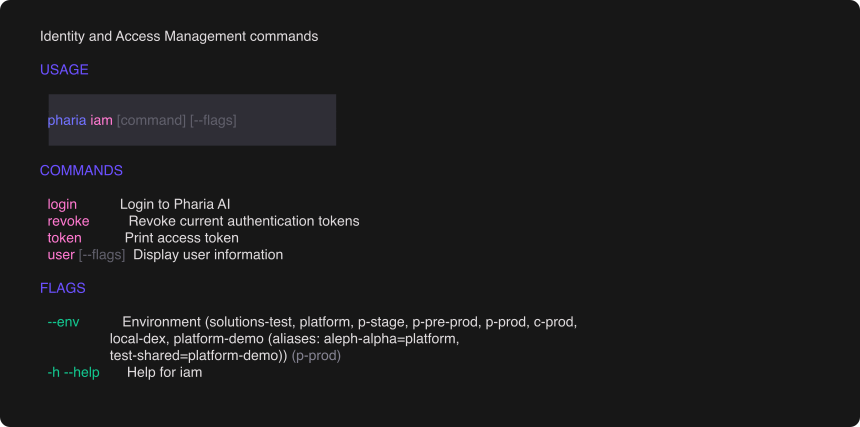
The platform CLI (pharia) handles authentication. Log in once; every subsequent command uses the cached token:
pharia iam login # one-time OAuth login via your browserSelect the environment with the global --env flag, for example pharia --env aleph-alpha iam login. The CLI caches tokens per environment and refreshes them automatically. To reach a deployment that the CLI does not know, pass --base-url https://sherlock.{ingressDomain} or set PHARIA_SHERLOCK_URL. To use the token in your own tooling, print it with TOKEN=$(pharia iam token).
1. Upload a file
-
curl
-
Python SDK
-
Platform CLI
curl -X POST "$SHERLOCK_URL/api/v1/search-stores/<store-id>/files" \
  -H "Authorization: Bearer $AA_TOKEN" \
  -F "files=@sample.pdf"
The upload is multipart/form-data with one files part per document. To send several files in one request, repeat -F "files=@...".
files = store.files.upload("sample.pdf")

print(files[0].id)
upload accepts any number of arguments: paths as strings, Path objects, open file handles, and glob patterns (store.files.upload("docs/**/*.pdf")). It returns one handle per uploaded file.
pharia --env aleph-alpha sherlock files upload <store-id> sample.pdfThe response includes the file’s id. You can pass several paths at once. Files are deduplicated by content hash within a search store: uploading the same file twice returns the existing file and does not create a duplicate.
The accepted file types are listed under Prerequisites. The platform detects the type from the file’s bytes, not from its name. Other types are rejected with 415.
Attach metadata to uploads
The upload takes one optional metadata part: a JSON object (max 8 KiB) applied to every file in the request.
-
curl
-
Python SDK
-
Platform CLI
curl -X POST "$SHERLOCK_URL/api/v1/search-stores/<store-id>/files" \
  -H "Authorization: Bearer $AA_TOKEN" \
  -F "files=@sample.pdf" \
  -F 'metadata={"site": "dresden", "vendor": "acme"}'
files = store.files.upload("sample.pdf", metadata={"site": "dresden", "vendor": "acme"})The CLI does not support the metadata part yet. Use curl or the SDK.
After ingestion, every chunk of the file carries the object under metadata.user.<field>. To filter on these fields at search time, declare them on the store with the user. prefix, for example {"path": "user.site", "type": "string"}; see declaring filterable metadata.
To change a file’s metadata later, replace the whole object. You do not need to upload or ingest the file again. The change propagates to the file’s documents, pages, and chunks:
-
curl
-
Python SDK
-
Platform CLI
curl -X PUT "$SHERLOCK_URL/api/v1/search-stores/<store-id>/files/<file-id>/metadata" \
  -H "Authorization: Bearer $AA_TOKEN" \
  --json '{"site": "leipzig", "vendor": "acme"}'
store.files("<file-id>").update_metadata({"site": "leipzig", "vendor": "acme"})The CLI does not support this operation yet. Use curl or the SDK.
|
Version availability
Upload metadata and the metadata |
2. Find the workflow to run
Every search store has a default ingestion workflow. List the store’s workflows:
-
curl
-
Python SDK
-
Platform CLI
curl "$SHERLOCK_URL/api/v1/search-stores/<store-id>/workflows" \
  -H "Authorization: Bearer $AA_TOKEN"
for workflow in store.workflows.list():
print(workflow.id, workflow.name, workflow.workflow_name)pharia --env aleph-alpha sherlock workflows list <store-id>Note the id of the workflow to run: the default preset, or a workflow you configured (see Workflows and presets).
3. Run the workflow
-
curl
-
Python SDK
-
Platform CLI
curl "$SHERLOCK_URL/api/v1/search-stores/<store-id>/workflows/<workflow-id>/runs" \
  -H "Authorization: Bearer $AA_TOKEN" \
  --json '{"input": {"source": ["files://<file-id>"]}}'
run = store.workflows("<workflow-id>").runs.execute(
input={"source": ["files://<file-id>"]},
)
print(run.id, run.status)pharia --env aleph-alpha sherlock runs execute <store-id> <workflow-id> \
--input '{"source": ["files://<file-id>"]}'The run extracts text, splits it into chunks, generates embeddings, and stores the results. The response includes a run_id.
source accepts multiple file references, so one run can process a batch of uploads.
4. Stream the run status
Instead of polling, read the run’s event stream until a terminal event arrives:
-
curl
-
Python SDK
-
Platform CLI
curl -N "$SHERLOCK_URL/api/v1/search-stores/<store-id>/workflows/<workflow-id>/runs/<run-id>/event-stream" \
  -H "Accept: text/event-stream" \
  -H "Authorization: Bearer $AA_TOKEN"
-N disables curl’s output buffering so events print as they arrive.
for event in run.stream():
    print(event.event, event.data)
stream() yields WorkflowEventData objects and stops after complete or error. To block until the run finishes without handling each event, call data = run.wait(raise_on_failure=True) and read data.status.
pharia --env aleph-alpha sherlock runs watch <store-id> <workflow-id> <run-id>The stream first replays every event recorded so far, then sends new events as they occur:
-
status— the run’s current state. -
complete— the run finished; your content is now searchable. -
error— the run failed. The event contains the error detail. -
keepalive— a periodic comment that keeps the connection open through proxies. Ignore it.
The stream ends when the run completes. runs watch exits with a non-zero code on failure. The server closes idle connections after 10 minutes. You can reconnect at any time, because the stream always replays the full history first.
To get the run’s current state once instead of streaming, request the run directly:
-
curl
-
Python SDK
-
Platform CLI
curl "$SHERLOCK_URL/api/v1/search-stores/<store-id>/workflows/<workflow-id>/runs/<run-id>" \
  -H "Authorization: Bearer $AA_TOKEN"
data = store.workflows("<workflow-id>").runs.get("<run-id>")
print(data.status, data.error)pharia --env aleph-alpha sherlock runs get <store-id> <workflow-id> <run-id>Storage and page limits
A deployment can limit upload sizes and the amount of content a search store holds. Four limits apply to uploads and runs:
| Limit | Applies to | Default |
|---|---|---|
|
One uploaded file, in plaintext bytes |
100 MiB |
|
One upload request, with all the parts it carries |
100 MiB |
|
The bytes one search store holds |
No limit unless configured |
|
The pages one search store holds |
No limit unless configured |
The two request limits always apply. A platform admin sets the two store limits and can change them without a redeploy.
The platform checks the store limits before each operation. The operation that crosses a limit completes; the platform refuses the next one. An upload past max_storage_bytes and a run submission past max_pages_per_search_store both return 409 Conflict with the type /errors/usage-limit-exceeded. The response gives limit_key, limit, current_usage, scope, and unit. The upload route puts them in details, and the run route puts them in errors[0].value. The platform does not use 429 for usage limits. 429 is reserved for rate limiting.
Read a store’s usage
Read a store’s usage before a large upload or run:
curl -s "$SHERLOCK_URL/api/v1/search-stores/$STORE_ID/usage" \
  -H "Authorization: Bearer $AA_TOKEN"
For each per-store limit, the response gives the store’s current usage, the enforced limit (null when none is set), and an over_limit flag. If over_limit is true, the platform refuses the next operation that counts against that limit. You need can_view on the store. The Python SDK and the platform CLI do not cover this endpoint yet.
What counts against a limit
The counters measure the data that the platform physically stores. As a result:
-
A deleted file keeps its bytes until the retention purge erases it. If a store is full, deleting a file and uploading it again fails.
-
The pages of a failed ingestion count until the purge. Each retry counts again.
-
Uploading the same file into the same store a second time does not increase usage.
Export zips do not count against any store.
Validation
After a run completes, confirm that your content is searchable; see Searching your data.
Troubleshooting
Workflow run stays pending
-
Error: the event stream keeps sending
statusevents and never reachescompleteorerror -
Solution: Large files or high concurrent load increase processing time. Keep the connection open; if it drops, reconnect, because the stream replays the history. If the run does not progress, check that the file format is supported.
Input validation error
-
Error:
422 Unprocessable Entitywhen starting a run -
Solution: The run input does not match the workflow’s expected schema. Before you submit a run, read the workflow’s
schemawithGET /api/v1/search-stores/<store-id>/workflows/<workflow-id>,store.workflows("<workflow-id>").get(), orpharia sherlock workflows get <store-id> <workflow-id>.
Search store is full
-
Error:
409 Conflictwith the type/errors/usage-limit-exceeded, on an upload or a run submission -
Solution: The store reached
max_storage_bytesormax_pages_per_search_store. Readlimit_key,limit, andcurrent_usagein the response to identify the limit. Erase content you no longer need, or ask a platform admin to raise the limit; see Storage and page limits.
File or request is too large
-
Error:
413on upload. A file pastmax_file_sizereturns a problem detail with the type/errors/file-too-large. A request pastmax_upload_request_sizeis refused by the HTTP server before it reaches the API, so that413carries no body. -
Solution: Send fewer files per request, or ask a platform admin to raise the limit; see Storage and page limits.
Unsupported file type
-
Error: The run fails immediately after starting
-
Solution: Confirm that the file format is supported (see Prerequisites). An unsupported type is rejected at upload with
415. If a run fails on a specific file, the run’sfailedlist names that file.