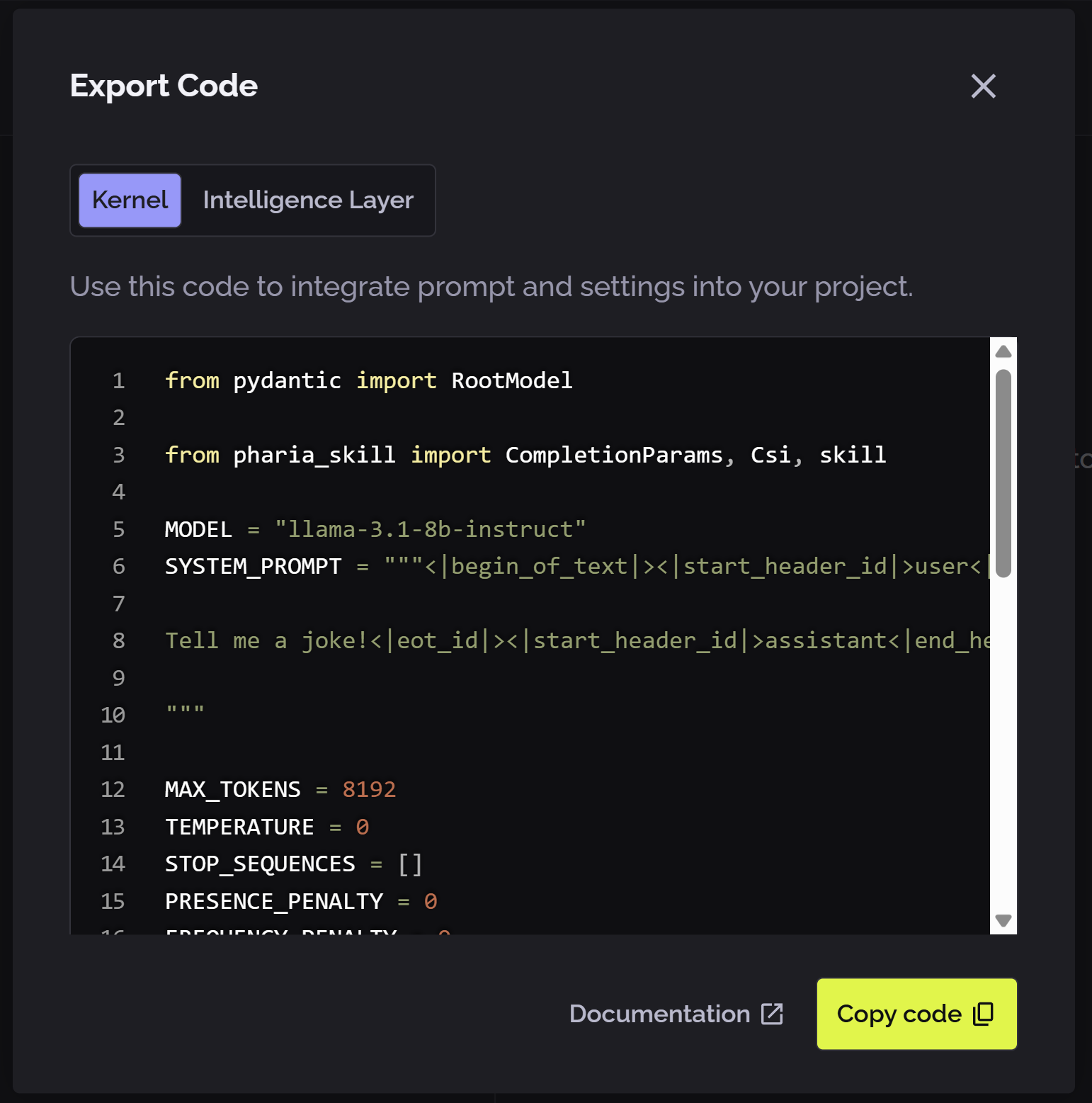
Working in the Playground
The PhariaStudio Playground is a workspace in which you can interact with the large language models (LLMs) you have access to.
You can enter prompts in two modalities: prompt-only or raw text.
This article covers the basic settings shown in the right sidebar and describes how to add custom settings for each model.
Access the Playground
To access the playground:
-
Open PhariaStudio at https://pharia-studio.{ingressDomain}
-
Sign in with your credentials.
-
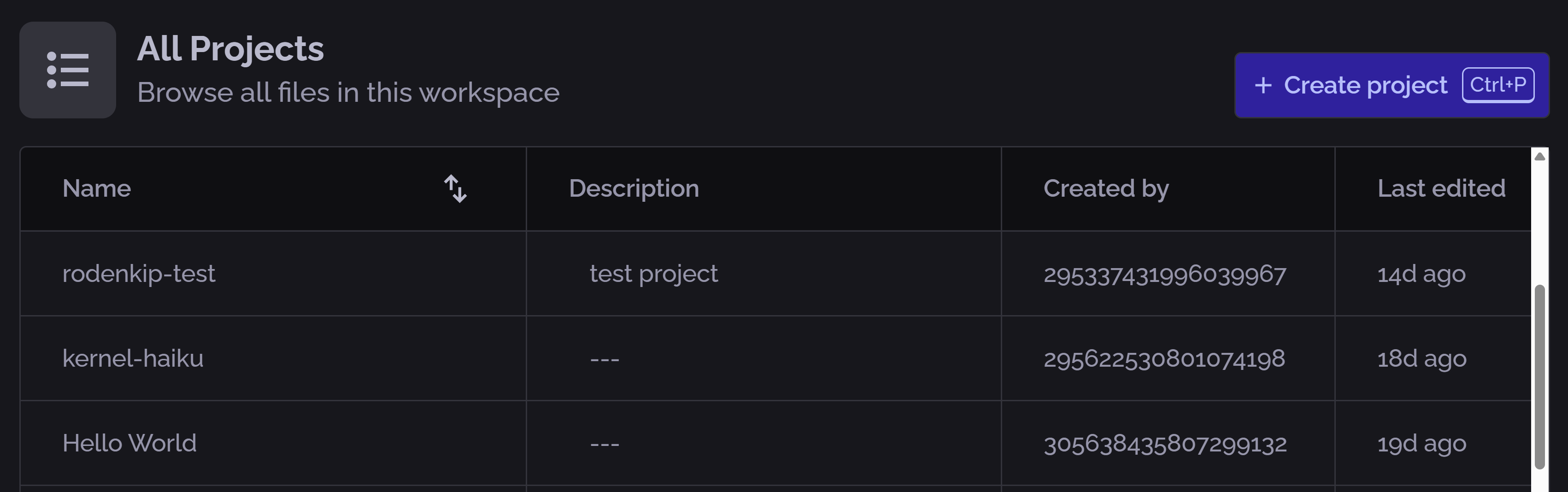
Select an existing project from the home page or create a new one:
-
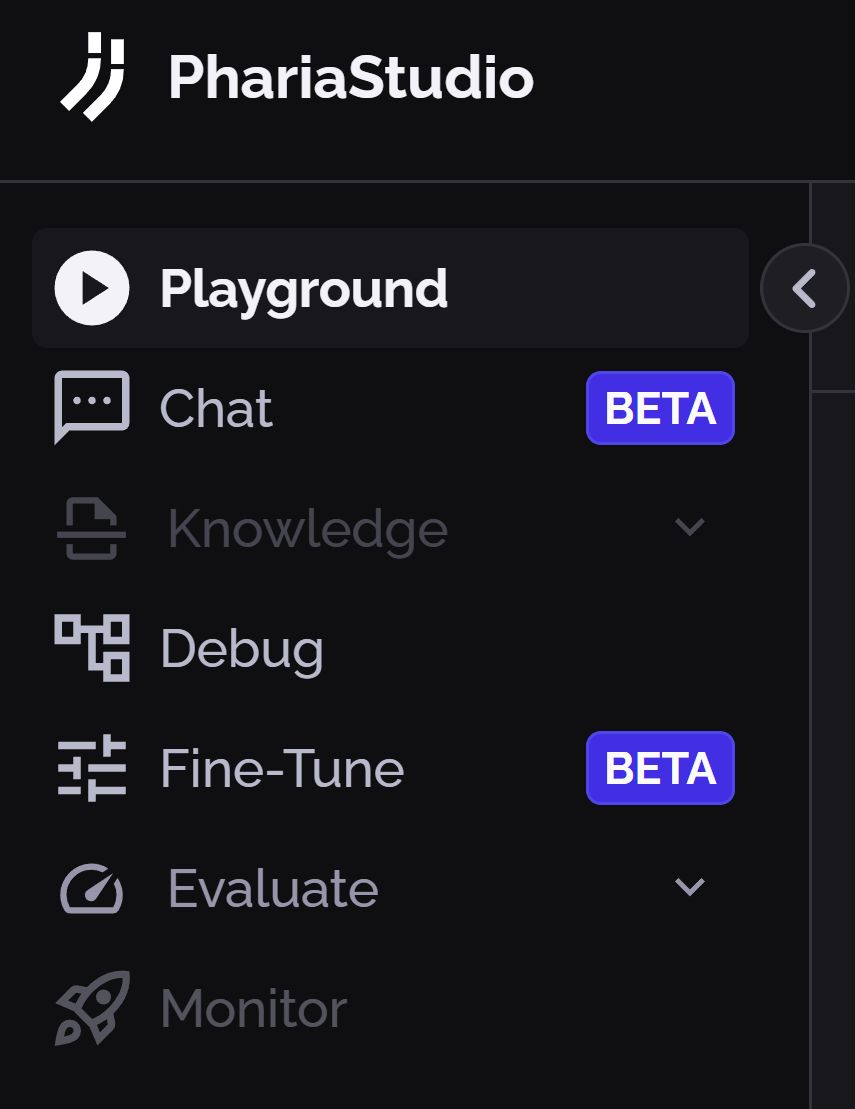
Click Playground on the left sidebar:
Select an LLM
Select the LLM you want to work with from the dropdown list:
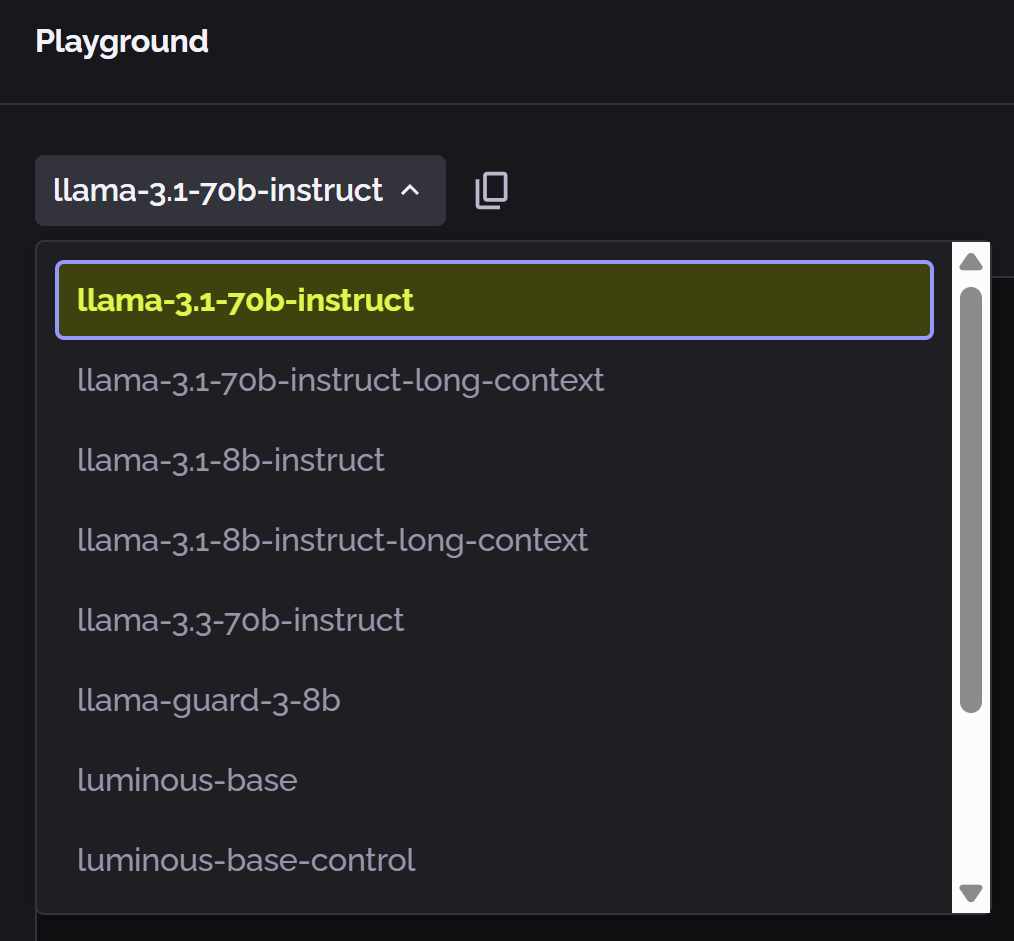
(The highlighted model name indicates the current selection.)
To copy the selected model name to your clipboard, hover your mouse near its name; a copy button appears. Click this to copy the model name. This is useful for entering the model name in your code.
Select the prompt input mode
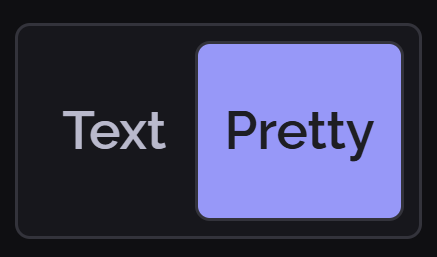
Using the toggle on the bottom of the Prompt input text box, you can switch between the two modalities of prompt input:
-
Only Prompt
 : In this mode, you focus on the pure content of the prompt, without viewing the low-level template of the model. This is suitable for single-turn interactions.
 -
Raw Text String
 : In this mode, you can change the way the prompt is sent to the model; for example, by adding a system prompt.
Each model includes its own predefined templates.
Run a prompt
-
Enter text in the Prompt box.
-
Click Run.
The content of the prompt box is sent to the LLM along with any modified settings set in the Model Settings sidebar. The response is displayed in the Completion box.
Adjust the model settings
The right sidebar displays some basic model settings:
-
Maximum tokens: The maximum number of tokens allowed in the prompt.
-
Temperature: A hyperparameter that controls the model’s learning rate.
-
Stop sequences: A list of stop words that prevent the model from processing the prompt.
-
Presence penalty: A hyperparameter that penalises the model for presence of words in the prompt.
-
Frequency penalty: A hyperparameter that penalises the model for frequent words in the prompt.
-
Raw completion: A toggle that displays the raw completion of the model, that is, the non-optimised response.
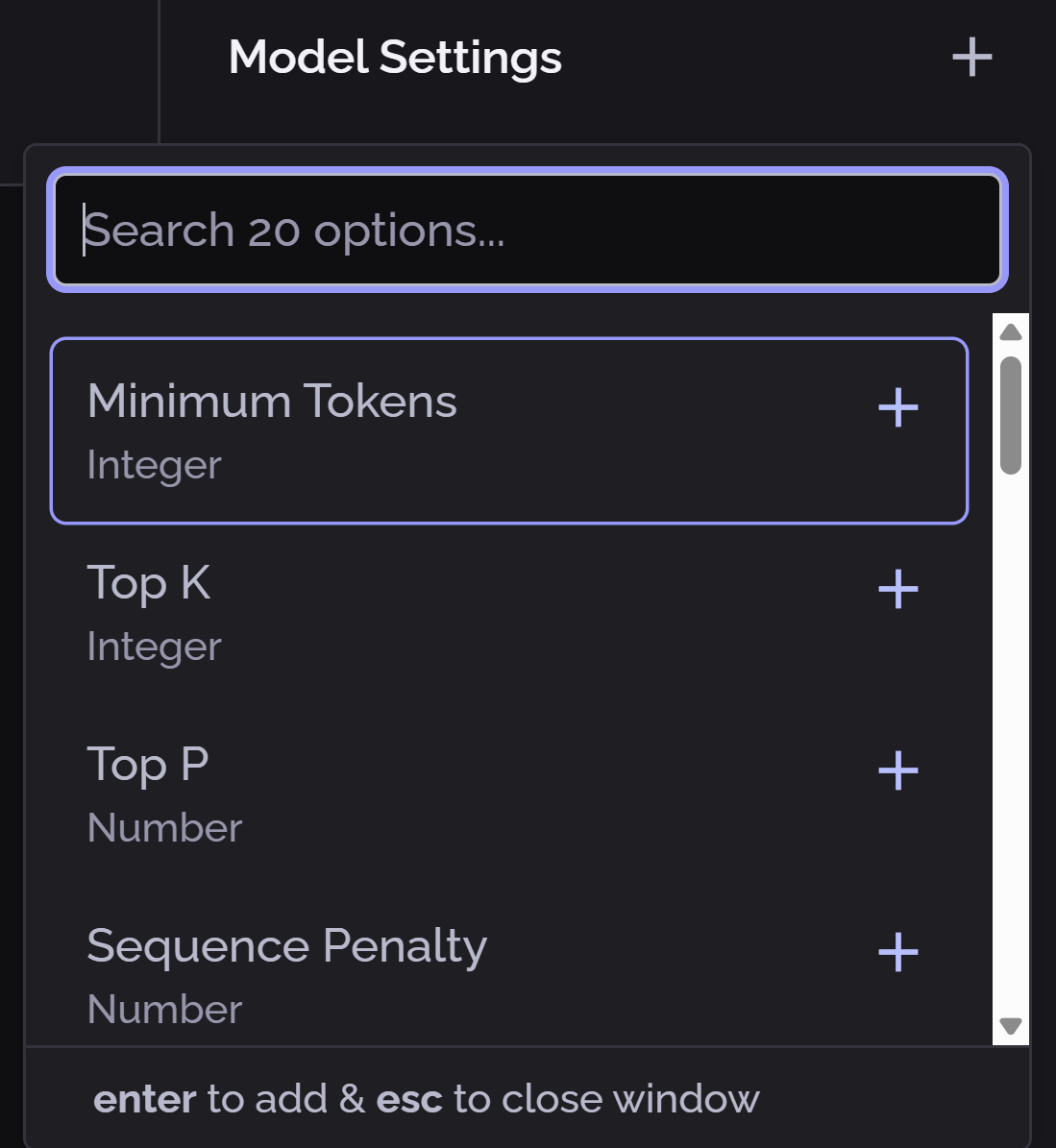
In addition to these settings, you can include additional settings that are supported for your selected model. Add and set advanced settings as follows:
-
Click the
 icon next to Model settings in the right sidebar:
The advanced settings list appears in a popup:
-
Search and select the desired settings.
-
Click outside the menu or press Esc to close the advanced settings popup.
The selected model settings are included in the right sidebar. -
Set the required values for the new settings.
For a complete explanation of the model settings that may be available, see Model settings.