Managing applications in PhariaStudio
As noted in the custom PhariaAI applications Quick Start guide, you can link application deployments to projects in PhariaStudio. When you do this, you can perform some management tasks on the applications in the PhariaStudio UI.
Register and display an application
To link an application deployment to a project in PhariaStudio, provide the project ID in the register command of the PhariaAI CLI:
cd <your-app-folder>
npx @aleph-alpha/pharia-ai-cli register --project <PROJECT ID>
You can find the project ID in the URL bar when you access the project in PhariaStudio:

After you register the application, you can display it in the UI of PhariaStudio. To do this, you publish and deploy the application using the following command:
cd <your-app-folder>
npx @aleph-alpha/pharia-ai-cli publish
npx @aleph-alpha/pharia-ai-cli deploy| Once the application is deployed, it is visible and accessible only to Admin users. Even the developer who deployed the application needs to assign access in PhariaStudio; this is described here. |
View the applications list
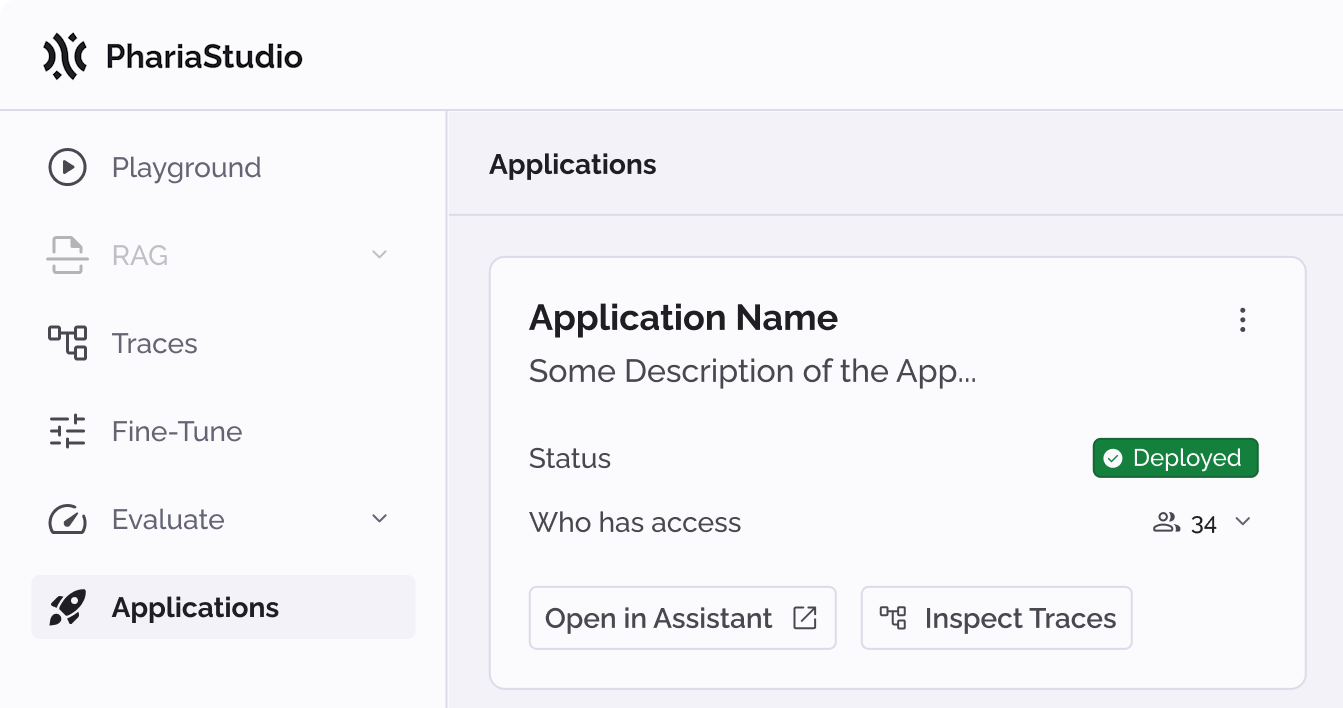
PhariaStudio provides an application view that lists registered and deployed applications that are linked to a project. To access the list, click Applications in the sidebar:
Undeploy an application
To undeploy an application, click the kebab menu icon  and select Undeploy from the menu.
An undeployed application is no longer visible in PhariaAssistant or accessible with the API. The application takes the status Registered, but it is not possible to perform any action with it:
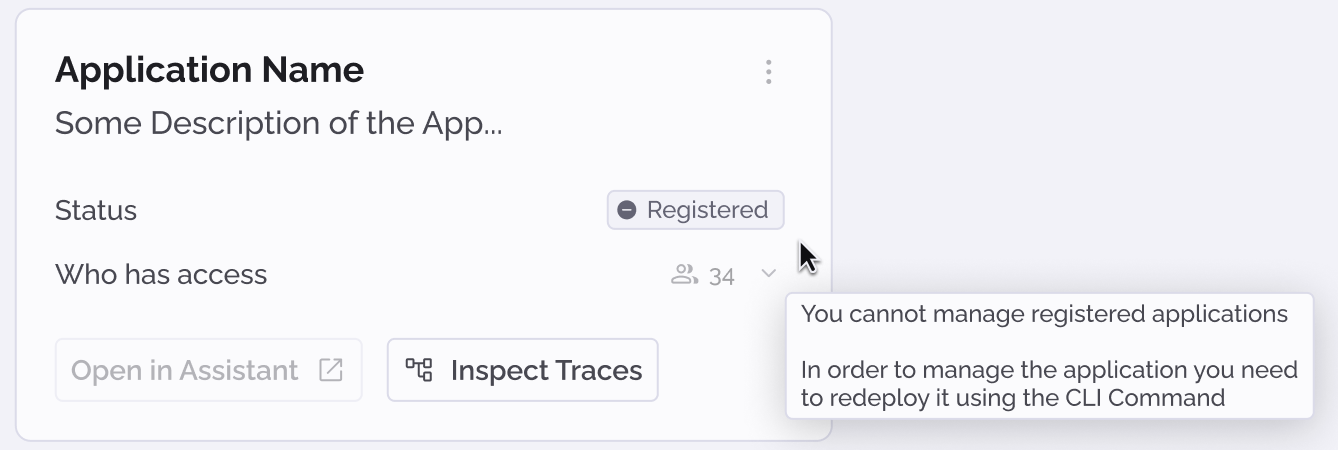
To work with the application, you need to deploy it again with the PhariaAI CLI.
Manage access to the application
In PhariaStudio, you can manage the users who can access a deployed application in PhariaAssistant.
On deployment, an application is only accessible to Admin users. To give access to other users (including the user who deployed the application), you add them to an access list for the application:
-
Click Applications in the PhariaStudio sidebar.
The list of applications is displayed. -
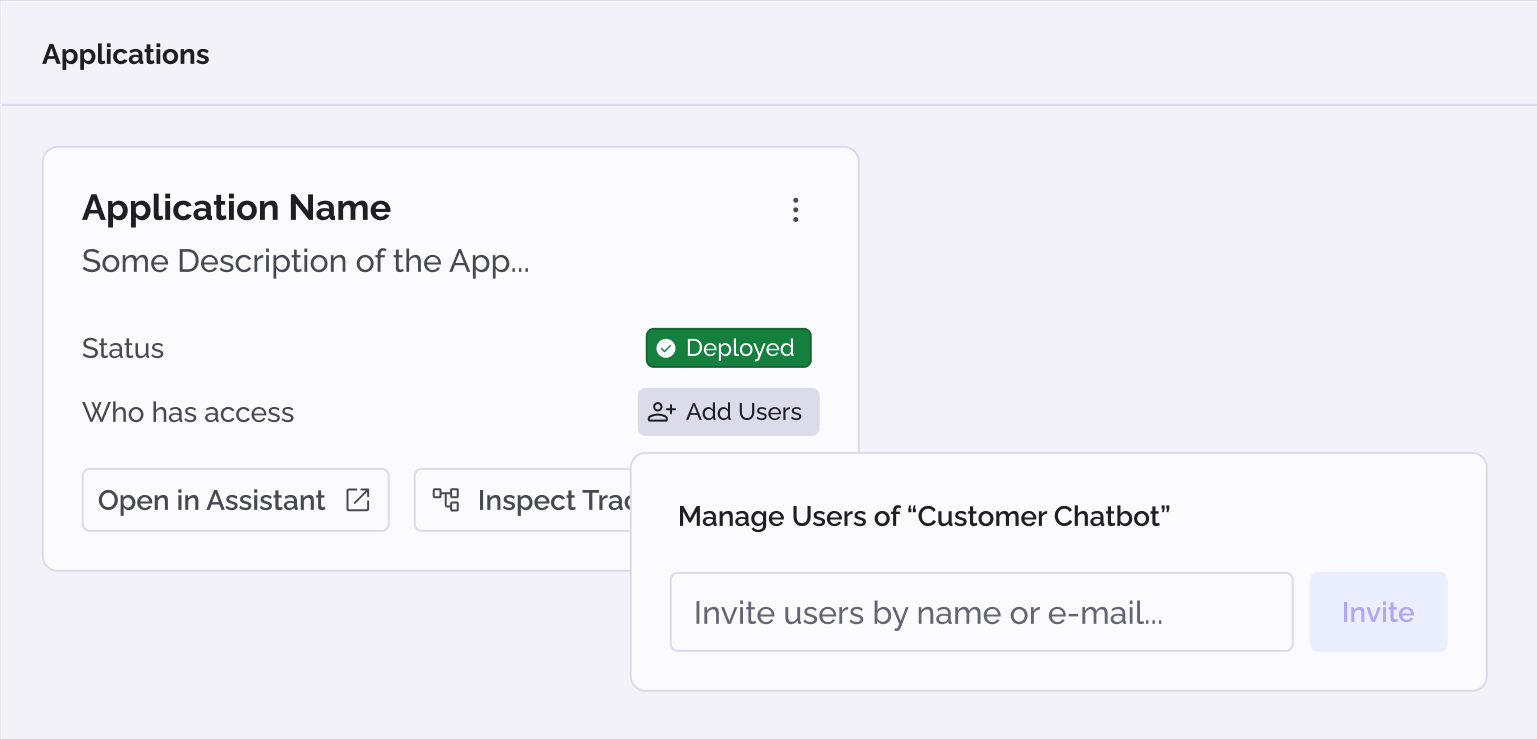
In the card of the application you want to manage, click Add Users:
-
Search for a user’s name or email address in the text field.
-
Click Invite to invite the user to access the application.
-
Continue adding users as required.
| Users receive no automatic notification that they have been invited to access an application! Neither in PhariaStudio itself nor by email. You need to notify users manually. |
After one or more users have been invited, the Add Users button changes to an icon displaying the number of users who have access to the application:
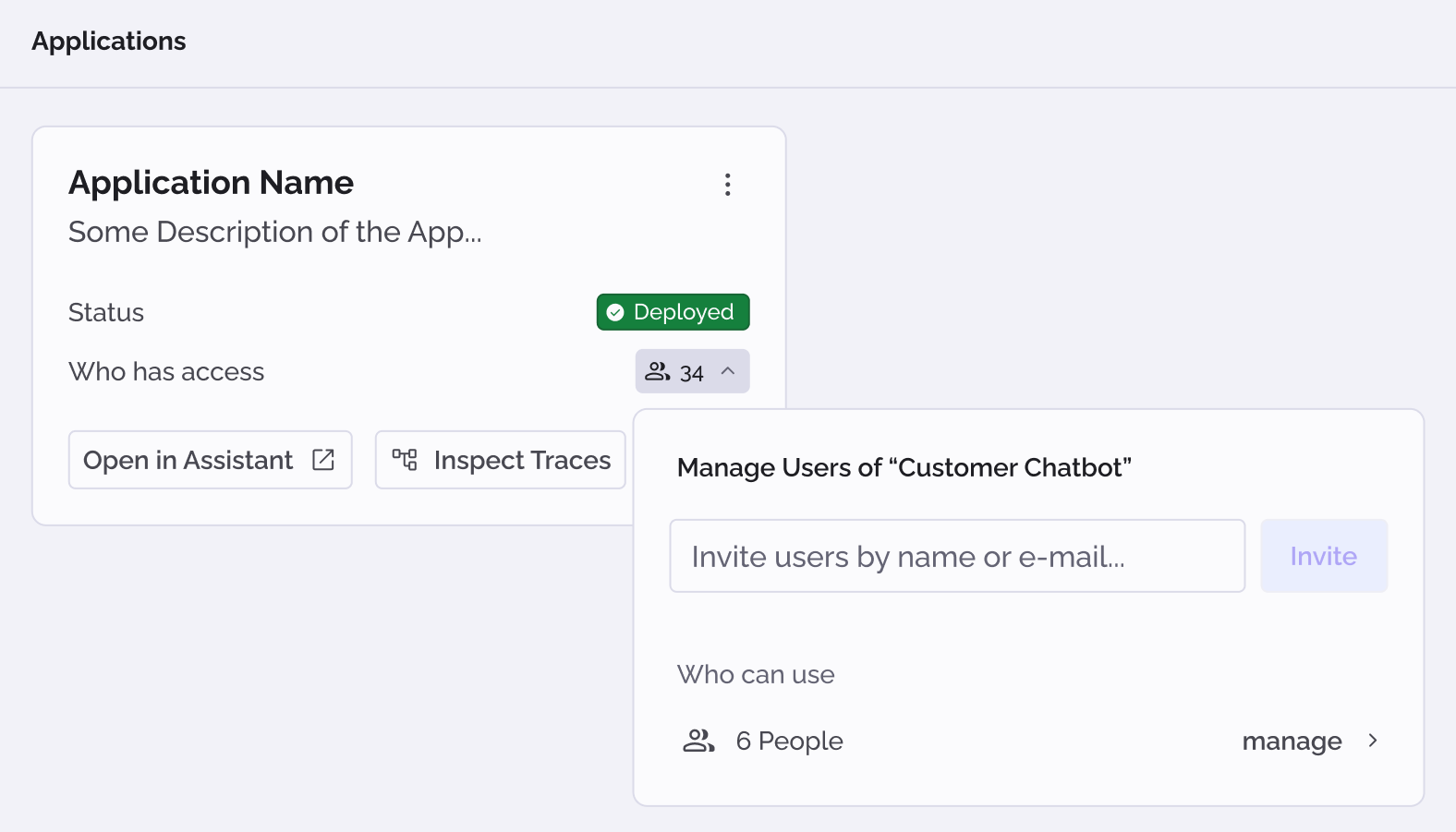
You can click this icon to add more users or manage the list of existing users.