Executing a task and submitting its trace
Prerequisites
Ensure you have your task logic implemented in a Jupyter notebook, a Python file, or a script, as explained in Implementing a simple task.
Add required dependencies
from pharia_inference_sdk.core import (
    InMemoryTracer
)
from pharia_studio_sdk.connectors import (
    StudioClient
)
Initialise the PhariaStudio client
Initialise the PhariaStudio client and create a project:
studio_client = StudioClient(project="Tell me a joke", create_project=True)| You can also create a project in PhariaStudio and use its name to initialise the client in your code. |
After the project is created, it becomes available in the list of projects in the PhariaStudio landing page:
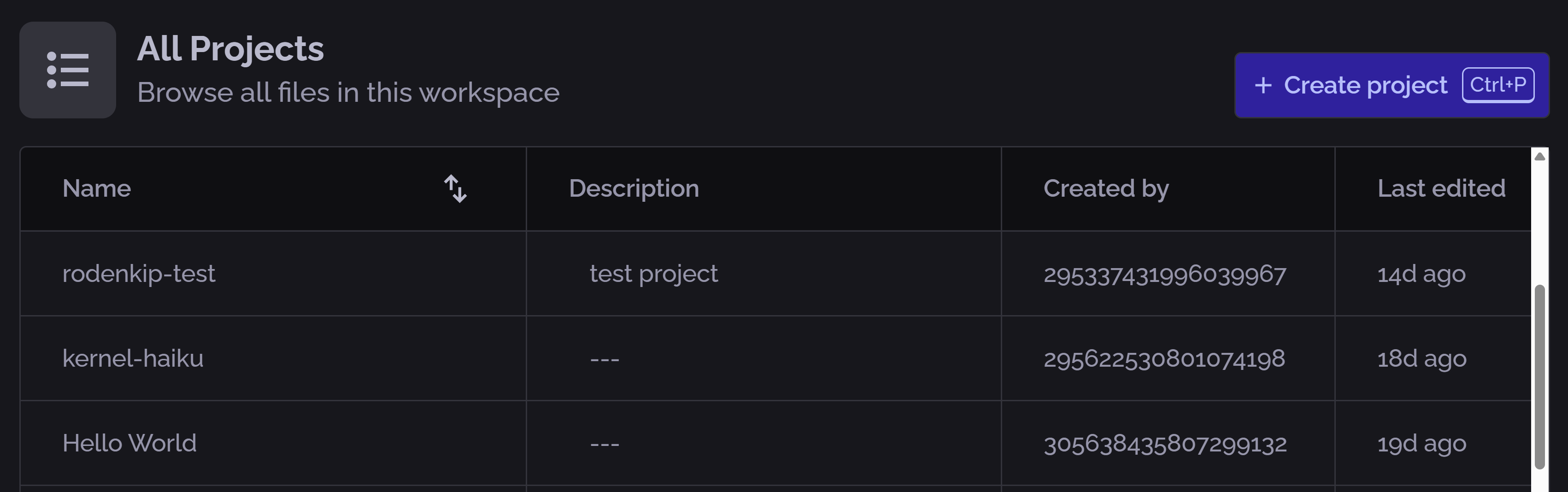
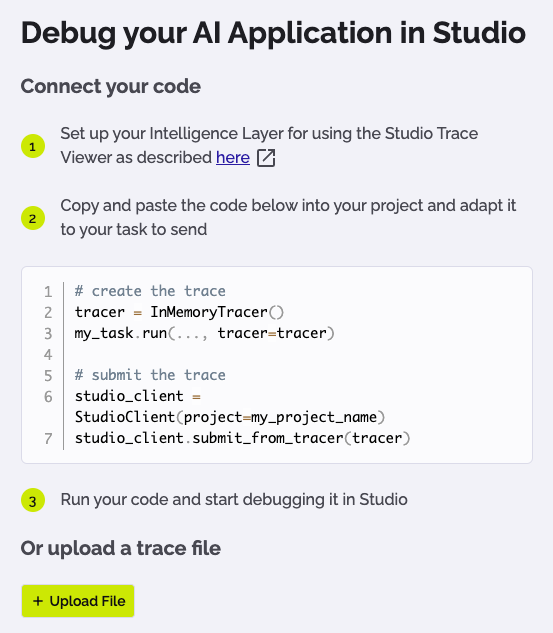
After selecting the project, you can navigate to the Trace section in the sidebar to view the empty project window. Here you can find the code snippet to connect your trace to PhariaStudio:
Initialise the model
From the PhariaStudio Playground, we can copy the name of the model we want to use for our task by selecting the model and clicking on the copy button:
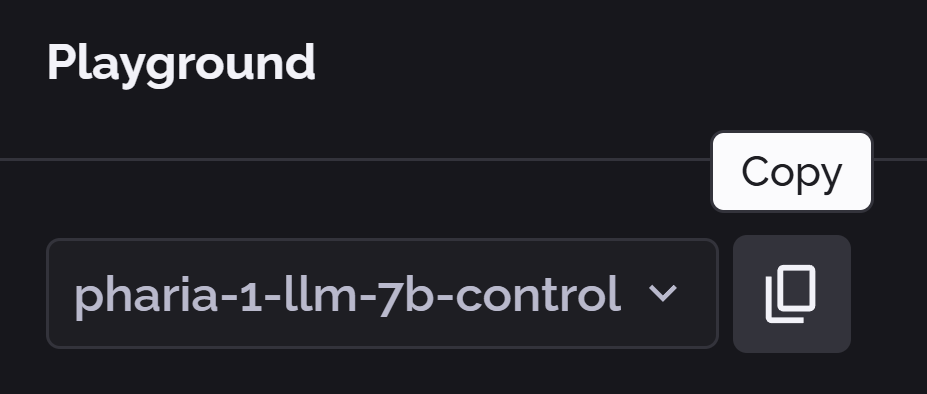
In the code, we use the name to initialise the model; for example, pharia-1-llm-7b-control:
model = Pharia1ChatModel("pharia-1-llm-7b-control")Execute the task
Now we need to initialise the task with the model we just created and create the input:
task = TellAJokeTask(model)
taskInput = TellAJokeTaskInput(topic="Software Engineer")
To visualise the trace in PhariaStudio, we need to initialise the tracer as follows:
tracer = InMemoryTracer()Now we execute the task:
task.run(taskInput, tracer)Submit the trace to PhariaStudio
The last step before switching completely to PhariaStudio is submitting the trace:
studio_client.submit_from_tracer(tracer)OTLP traces support
From PhariaAI version 1.251000.0, PhariaStudio supports OTLP traces. You can instrument traces from your AI applications using any OpenTelemetry tracing SDK, such as:
-
opentelemetry-python -
@opentelemetry/api -
go.opentelemetry.io/otel -
opentelemetry-java -
and others
For now, only the HTTP+Protobuf ingestion endpoint is supported:
<pharia-studio-url>/api/projects/{project_id}/traces_v2Visualise the trace
After the trace has been submitted, the Debug section for the project appears something like this:
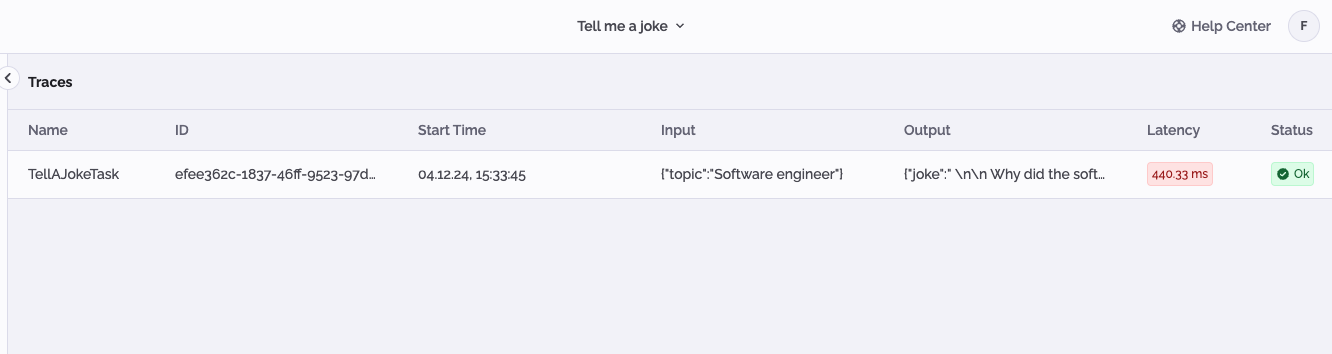
The trace takes the name from the task name and shows the execution time, input and output of the task, latency, and whether the execution was successful or not.
Click the trace to access the detailed view, in which the subtasks are displayed. In our case, we have a completion:

Click on each subtask to display the details panel. This shows more information on input/output of each subtask. In our case, it is possible to see the raw prompt submitted to the model for completion:
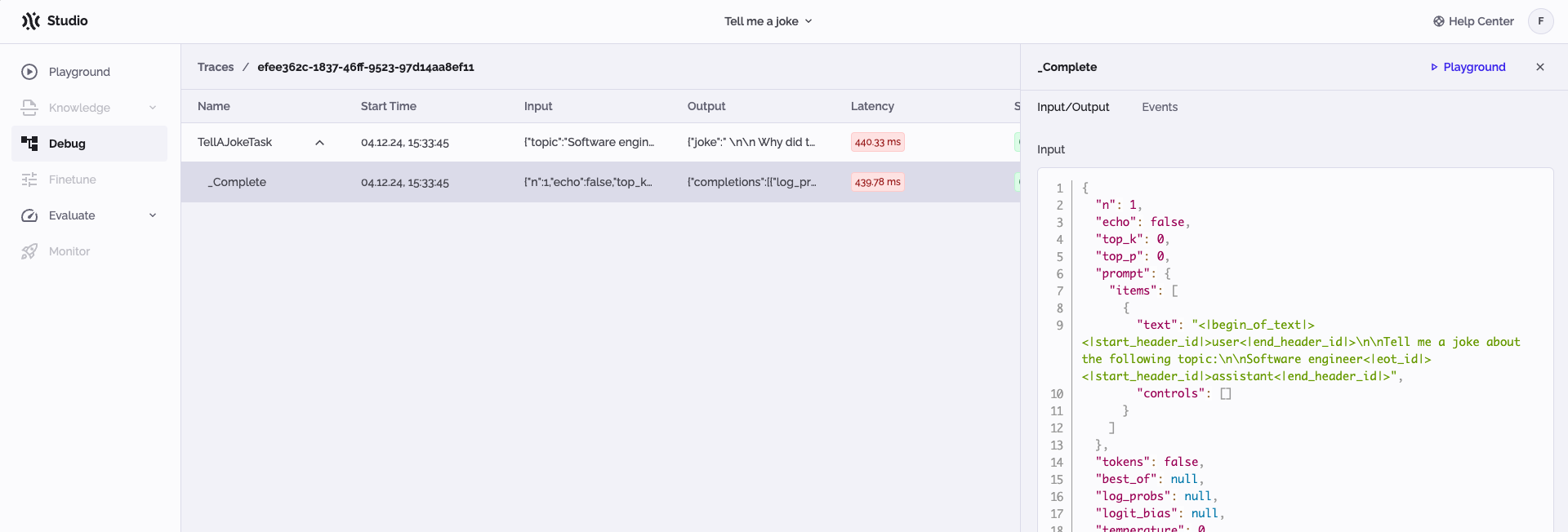
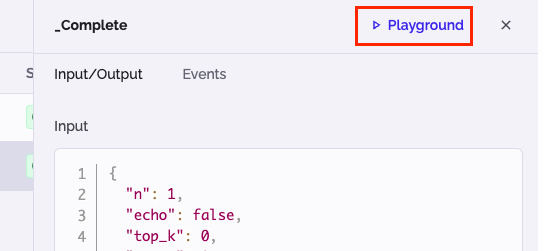
For each completion task, you can do some thorough prompt engineering in the Playground by clicking on the Playground button at the top right: