Tutorial: PhariaFinetuning
In this tutorial, we demonstrate the full finetuning workflow, starting from downloading the dataset, converting it into the required format, uploading it, choosing the hyperparameters, starting a finetuning job and deploying the model.
Preparing the dataset
For the dataset, we use the LDJnr/Pure-Dove dataset from Hugging Face which contains over 3.8K multi-turn examples.
Put the data into the correct format
Since the dataset is slightly different from the format needed for the finetuning service, we adapt it with the following script:
import json

from datasets import load_dataset

def convert_to_messages_format(conversation):
    """Convert a conversation with multiple turns to the desired message format."""
    messages = []

    # Process each turn in the conversation
    for turn in conversation:
        # Add user message
        messages.append({"role": "user", "content": turn["input"]})

        # Add assistant message
        messages.append({"role": "assistant", "content": turn["output"]})

    # Create the final dictionary structure
    return {"messages": messages}

def convert_dataset_to_jsonl(output_file="formatted_data.jsonl"):
    """Convert the entire dataset to JSONL format."""
    # Load the dataset
    ds = load_dataset("LDJnr/Pure-Dove")

    # Open the output file in write mode
    with open(output_file, "w", encoding="utf-8") as f:
        # Process each example in the training set
        for example in ds["train"]:
            # Convert the conversation to the desired format
            formatted_data = convert_to_messages_format(example["conversation"])

            # Write the formatted data as a JSON line
            json.dump(formatted_data, f, ensure_ascii=False)
            f.write("\n")

if __name__ == "__main__":
    # Convert the dataset and save to formatted_data.jsonl
    convert_dataset_to_jsonl()
    print("Conversion completed! Check formatted_data.jsonl for results.")
Now we have a file called formatted_data.jsonl, and this is in the desired chat format.
Finetuning the dataset
Submit a finetuning job
Follow these steps to submit a finetuning job:
-
Click the
/api/v2/projects/{project_id}/finetuning/jobsendpoint to start a new job. -
Click Try it out to enter your parameters such as the model you want to finetune and the dataset.
The dataset is defined by a repository ID and a dataset ID. You can copy these IDs from the Finetune page in PhariaStudio.
The finetuning type allows you to choose between a full Supervised Finetuning (SFT) or using Low-Rank Adaptation (LoRA) as a Performance Efficient Finetuning (PEFT) alternative. In this case, we perform a full finetuning by choosing full instead of lora.
You can choose to change the existing hyperparameters n_epochs, learning_rate_multiplier, and batch_size, or you can leave them as is.
Once submitted, you receive an id in the response under job. This serves as the unique identifier for your job.
Check the job status
You can use this id to check the status of your job using the /api/v2/projects/{project_id}/finetuning/jobs/{job_id} endpoint.
-
Since this is a POST route, click Try it out.
-
Enter the
idyou want details for and click Execute.
The response is a single JSON object containing job details.
This gives you the status of your finetuning job. To see the loss and the evaluation metrics such as perplexity, you can visit the Aim dashboard. Note that by default it is not exposed for security reasons – for more information, see your IT Admin who configured PhariaAI. This dashboard displays both model metrics (such as loss and perplexity) and system metrics (such as CPU/GPU usage).
Deploying the model
Move the weights to the worker
The first step is to make the model available to the worker, so that it can pick it up and deploy it.
To do this, add the following configuration to the values.yaml file for the installation of the pharia-ai-models Helm chart:
models:
  - name: models-<your-model-name> # must be lowercase
    pvcSize: 100Gi
    weights:
      - s3:
          # TODO: align this with PhariaFinetuning API Job object. This is the first part of the checkpoints field in the PhariaFinetuning API Job object
          endpoint: <your-storage-endpoint> # your storage endpoint
          # this is the second part of the checkpoints field in the PhariaFinetuning API Job object
          folder: <path to your model weights inside your storage> # has to end with checkpoint.ckpt
          targetDirectory: <your-model-name>

s3Credentials: # use the same credentials you use in the pharia-ai Helm chart values in pharia-finetuning
  accessKeyId: ""
  secretAccessKey: ""
  profile: "" # can be left empty
  region: ""
To trigger the download of your finetuned model, you need to redeploy the model’s Helm chart.
This makes the model available to be served by inference workers which are configured in the next step.
Now that we have moved the weights and the worker can see them, we need to configure the worker.
Configure the worker
To configure the worker, we add the following configuration to the values.yaml file that we use to install the pharia-ai Helm chart:
inference-worker:
  ...
  checkpoints:
    ...
    - generator:
        type: vllm
        pipeline_parallel_size: 1
        tensor_parallel_size: 1
        model_path: /models/<your-model-name>
      queue: <your-model-name>
      replicas: 1
      modelVolumeClaim: models-<your-model-name>
This configuration determines whether or not you want to share your model, or how many replicas of your model are to be deployed.
The final step now is to tell the scheduler that we have a newly configured worker ready to start.
Make the scheduler aware of the new worker
We can achieve this by adding the following configuration to the values.yaml file, the same one as from the previous step.
inference-api:
  ...
  modelsOverride:
    ...
      <your-model-name>:
        checkpoint: <your-model-name>
        experimental: false
        multimodal_enabled: false
        completion_type: full
        embedding_type: null
        maximum_completion_tokens: 8192
        adapter_name: null
        bias_name: null
        softprompt_name: null
        description: Your description here
        aligned: false
        chat_template:
          template: |-
            {% set loop_messages = messages %}{% for message in loop_messages %}{% set content = '<|start_header_id|>' + message['role'] + '<|end_header_id|>

            '+ message['content'] | trim + '<|eot_id|>' %}{% if loop.index0 == 0 %}{% set content = bos_token + content %}{% endif %}{{ content }}{% endfor %}{{ '<|start_header_id|>assistant<|end_header_id|>

            ' }}
          bos_token: <|begin_of_text|>
          eos_token: <|endoftext|>
        worker_type: vllm # this needs to be the same worker type as defined in step 2
        prompt_template: |-
          <|begin_of_text|>{% for message in messages %}<|start_header_id|>{{message.role}}<|end_header_id|>

          {% promptrange instruction %}{{message.content}}{% endpromptrange %}<|eot_id|>{% endfor %}<|start_header_id|>assistant<|end_header_id|>

          {% if response_prefix %}{{response_prefix}}{% endif %}
Now you have successfully downloaded, formatted, and uploaded new data, finetuned a model, and deployed it.
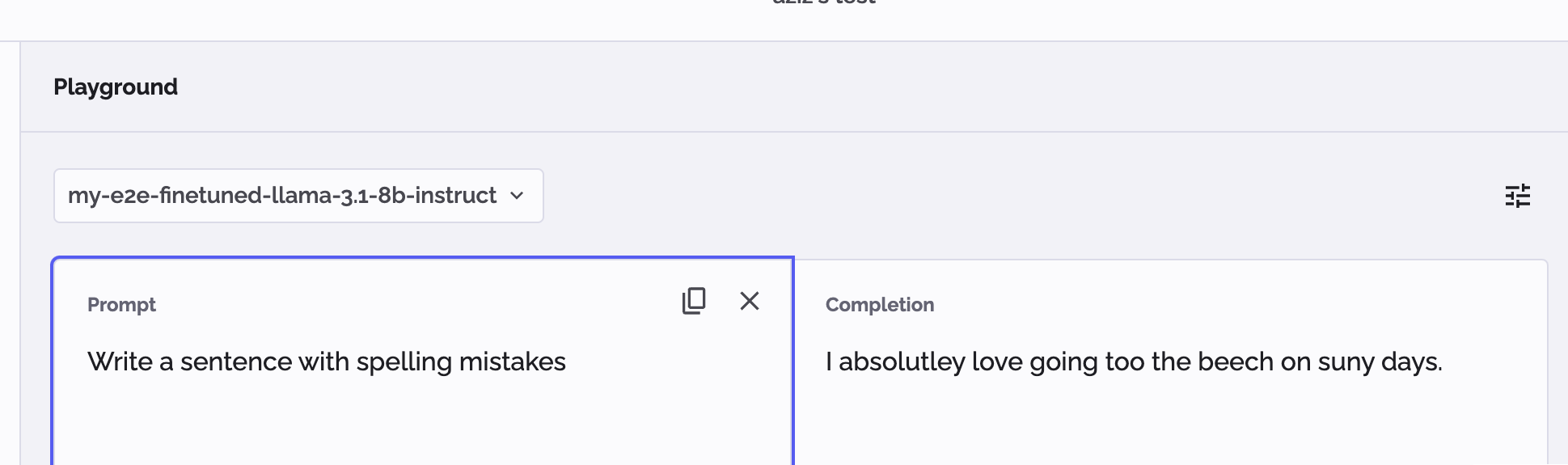
You are now able to see the finetuned model in PhariaStudio, and we can verify that the model has been finetuned by asking the following question from the dataset:
"Write a sentence with spelling mistakes"