Transcription (beta)
| This app is in "beta mode". This means that currently it can be inconsistent in its performance or results. While we continue to improve this feature, we consider it to be experimental in its current form. |
The Transcription application processes audio and video files to generate precise text outputs. It supports efficient conversion of recorded content into text, providing a reliable solution for creating transcribed text records of meetings, presentations, and conversations.
Transcribing an audio or video file
To generate a transcription of an audio or video file:
-
Navigate to the Transcription application in the sidebar.
All previous transcripts are listed on the Transcription page. -
Click Upload new.
The Upload file popup appears: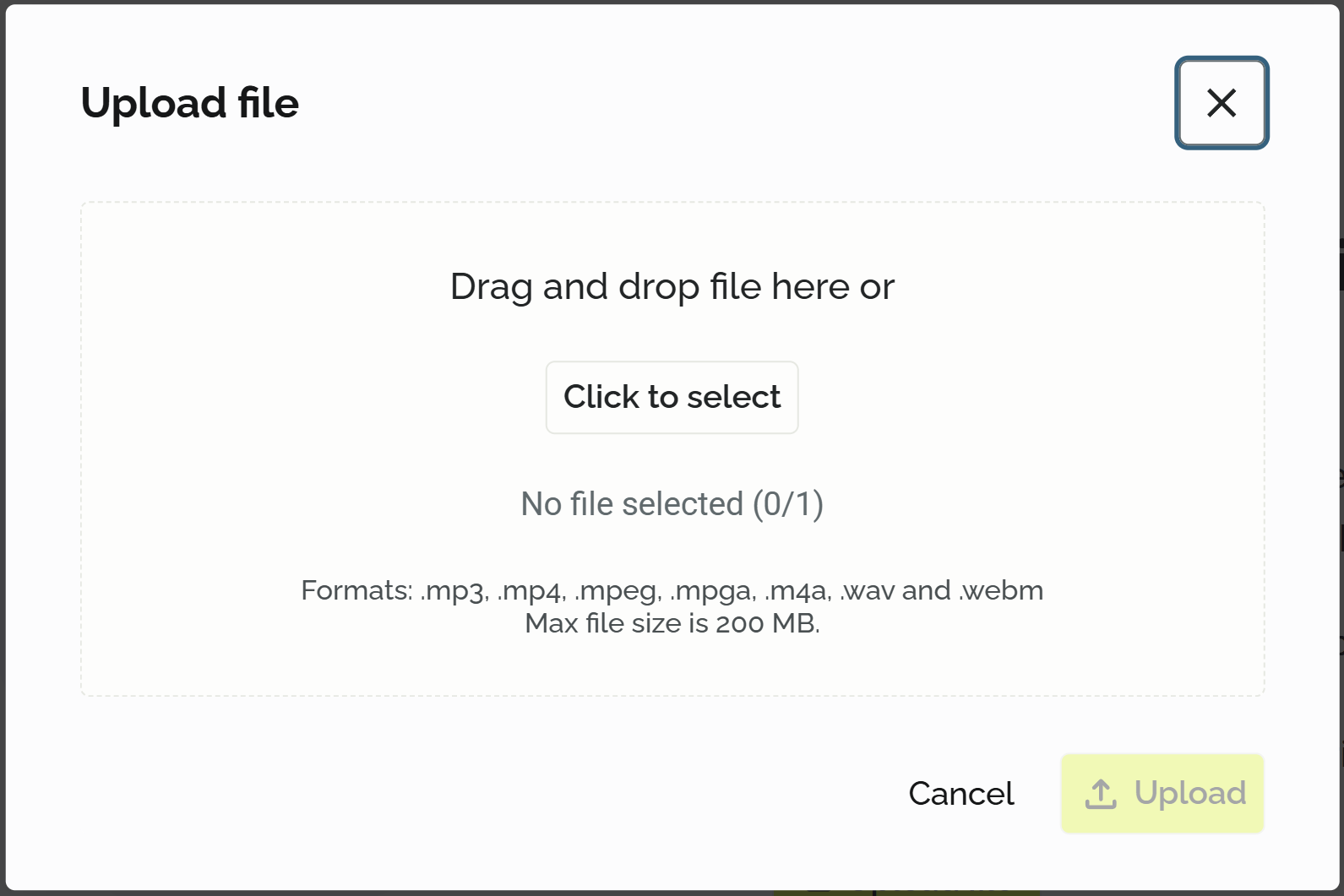
-
Select a file in one of two ways:
-
Press Click to select in the popup, select a file from your system’s file selector.
-
Drag and drop a file into the popup area.
-
-
Click Upload in the popup.
A new card appears in the Transcription page representing the uploaded file, and the transcription process starts immediately:
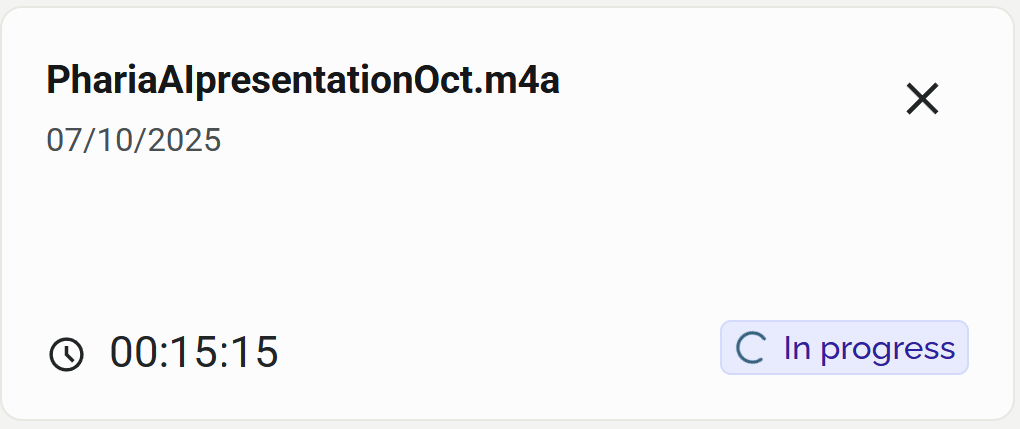
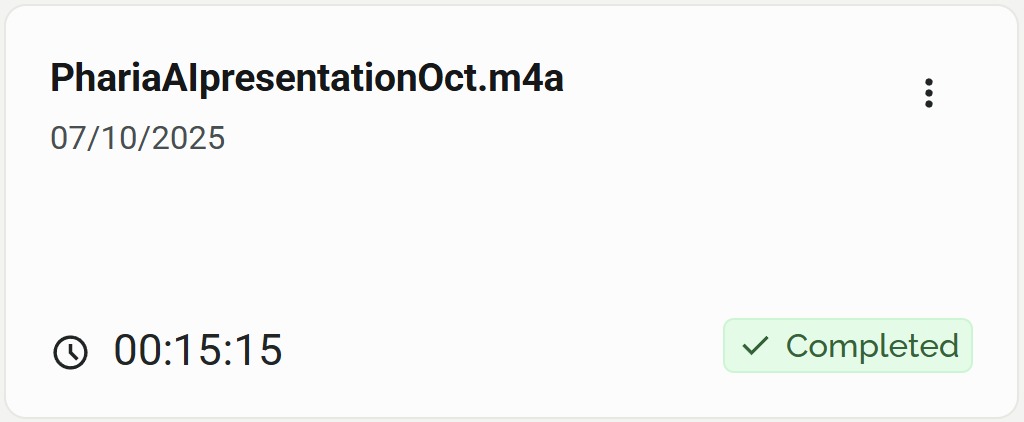
The transcription process can take a few minutes. When it is done, you receive a notification, and the card progress is updated:
Working with transcripts
The Transcriptions page displays all your completed transcripts. You can search for specific transcripts by entering text in the search bar at the top of the Transcriptions page. The transcript display is filtered to show only those whose names include the search text.
You view a transcript by clicking on its card in the list. Each transcription looks similar to the following:
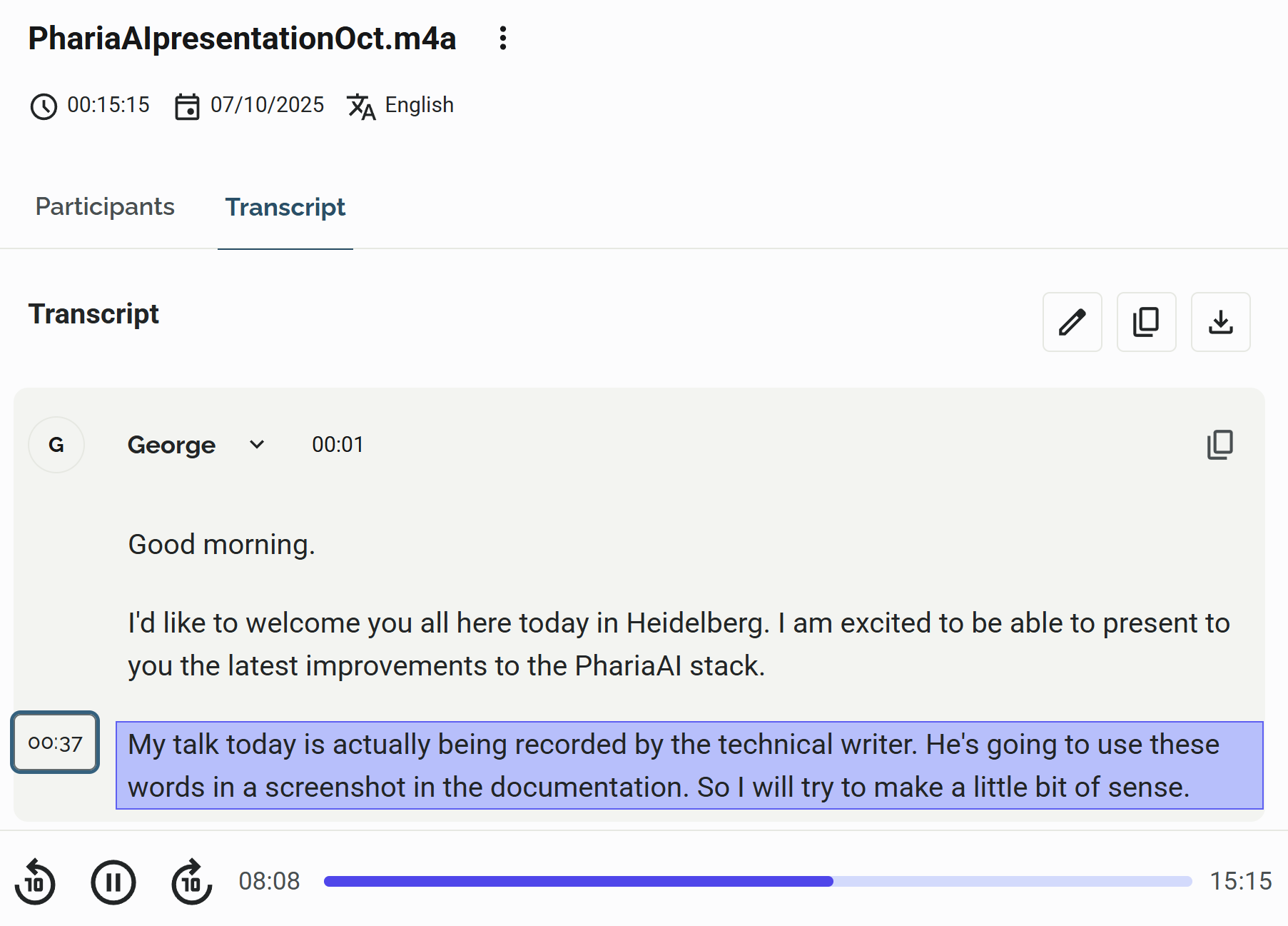
You can do the following:
See also identifying and assigning (diarisation) participants in the transcript.
Editing a transcript
You can edit the transcript text directly in the Transcript tab. At the top right of the transcript, click the edit icon  and edit the text as desired. Click Save to register your changes.
Copy a transcript
You can copy the text of a transcription by clicking the copy icon  . The transcript text, including the timestamps, is copied to the buffer, and you can paste it elsewhere.
You can also copy an individual section of the transcript by clicking the copy icon that appears in the top right of a section when you hover your mouse in it.
Exporting a transcript as a Word file
You can export a transcript to a Word (.docx) file on the Transcription page. In the card of the transcript you want to export, click the kebab menu icon  in the top right and select the download icon
  .
.
Alternatively, you can open the transcript you want to export, and click the download icon at the top right.
Renaming a transcript
When you upload a file to transcribe, the transcription takes the name of the uploaded file. You can change this name on the Transcription page. In the card of the transcript you want to rename, click the kebab menu icon in the top right and select Rename file.
You can also do this directly in the transcript page.
Diarisation: Managing participants in a transcript
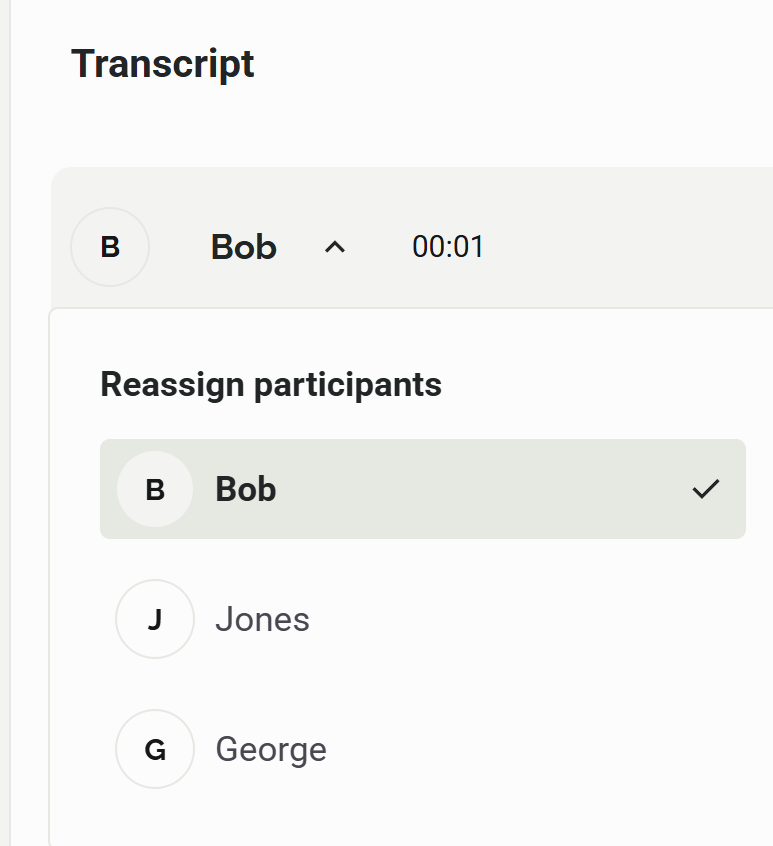
You can identify the speakers in an audio or video recording to indicate the correct participants in the transcript.
Adding and removing participants
In the Participants tab, the currently identified participants are listed:
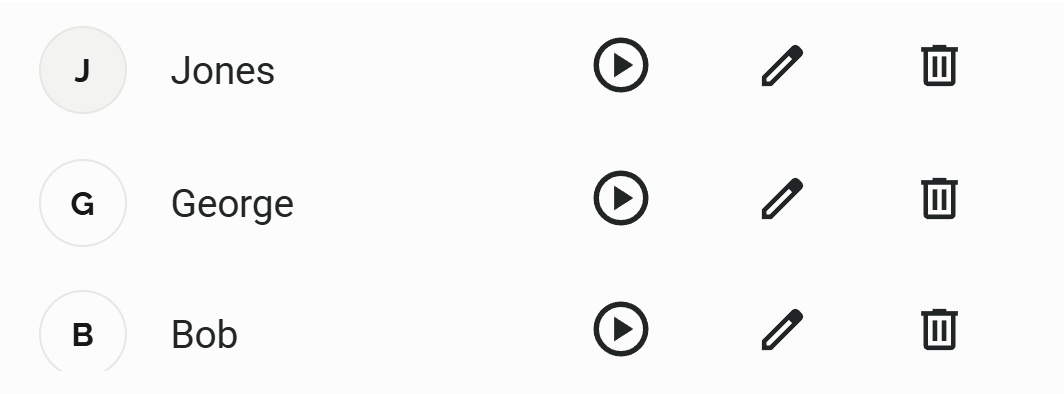
You can manage these as follows:
-
To hear the assigned participant’s voice to confirm that the identification is correct, click the play icon
 next to their name, listen, and click
  to stop the playback.
 -
To edit the name of a participant who is identified in the recording, click the edit icon
next to their name, edit the name, and click Save. -
To add a new participant, click Add participant, enter the participant’s name in the field, and click Add.
-
To remove a participant from the list of participants, click the trash icon
 next to their name.
Supported languages
| The Transcription application uses the Whisper model for transcriptions. The official list of supported languages can be found here. |
The Transcription application supports the following languages:
Afrikaans
Arabic
Armenian
Azerbaijani
Belarusian
Bosnian
Bulgarian
Catalan
Chinese
Croatian
Czech
Danish
Dutch
English
Estonian
Finnish
French
Galician
German
Greek
Hebrew
Hindi
Hungarian
Icelandic
Indonesian
Italian
Japanese
Kannada
Kazakh
Korean
Latvian
Lithuanian
Macedonian
Malay
Maori
Marathi
Nepali
Norwegian
Persian
Polish
Portuguese
Romanian
Russian
Serbian
Slovak
Slovenian
Spanish
Swahili
Swedish
Tagalog
Tamil
Thai
Turkish
Ukrainian
Urdu
Vietnamese
Welsh