Chat
In the PhariaAssistant Chat application, you can have a general conversation or ask questions related to one or more uploaded documents. You can also generate deep research reports.
Chat offers tools and agents, two different kinds of AI helpers that refine your enquiries.
Starting a new chat
To start a new chat:
-
In the PhariaAssistant portal, click the Chat application card.
This opens the Chat window. -
If you have already used Chat, click New Chat at the top of the app.
A new conversation thread is displayed. -
Enter a question in the chat field.
-
Click
 Send, or press Enter on your keyboard.
Chat responds, and your conversation has begun.
All your chats are stored locally and can be recalled later. Note that chats are saved only in your browser and are not synced across devices.
Inline references in Chat responses
Chat’s generated responses include inline citations that lead you to the original website source:

You can view all references in a list by clicking References under the response:

Chat’s response behaviour: token streaming
PhariaAssistant Chat uses token streaming to deliver responses quickly and smoothly. You first see that, after you ask your question, Chat starts responding immediately,even before it has generated the full reply.
In addition, as the response streams, input fields are temporarily disabled to avoid any conflicts. Interaction is re-enabled as soon as the response is fully delivered.
Chat modes: Smart, Express, and Deep
You have a choice of three chat modes:
Express
Express mode provides a general purpose chat experience with fast responses but no reasoning. It is ideal for quick questions, summaries, and help with writing.
In this mode, you can use agents, file uploads, collections and tools (only one tool at a time).
Smart
In Smart mode, Chat thinks and reasons. It can break down tasks and use specialised tools and agents. Smart mode is useful for multistep problem-solving, analysis with logic, and for tasks that require specific capabilities.
In this mode, you can use agents, file uploads, collections, and tools (all tools are activated by default).
Deep
Deep mode provides an advanced, deep-research chat experience that critically analyses complex topics and presents its results in a formal, organised report format. This is the ideal mode for multi-faceted problem analysis, solving conflicting viewpoints, and conducting in-depth investigations into complex problems.
In this mode, you can use collections and tools (all tools are activated by default). However, you cannot invoke agents or upload files.
Querying documents and document collections in your chats
Documents vs. document collections
| At present, you cannot create new collections of documents. This feature will be available soon. |
During a conversation in Chat, you can ask questions about documents that you upload. You can upload documents in two ways:
-
Upload one or more documents directly into an ongoing chat.
-
Add one or more documents to a document collection, and select the collection in a conversation.
The active documents or collections remain selected in your conversations until you change them.
Limitations
PhariaAssistant has some limitations when reasoning about documents:
-
PhariaAssistant only considers the uploaded documents in the most recent question. It cannot remember documents from three messages ago, unless those documents are the currently uploaded documents.
-
PhariaAssistant does not know about filenames; it cannot understand if you ask a question that refers to a document by filename.
-
PhariaAssistant does not know if previous answers were provided as a result of document searching, or as a result of open conversation.
-
PhariaAssistant does not know how many documents you’ve uploaded.
-
PhariaAssistant currently supports text extraction only from PDF files that contain selectable text. Scanned documents requiring optical character recognition (OCR) are not supported at this time.
Uploading documents in a chat
During a conversation in Chat, you can upload documents to query as follows:
-
Click the Upload document icon
 in the chat window.
 -
Click Upload document in the popup:
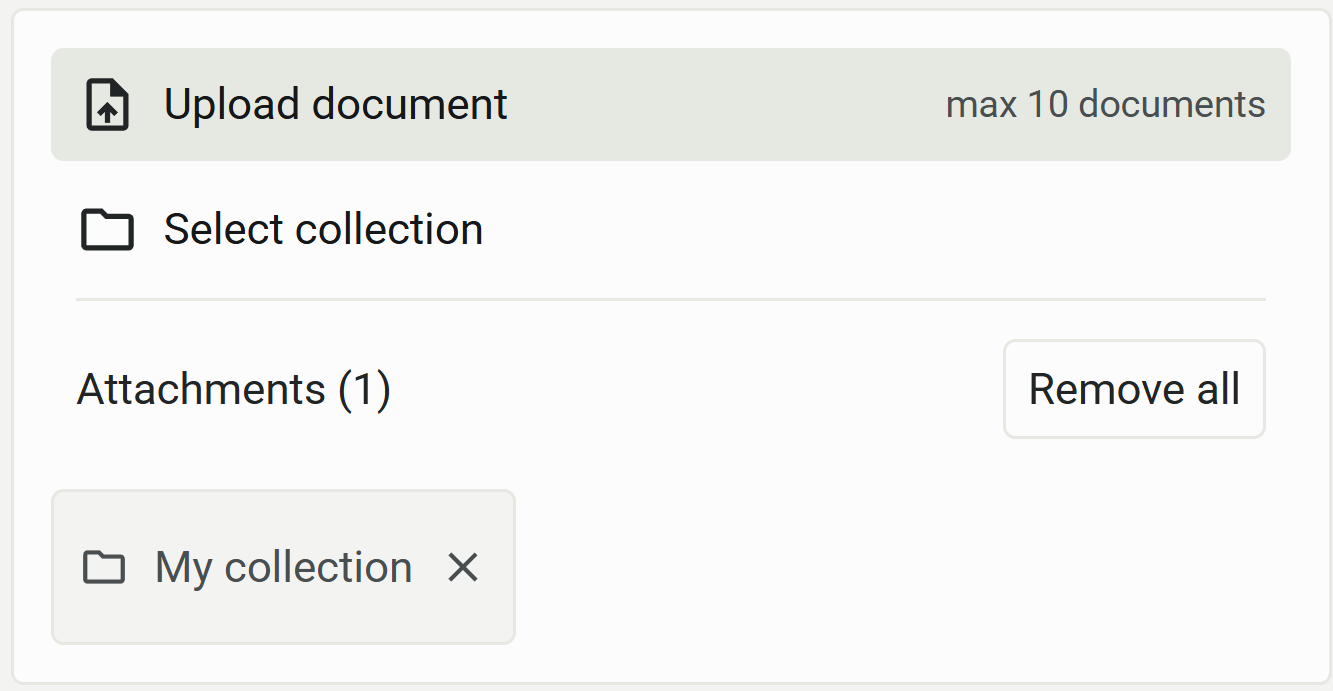
Your computer’s file selector opens.
-
Select up to ten documents you want to upload (.pdf, .doc, .docx, or .txt), and confirm in the file selector.
Chat uploads the documents and displays their names in the upload popup:
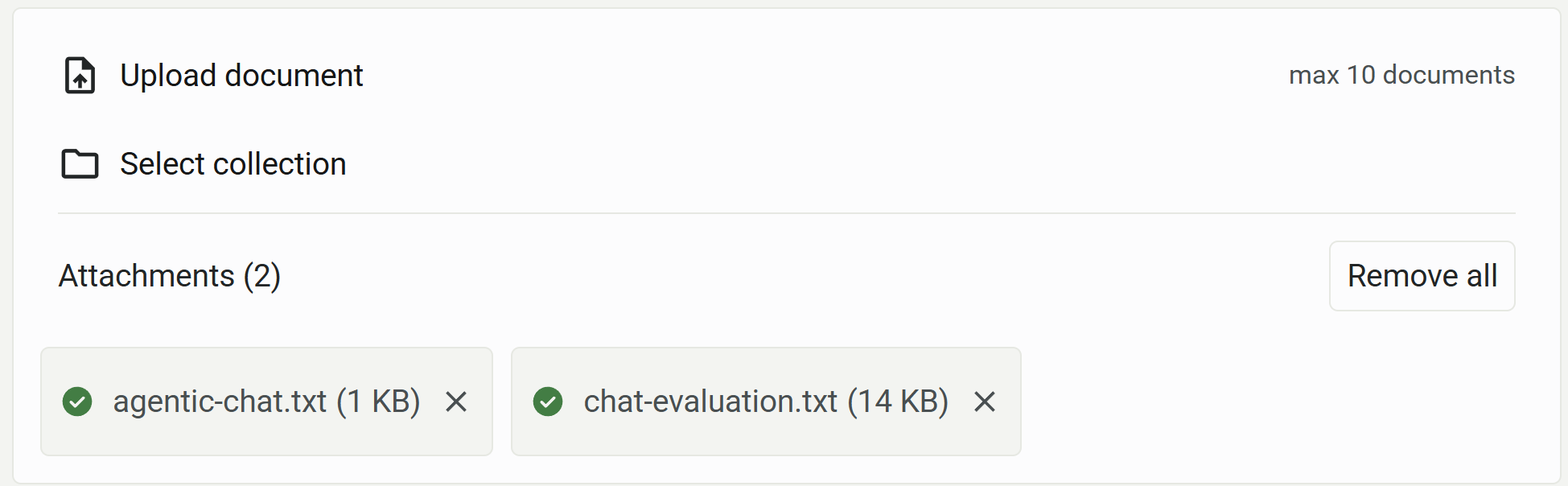
You can now continue with Chat, asking questions about the documents you have uploaded.
Selecting document collections in a chat
For details on how to create collections, see Collections of documents.
| You can only select collections if one or more have created in your account. At the moment you cannot create new collections; this feature is coming soon. |
-
Click the Upload document icon
in the chat window. -
Click Select collection in the popup:
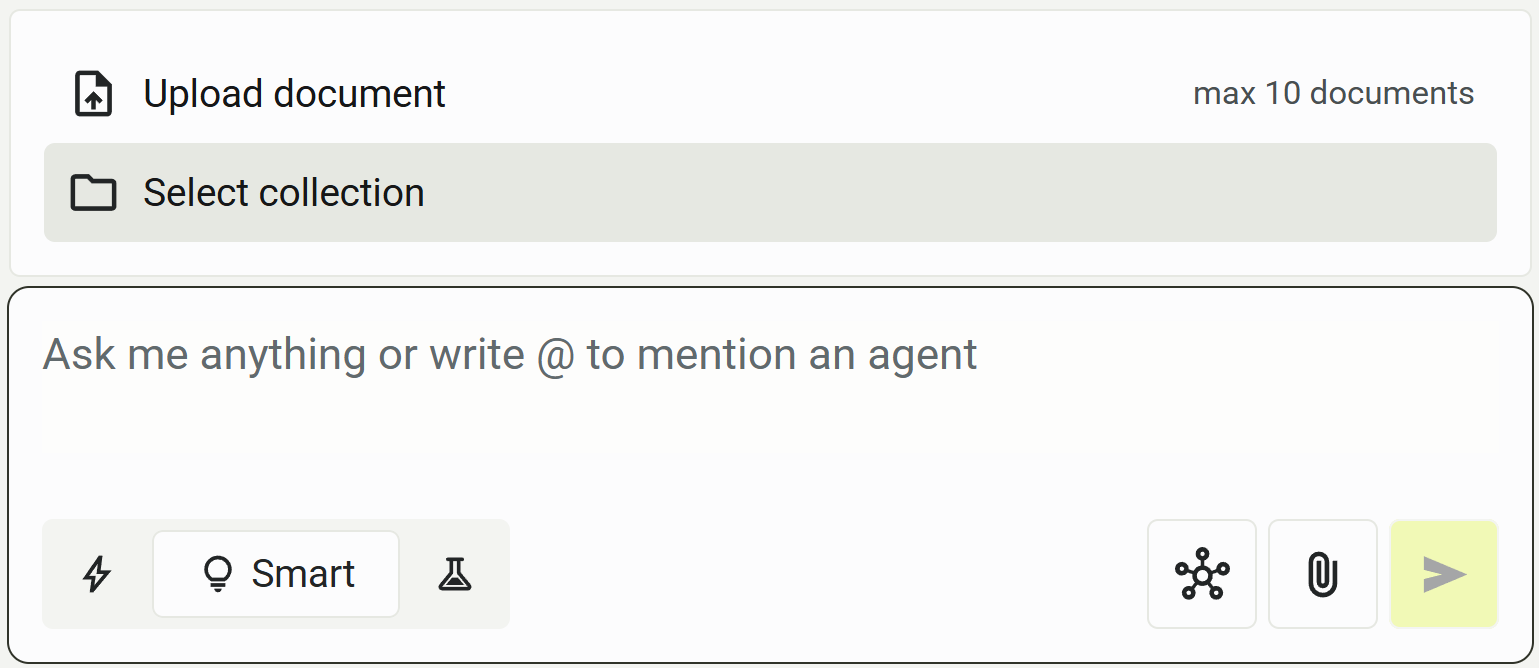
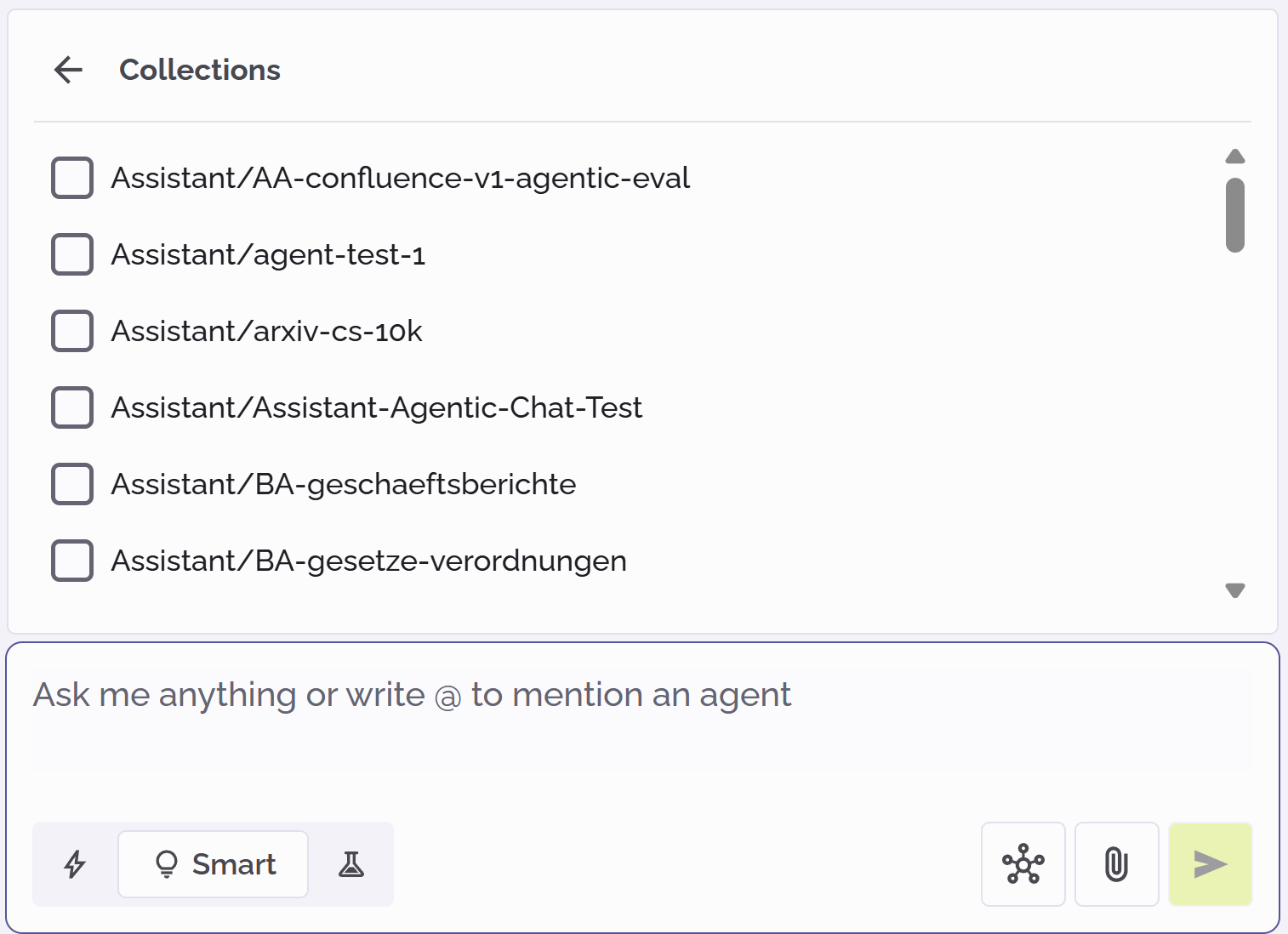
A list of available collections is displayed:
-
Select the collections you want to include.
You can now continue with Chat, asking questions about the documents you have selected.
Viewing references
If Chat uses your uploaded documents or collections to generate an answer, you can view its references by clicking References under the response:
The references are shown in the References tab on the right side of the screen. You can click a reference to see its location within the document it comes from
If PhariaAssistant has not used documents to answer the question, the References button is not displayed.
Using tools in Chat
In Chat, a tool is a helper that connects other systems and APIs to your AI experience. Tools enable new or enhanced functionality, such as searching the internet with web search, or searching files with SharePoint search. The tools that are available to you depends on how your PhariaAssistant instance was configured.
Note that tools are optional helpers; their use is not enforced. For example, if you activate web search, your queries do not necessarily provoke a web search. Chat is enabled to perform a web search as an additional action if it might improve its response to your query.
Activating and deactivating tools
To activate or deactivate a tool, click the tools icon  . A list of tools appears:
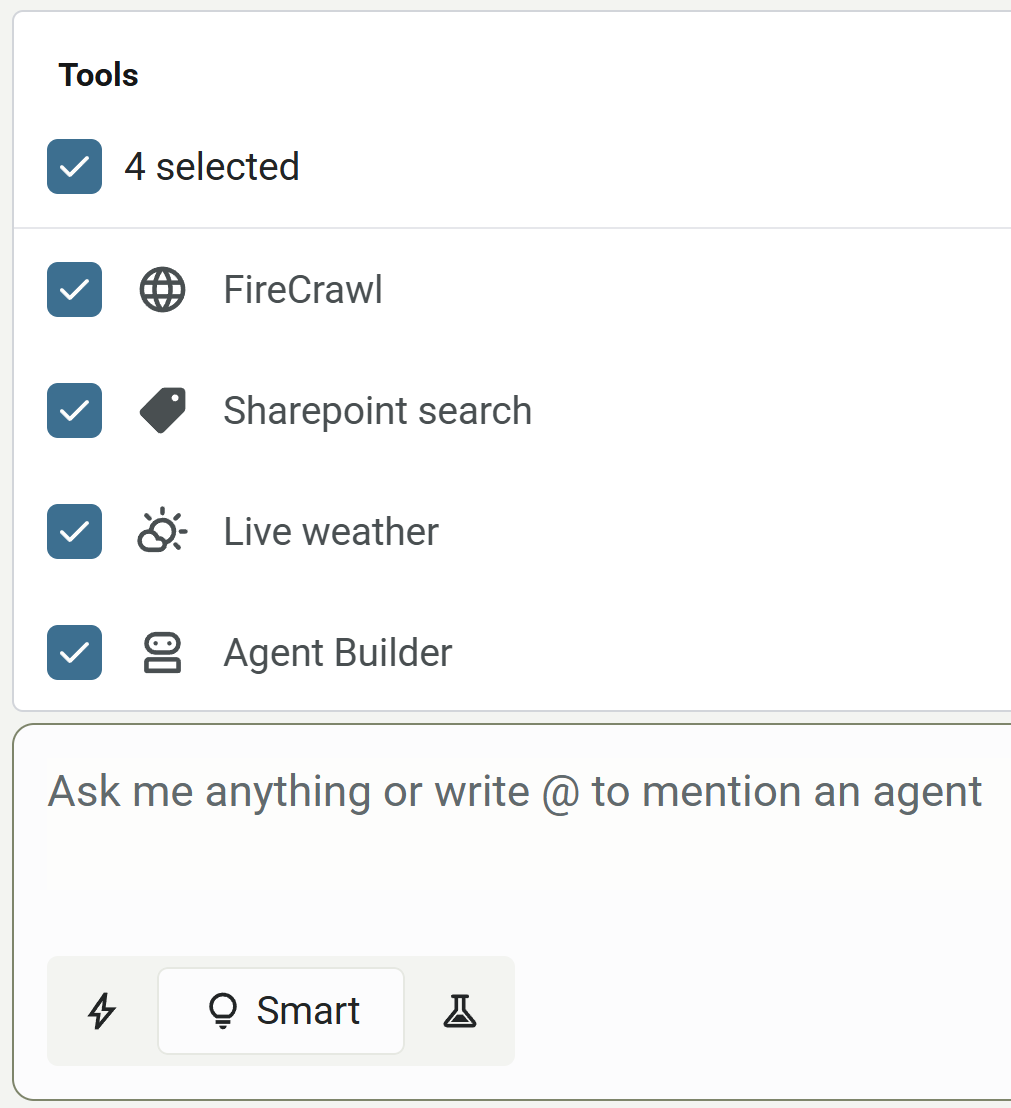
Activate or deactivate tools as required.
Note that in Express mode, you can use only one tool at a time.
Chat history
PhariaAssistant Chat stores a history of your conversation; you can see this when you scroll up in the application. However, when generating an answer, Chat considers only your previous five messages and its own previous four messages. Therefore, if you ask Chat about an answer that occurred more than five messages ago, it will no longer have this knowledge.
Working with Chat’s responses
You can do several actions related to the content of Chat’s responses.
Copying a response
To copy an answer that Chat has generated, click the  icon under the response. This places the answer on your clipboard, and you can paste it into another file as required.
Providing feedback for a response
You can provide positive or negative feedback on specific answers, to indicate whether the answer matches your expectations or not.
To give positive feedback, click the like  icon.
icon.
To give negative feedback, click the dislike  icon. In this case, a popup appears in which you can provide details about why you did not like the response:
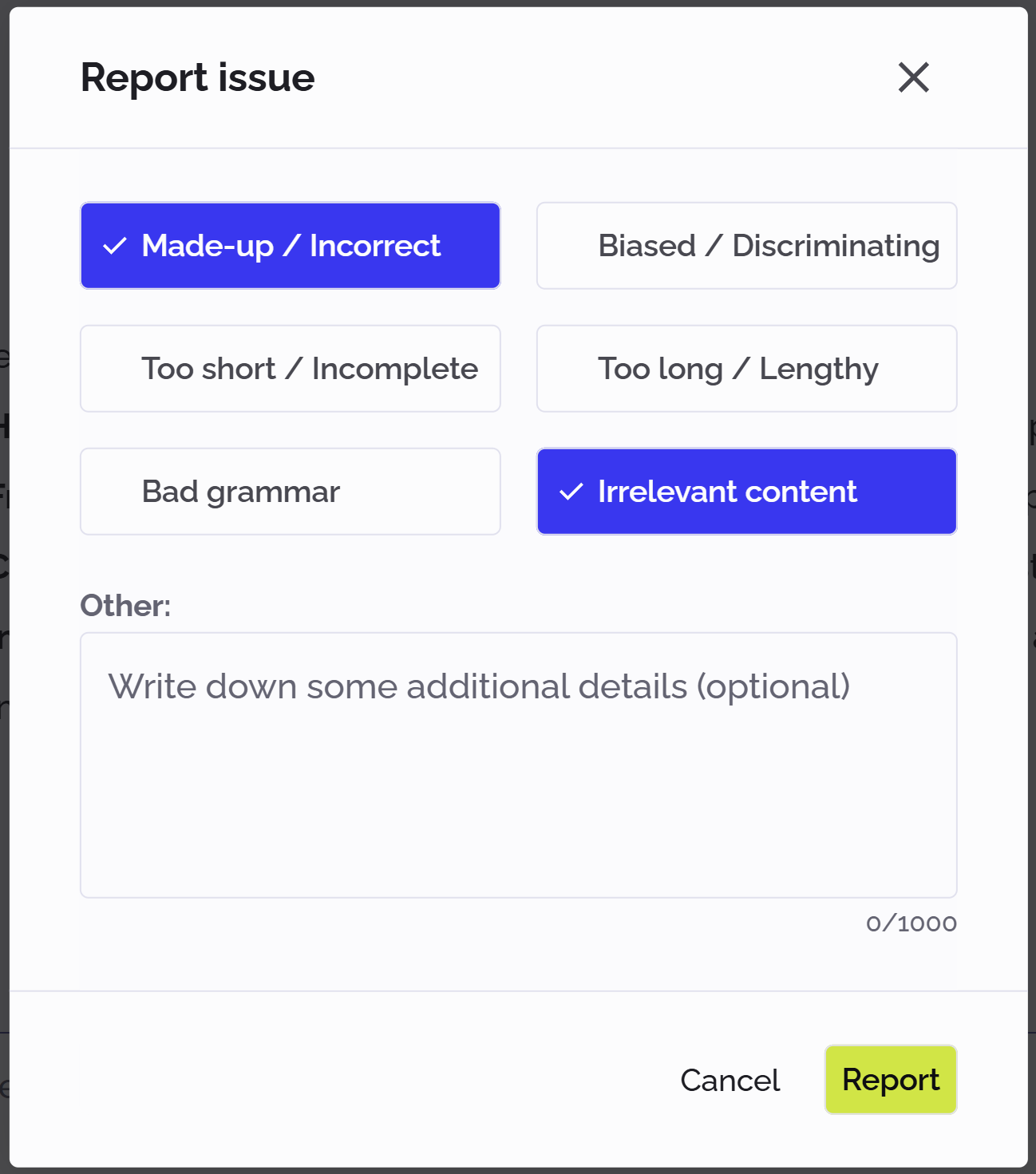
You can select multiple feedback options in the list. Additionally, you can enter a more detailed description of the issue in the Other field. Click Report when you are finished.
Regenerating a response
You can regenerate a response to a query you have already generated in Chat. You may want to do this if you encountered an interruption or error during your previous query, or if you are not satisfied with the first response you received. As generated output in AI systems is nondeterministic, you tend to get different answers to the same question.
To regenerate an answer that Chat generated earlier, click the regenerate  icon under the response.
Managing your chats
You can do several actions related to your completed chats.
Resuming a previous chat
Your chats are stored locally, and you can resume a previous chat easily.
To continue a conversation from earlier:
-
Click Recent Chats at the top of the app.
-
From the dropdown list, select the chat you wish to resume:
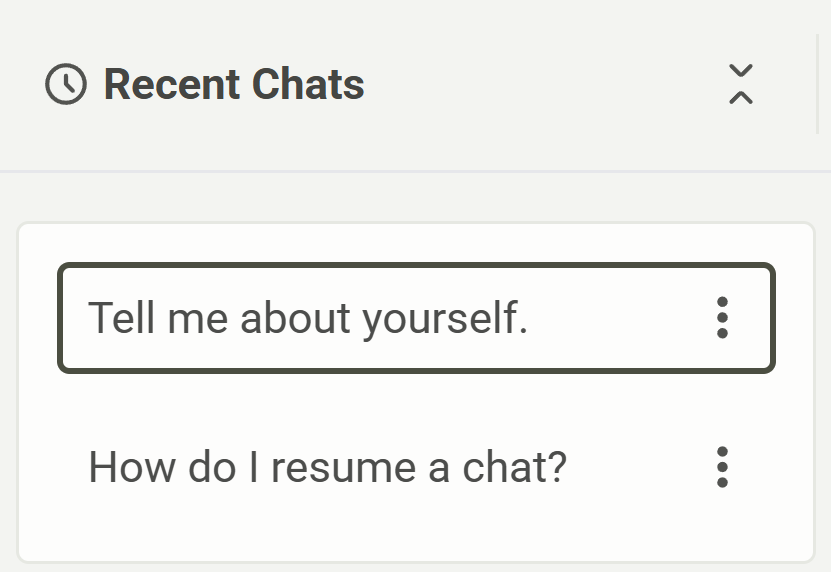
The conversation is displayed in the chat field, and you can resume chatting from where you left off earlier.
Renaming a chat
Chats are automatically assigned a default name based on your initial question, and these are shown in the Recent Chats dropdown list. You can change a chat’s default name to a custom name, as follows:
-
Click Recent Chats at the top of the app.
-
Click the kebab menu icon
 next to the chat you want to rename.
 -
Select Rename chat:
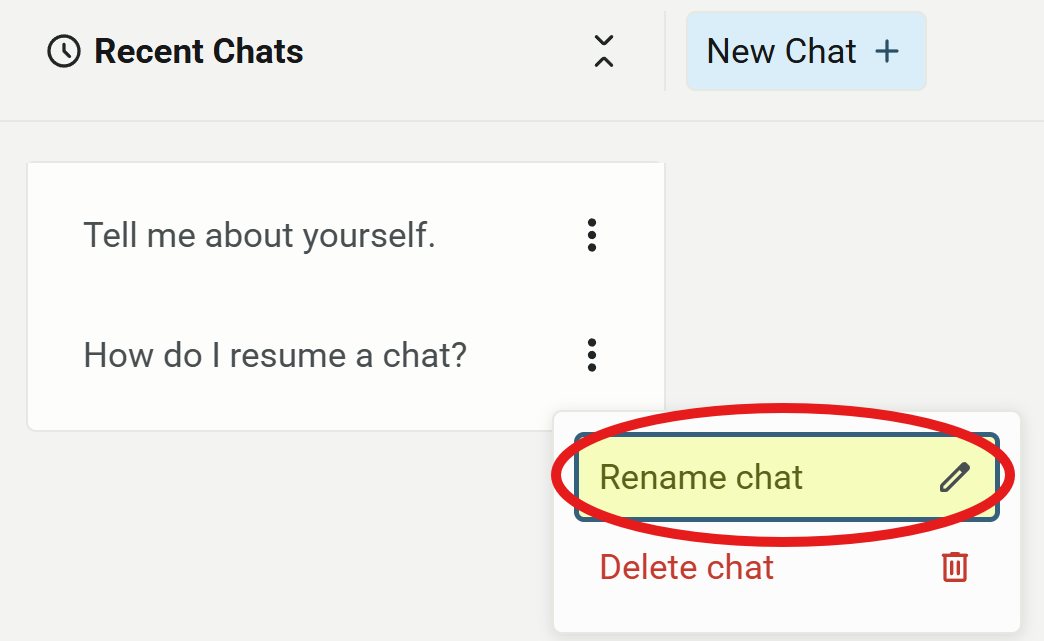
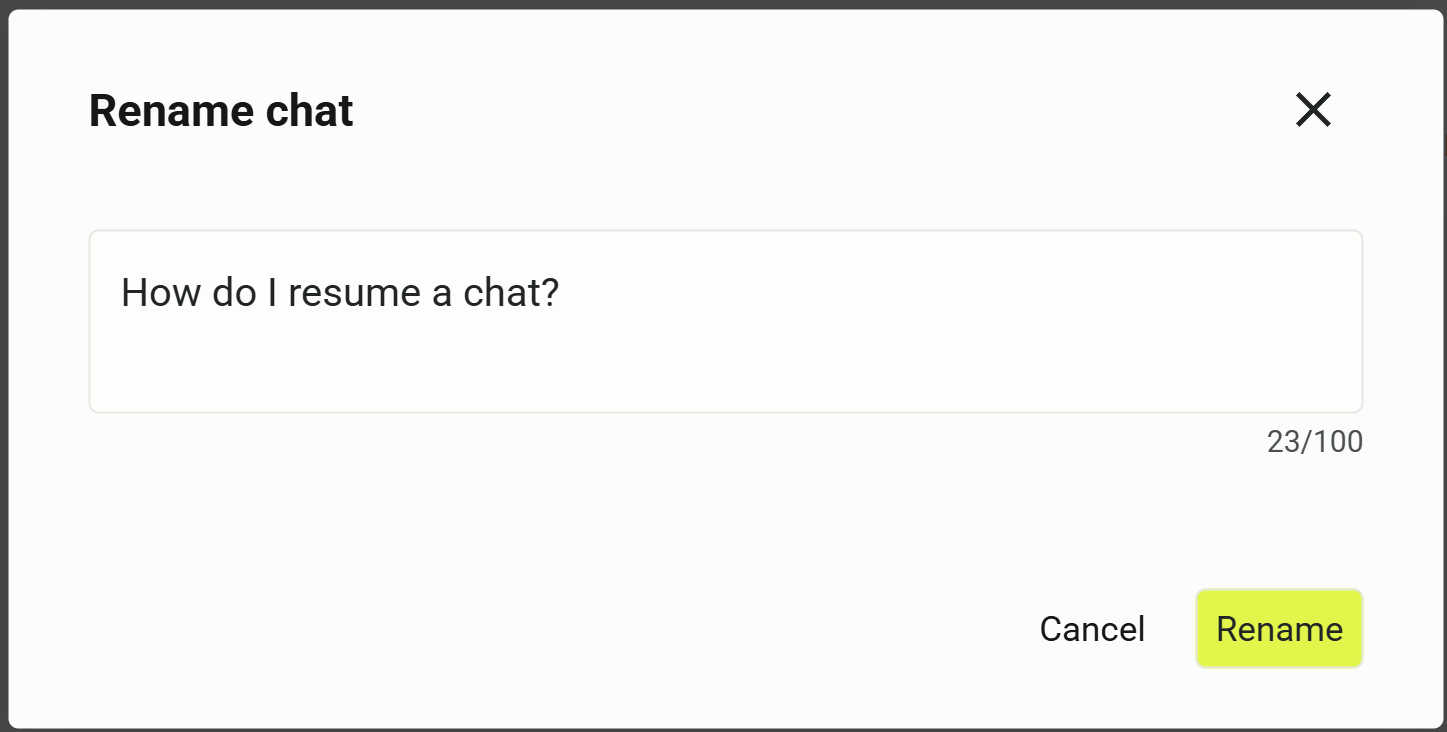
The Rename chat box opens:
-
Enter a new name for the chat.
The chat is renamed.
Deleting a chat
To remove a conversation from your chat history:
-
Click Recent Chats at the top of the app.
-
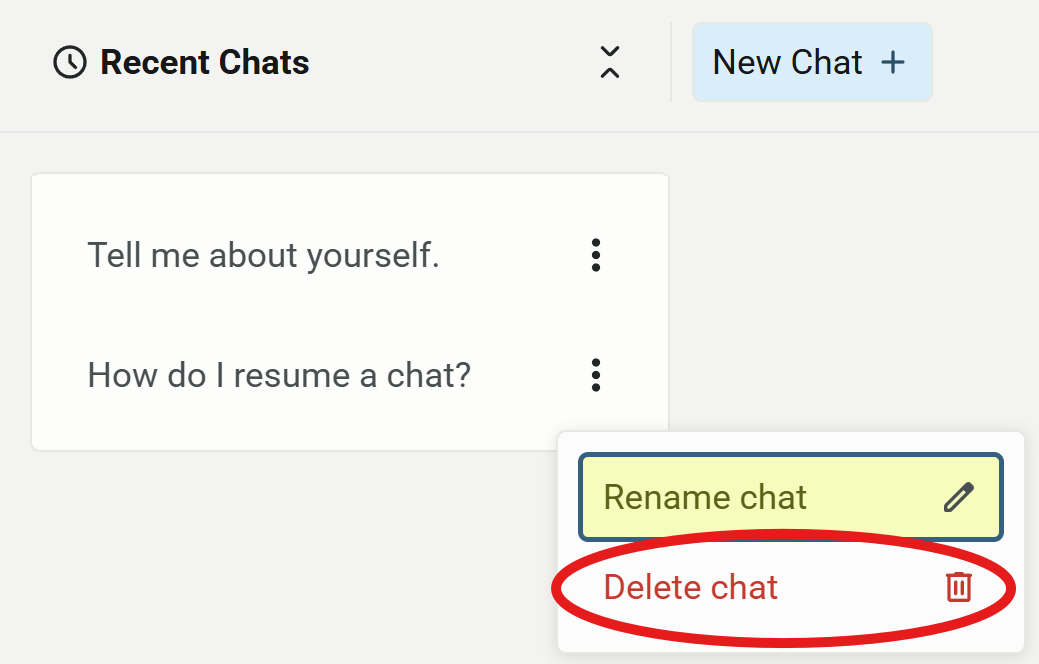
Click the kebab menu icon
next to the chat you want to delete. -
Select Delete chat:
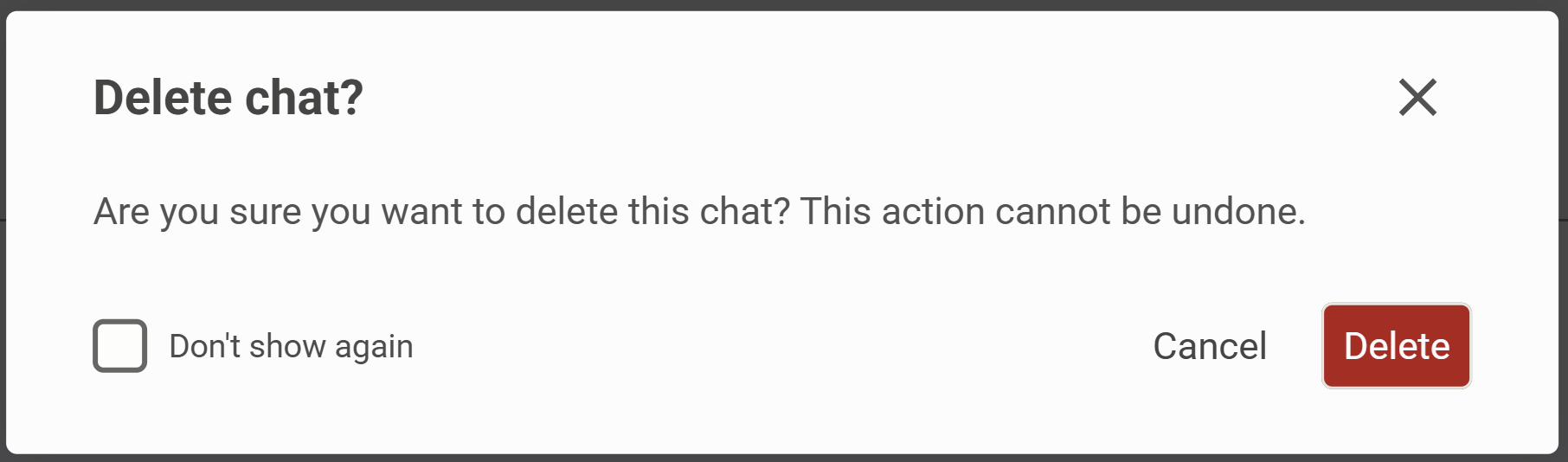
The Delete chat? box opens warning you that chat deletion is permanent:
-
Click Delete to confirm the chat deletion.
The chat is deleted.