Generation (beta)
| This app is in "beta mode". This means that currently it can be inconsistent in its performance or results. While we continue to improve this feature, we consider it to be experimental in its current form. |
PhariaAssistant Generation is a content generation application designed to create tailored, structured content, such as reports or articles, according to instructions you provide. You can improve text, apply language guidelines, or compare texts.
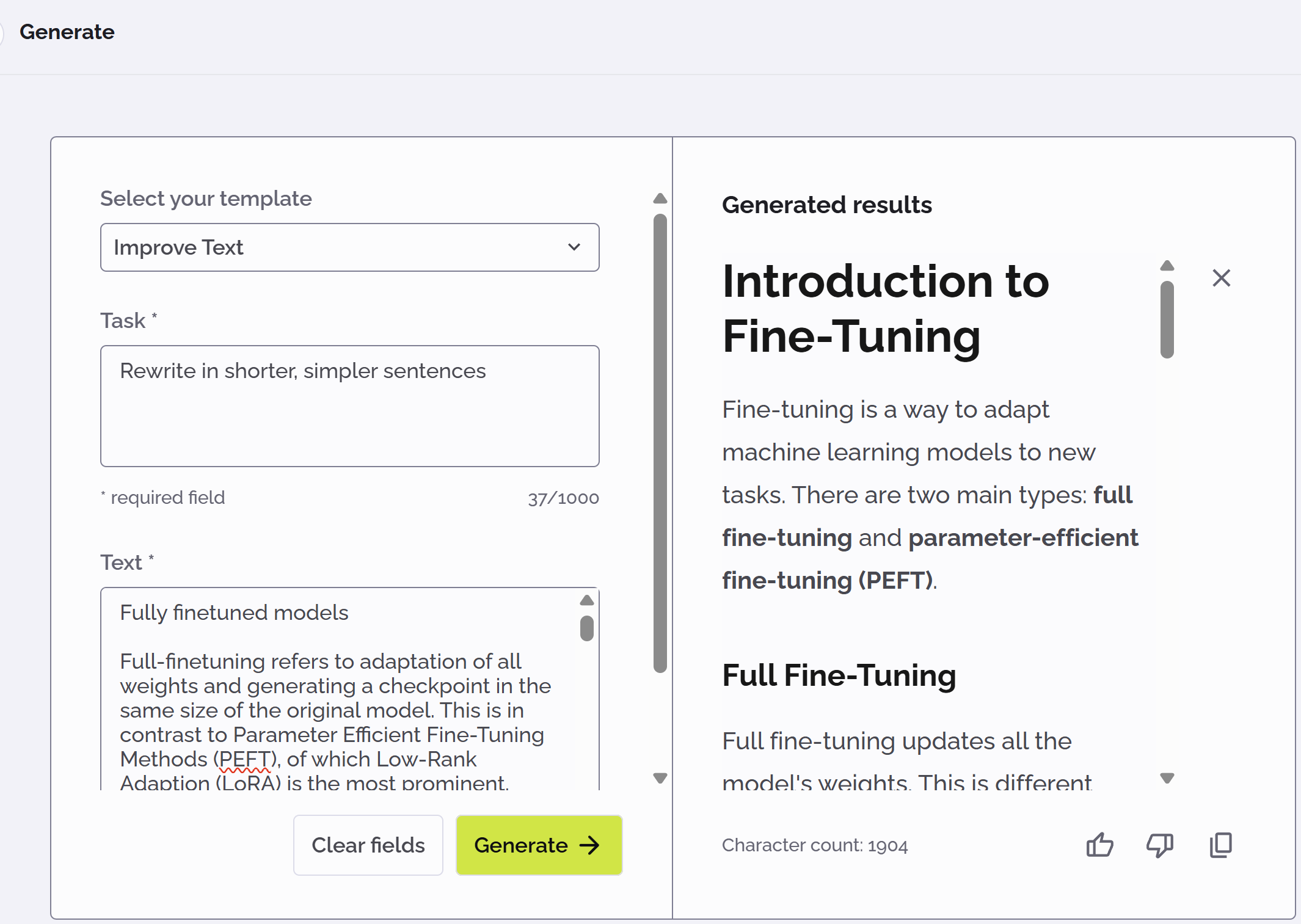
Improving text
You can use Generation to improve text in any way you specify. To do this:
-
Open the Generation application from the sidebar.
-
Select the Improve text template.
The Task and Text entry fields appear. -
In the Task field, enter instructions for how you want the text to be improved. For example, "Rewrite in shorter, simpler sentences" or "Make the tone less formal".
-
Enter or paste your original text into the Text field.
-
Click Generate.
The generated text appears in the Generated results area to the right.
Applying language guidelines to text
You can use Generation to apply guidelines to a text. To do this:
-
Open the Generation application from the sidebar.
-
Select the Apply language guidelines to text template.
The Language style and Text fields appear. -
From the Language style dropdown list, select the guideline you want to apply to your text. For example, Plain language or Gender-inclusive language.
-
Enter or paste your original text into the Text field.
-
Click Generate.
The generated text appears in the Generated results area to the right.
Comparing texts
You can use Generation to generate a synopsis of the difference between two pieces of text. To do this:
-
Open the Generation application from the sidebar.
-
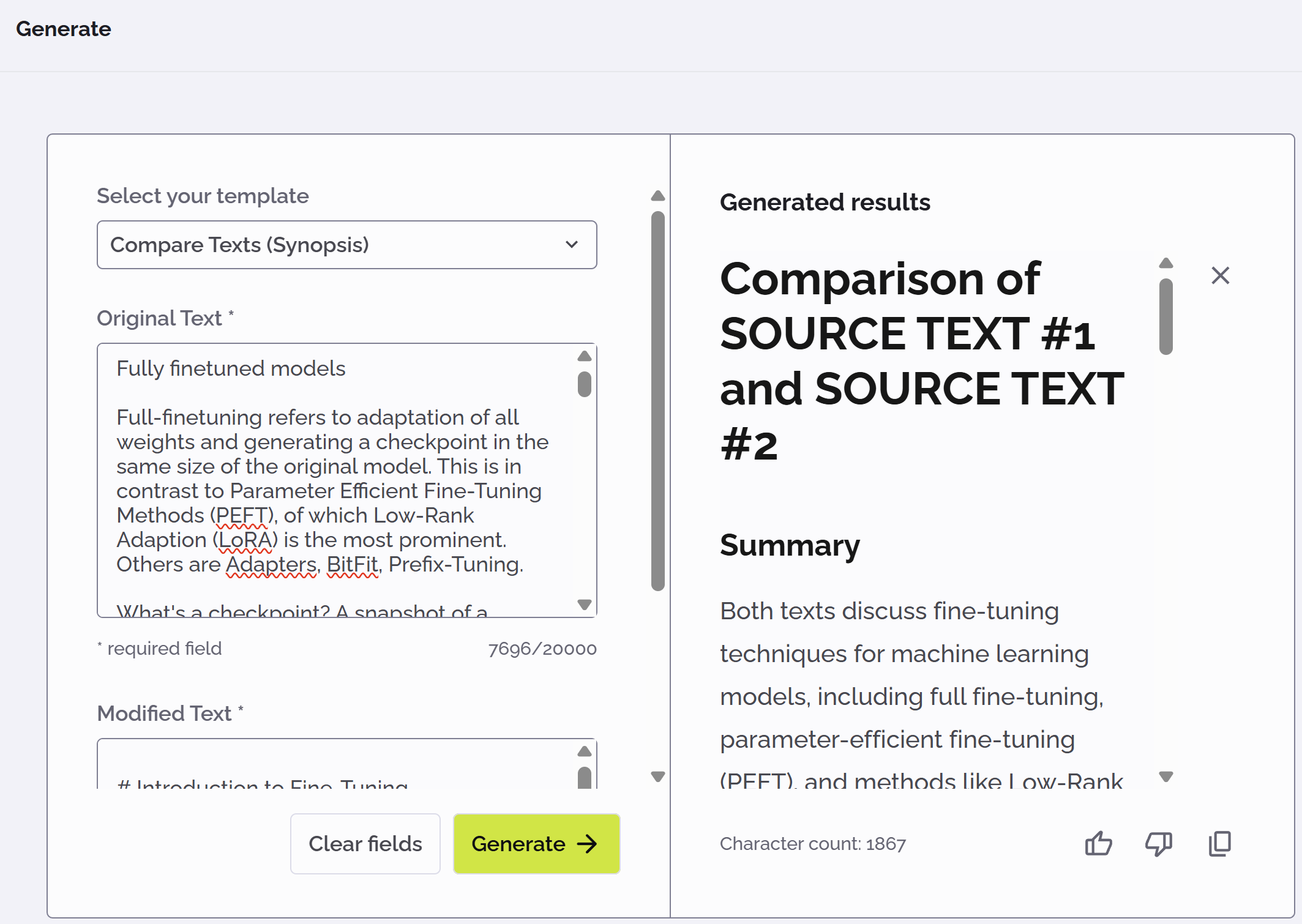
Select the Compare texts (synopsis) template.
The Original text and Modified text entry fields appear. -
Enter or paste your original text into the Original text field.
-
Enter or paste the modified text into the Modified text field.
-
Click Generate.
The generated text appears in the Generated results area to the right:
Editing generated text
You can edit the generated text simply by clicking inside the Generated results area and modifying the text as required.
Copying generated text
To copy the generated text, click the  icon in the Generated results area.
The text is copied to your buffer and can be pasted in other applications.
Clearing the text fields
To remove all text from the entry fields, click Clear fields. All text you entered is removed.
Providing feedback
You can provide positive or negative feedback on generated text, to indicate whether it matches your expectations or not.
To give positive feedback, click the like  icon.
icon.
To give negative feedback, click the dislike  icon. In this case, a popup appears in which you can provide details about why you did not like the results:
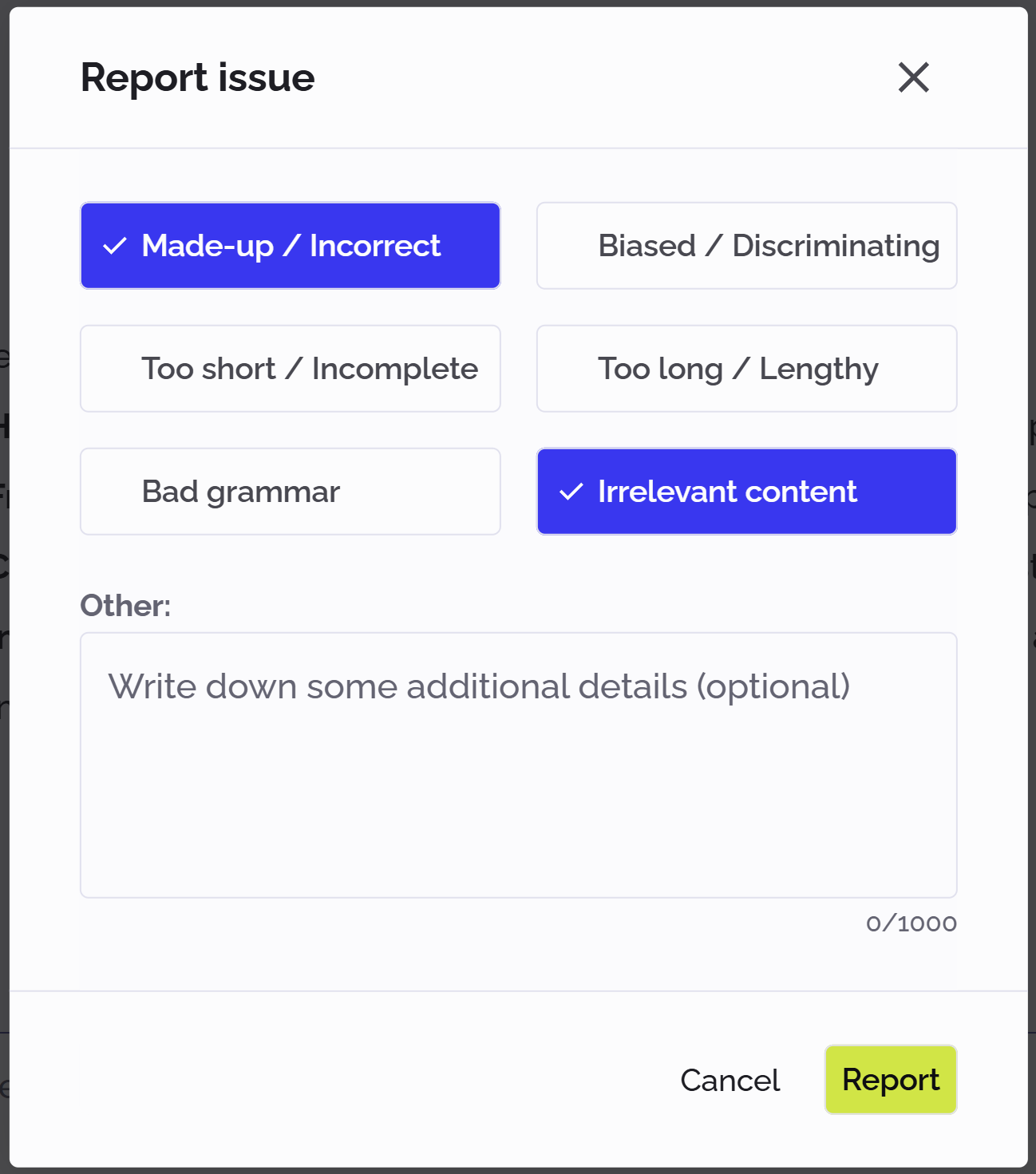
You can select multiple feedback options in the list. Additionally, you can enter a more detailed description of the issue in the Other field. Click Report when you are finished.