Tutorial: Generating deep research reports with Chat
In PhariaAssistant Chat, you can use Deep mode to create deep research reports. You can add tools and collections to optimise the results, and edit and format the generated report.
Step 1: Set Deep mode, and select tools and collections
In the Chat application, select Deep research mode:

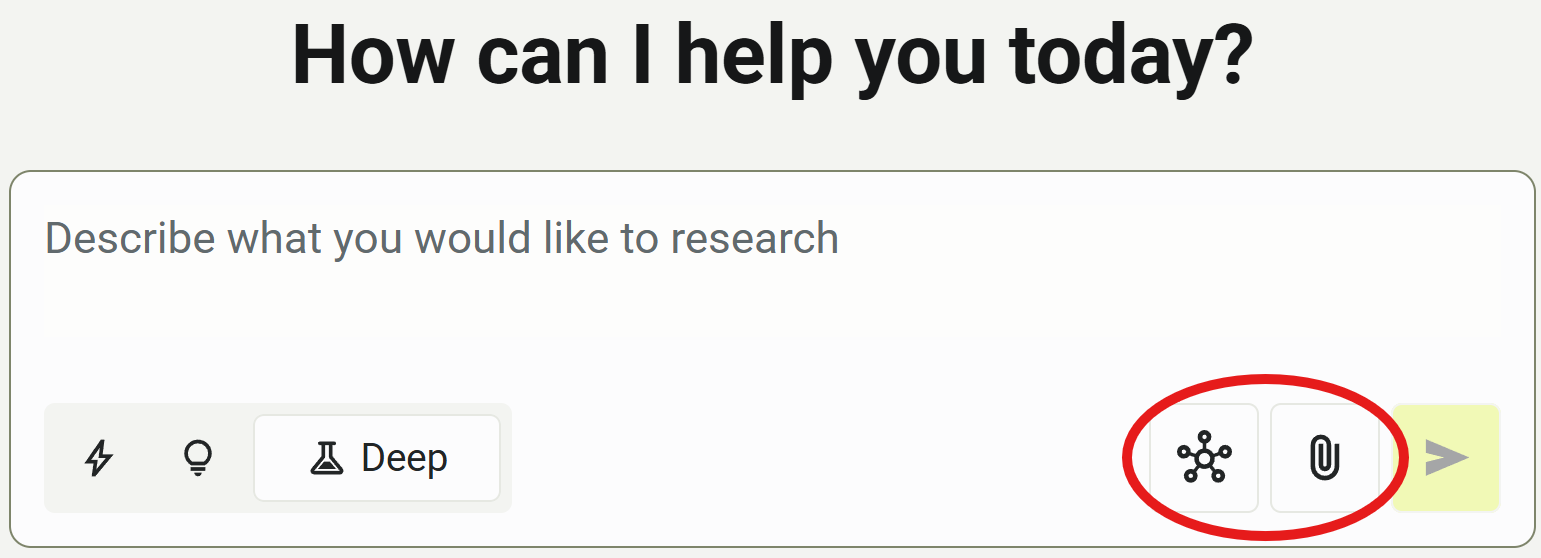
If you wish, choose tools and/or collections to help with your research:
Step 2: Enter your research query
Now enter your research query in text field. Click  Send, or press Enter on your keyboard.
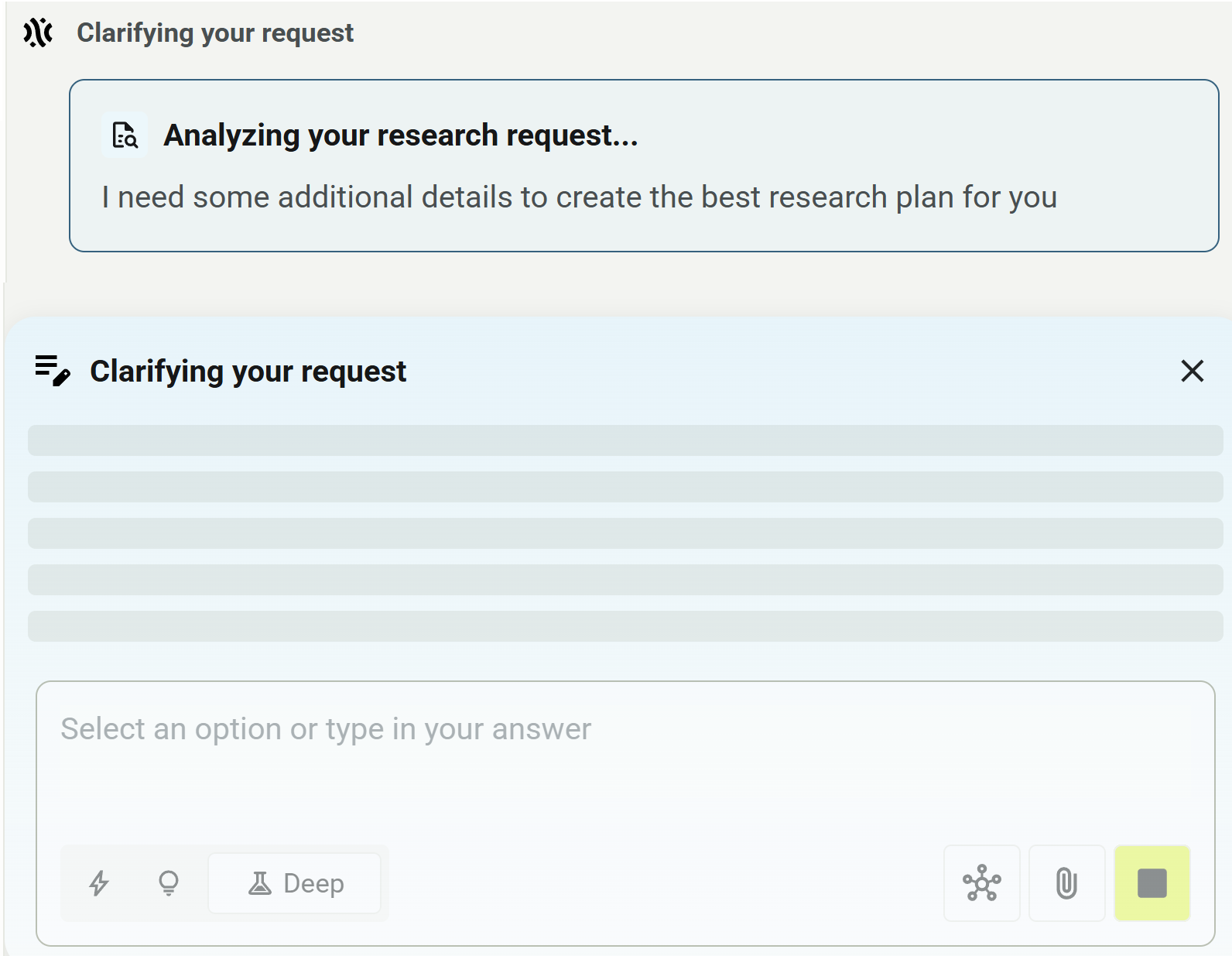
Chat now analyses your query:

The intent clarification process starts. Depending on the query, you may be asked follow-up questions to ensure that the research result matches the intent of your query.
Step 3: Answer the clarification questions
Select or enter answers to the follow-up questions to further guide the creation of the deep research report:
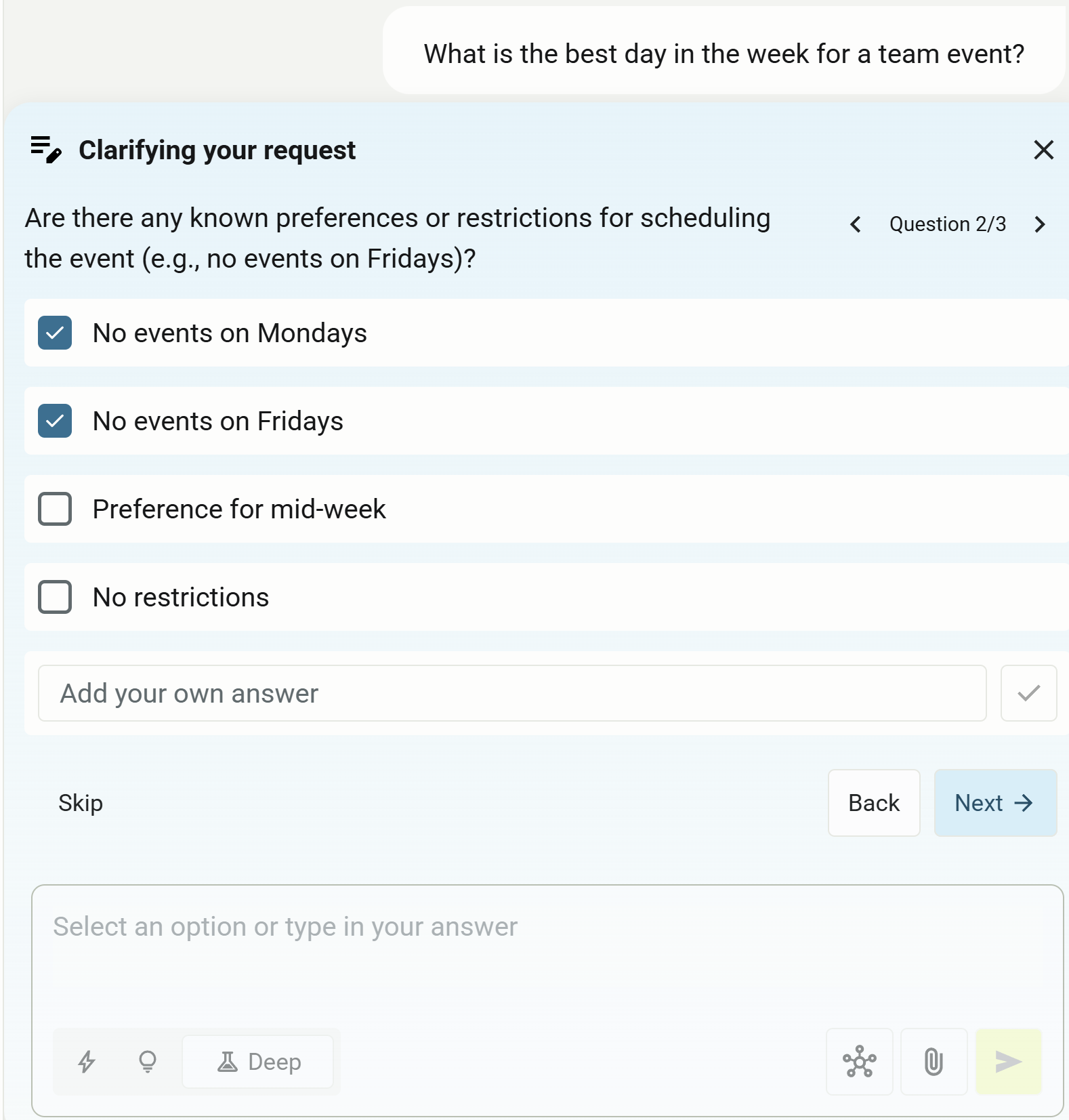
Click Next after answering each set of questions. You can click Back to return to previous questions. Finally, click Submit when you have answered all the questions.
Chat analyses your request again, taking into consideration your clarifications:
Chat now generates a research plan.
Step 4: Consider the research plan, revise if necessary
Consider the research plan:
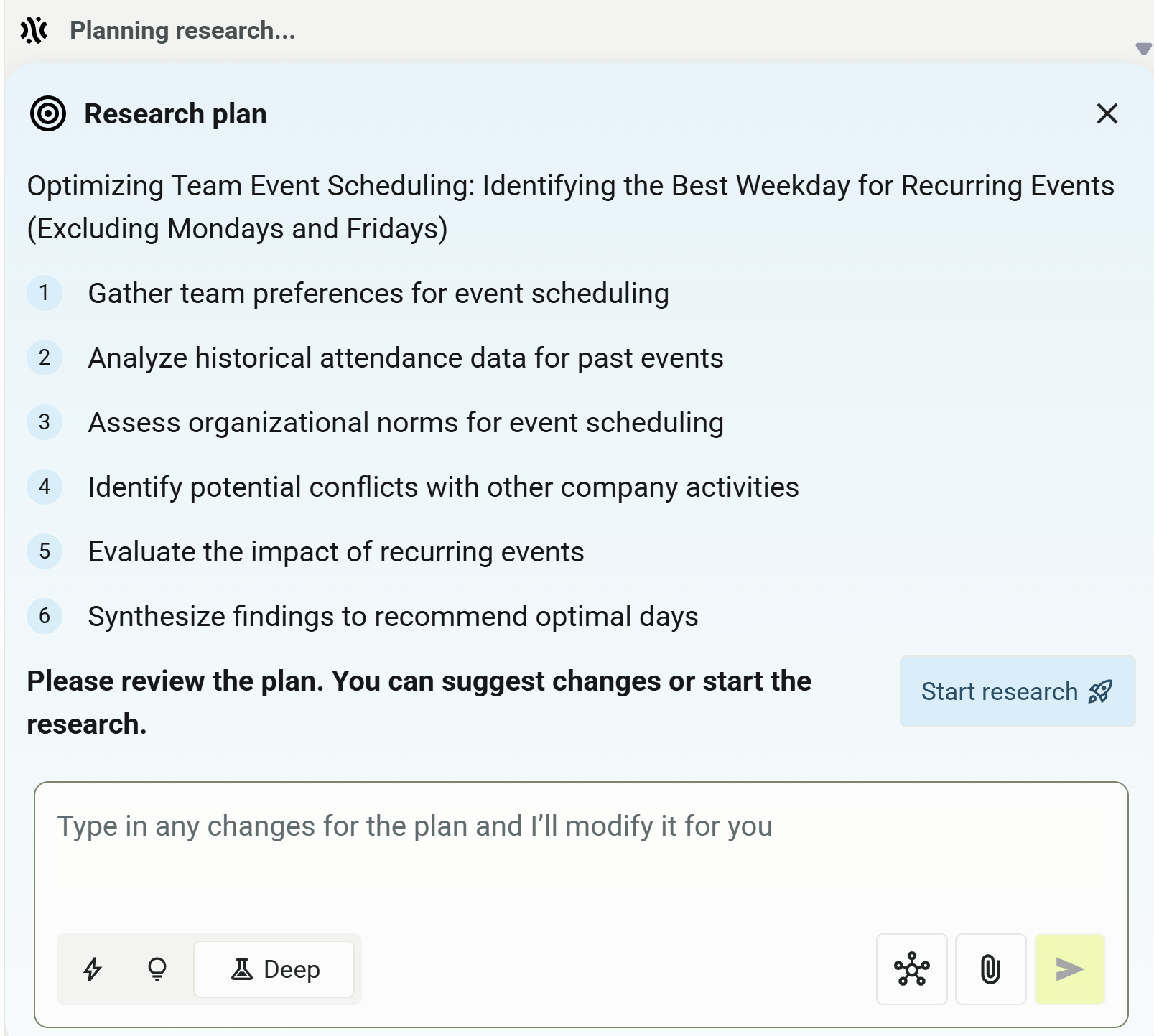
An agent will follow your research plan to create the deep research report for your query.
If necessary, you can revise the plan. Enter any requests to modify the current plan, and press Enter or click .
For example, you may feel (in our sample use case) that it is unnecessary to evaluate the impact of recurring events. In this case, you would make the following request:
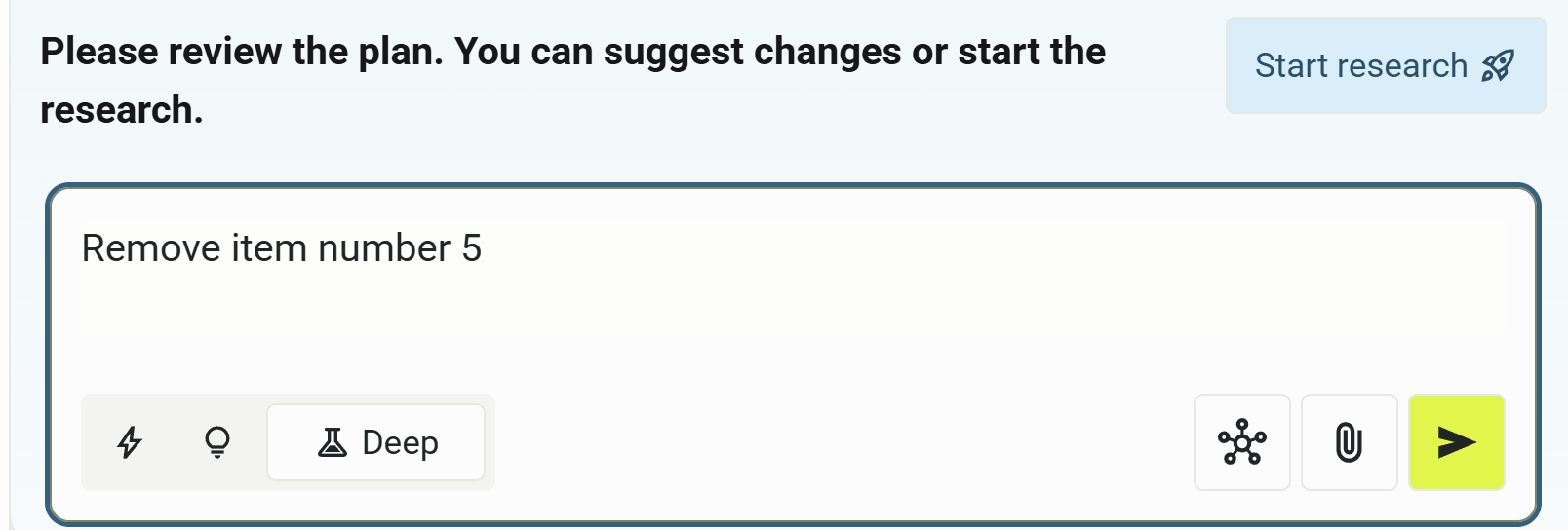
Continue requesting changes to the plan as needed.
Step 5: Start the research
When you are satisfied with the research plan, click Start research:

The research process is started and Chat displays the progress status as it follows the steps of the research plan.
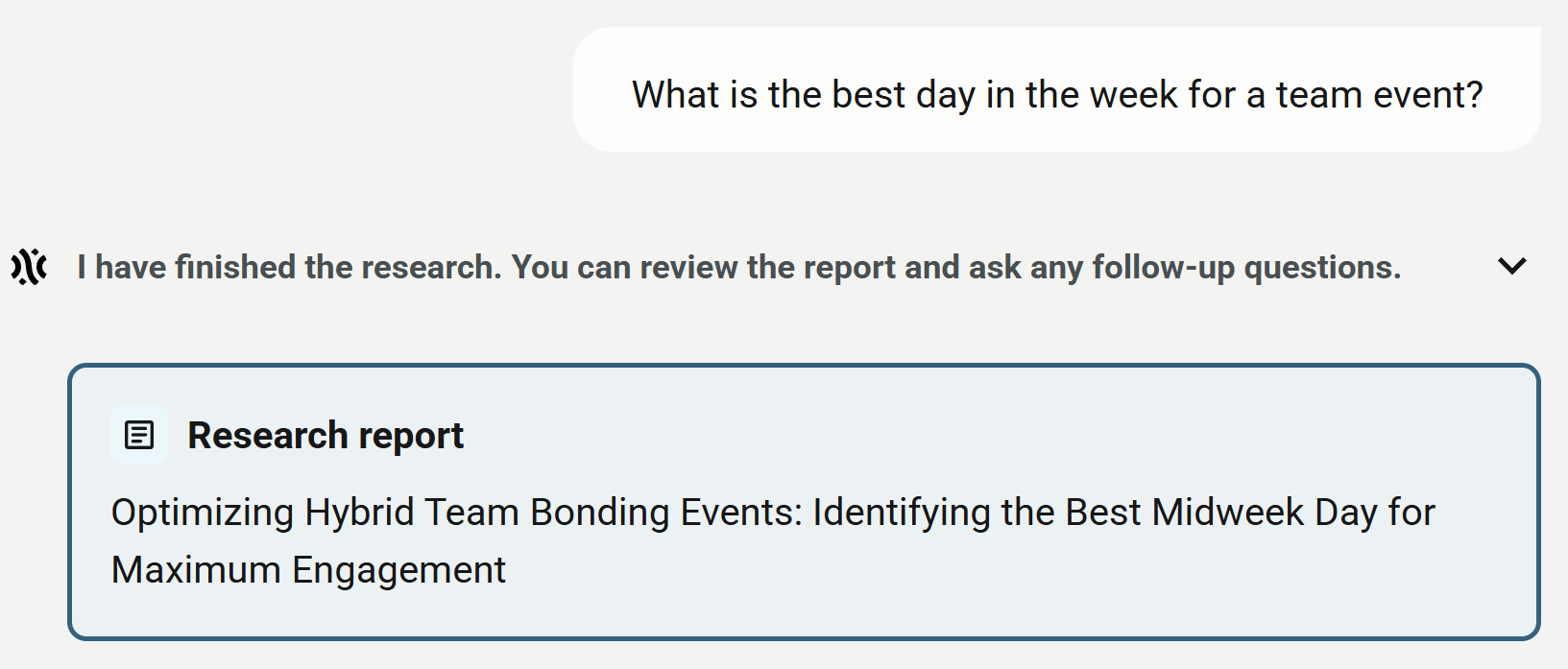
When the deep research is finished, a report is generated and displayed to the right. If necessary, you can continue asking questions to revise the results.
Step 6: Editing and formatting the deep research report
The research report can be edited, formatted and finally exported when you arrive at a final version:
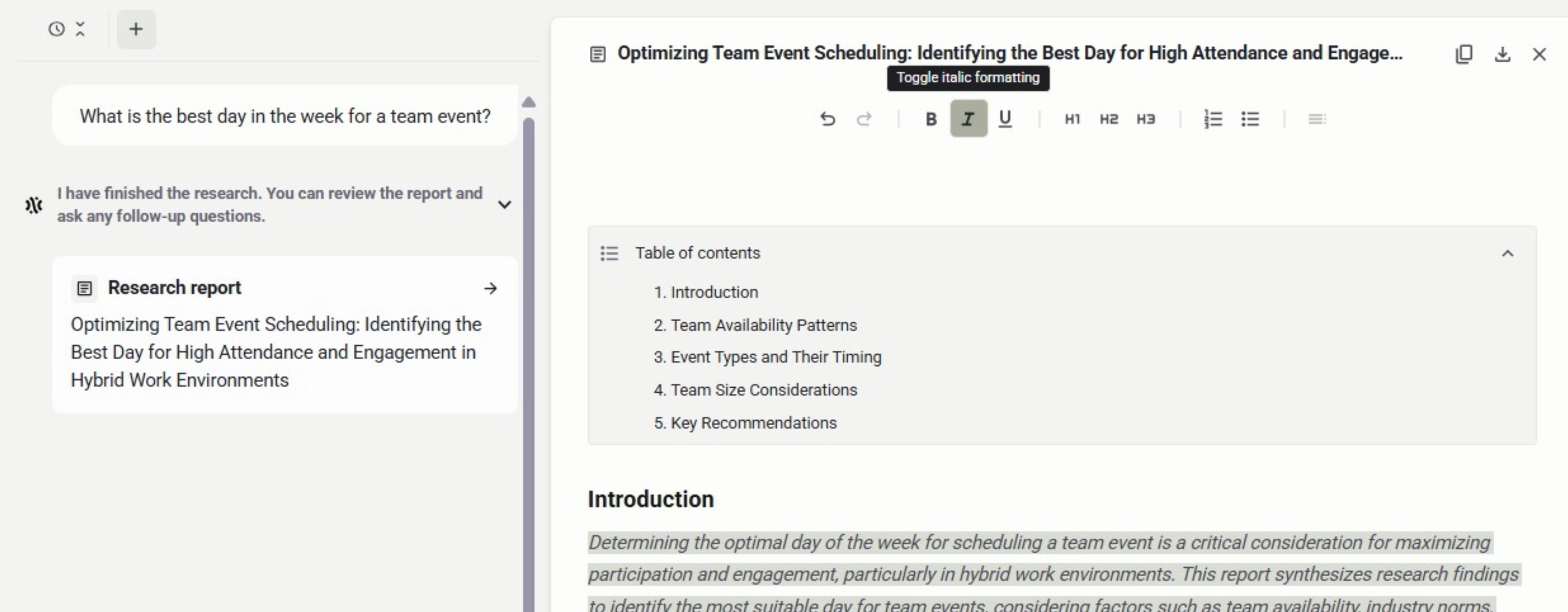
You can apply standard formatting to the text (bold, italics, underline, and so on), but you also have more advanced text editing options, including:
-
applying bulleted and numbered lists
-
applying headings
-
generating a table of contents
The table of contents updates instantly when you add, remove, and edit headings. You can collapse and expand the table of contents by clicking the arrow at the top right.
Step 7: Copying and exporting the research report
Click the copy icon to copy the report to the clipboard:

The report’s formatting is preserved in Markdown format.
You can also export the report directly to a .txt file, again stored in Markdown, by clicking the export icon:

Finally, you can close the report by clicking the X icon:

To reopen the report, click on its tile in the chat flow.