Summarization
The PhariaAssistant Summarization application generates a summary of text you enter or upload. At the time of writing, Summarization supports the English and German languages.
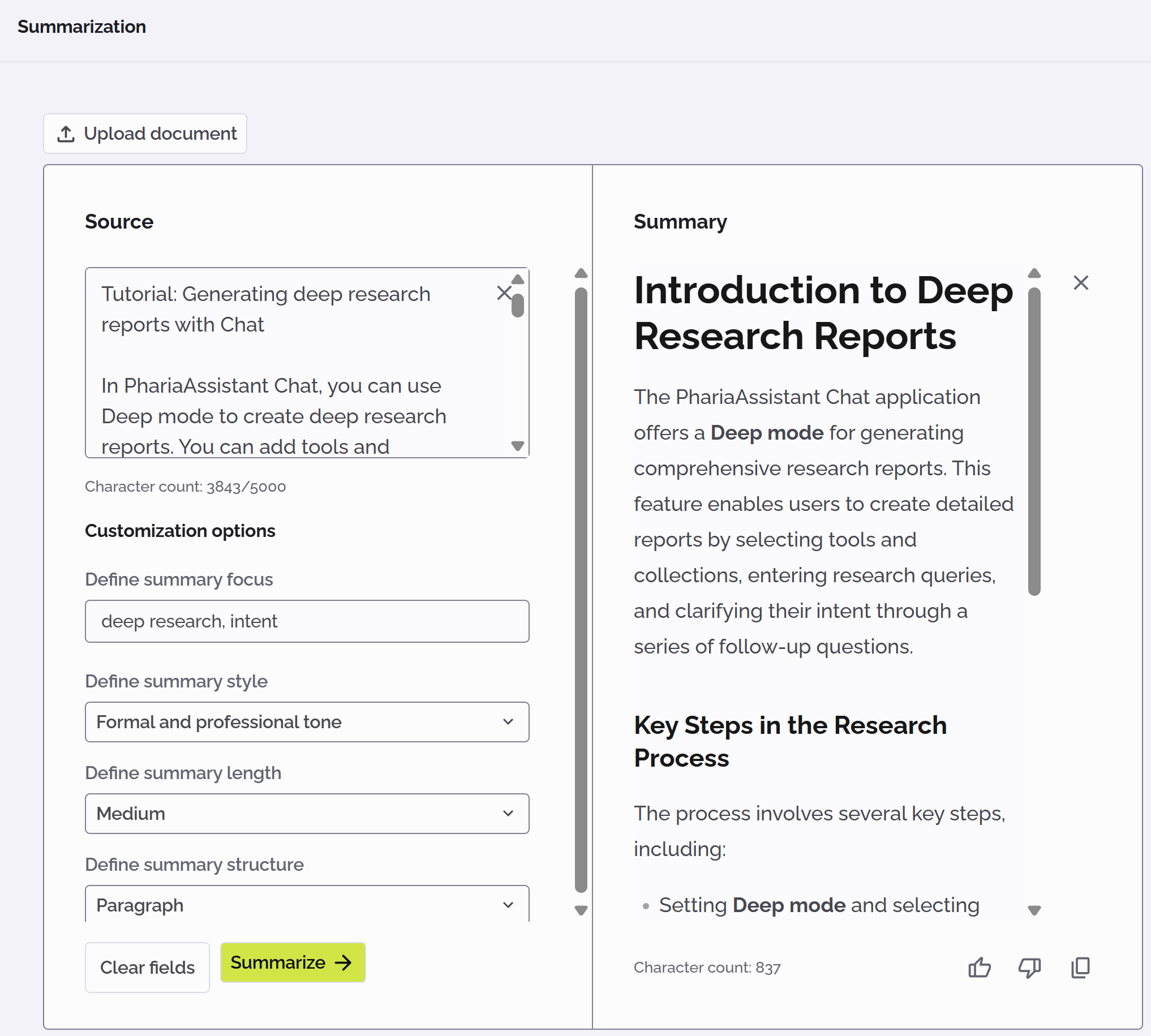
Summarising text and documents
To summarize text you insert into directly into the Source field or you upload from a file:
-
Open the Summarization application from the sidebar.
-
Specify source text in one of two ways:
-
Type or paste text into the input field in the Source area.
-
Click Upload document, and either drop a file onto the popup or click Click to select and choose files from your file selector.
-
-
Customise how you want the summary to be generated:
-
Enter one or more themes you want to focus on in the summary.
-
Specify the tone of the summary: formal, simple, or standard.
-
Select the desired length for the summary: short, medium, or long.
-
Select a structure type for the summary: paragraphs or bullet points.
-
-
Click Summarize.
The generated summary appears to the right in the Summary area.
You can generate a new summary by clicking the Summarize button again. The new summary replaces the previous one.
Limitations
-
If you upload a document after summarising some text, the newly uploaded document is used for summarisation and the previous input text is removed.
-
Only one document can be uploaded at a time.
-
The supported document formats are .docx, .pdf, and .txt.
-
The maximal document size is 20 MB.
-
PhariaAssistant supports PDF documents that require optical-character recognition (OCR), that is, scanned documents. This is currently limited to documents with at most five pages.
Editing generated summary text
You can edit the summary text simply by clicking inside the Summary area and modifying the text as required.
Copying generated summary text
To copy the summary text, click the  icon in the Summary area.
The summary text is copied to your buffer and can be pasted in other applications.
Clearing the source text
To delete the source text, click the  icon in the top right of the Source area:

The source text and its summary are removed.
Removing the source document
To remove the source document, click the icon next to the uploaded document:
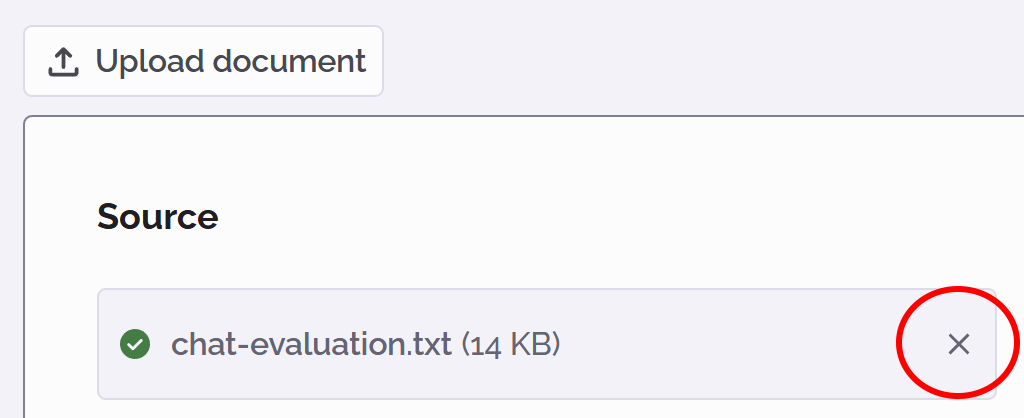
The source document and its summary are removed.
Providing feedback
You can provide positive or negative feedback on a summary, to indicate whether it matches your expectations or not.
To give positive feedback, click the like  icon.
icon.
To give negative feedback, click the dislike  icon. In this case, a popup appears in which you can provide details about why you did not like the summary:
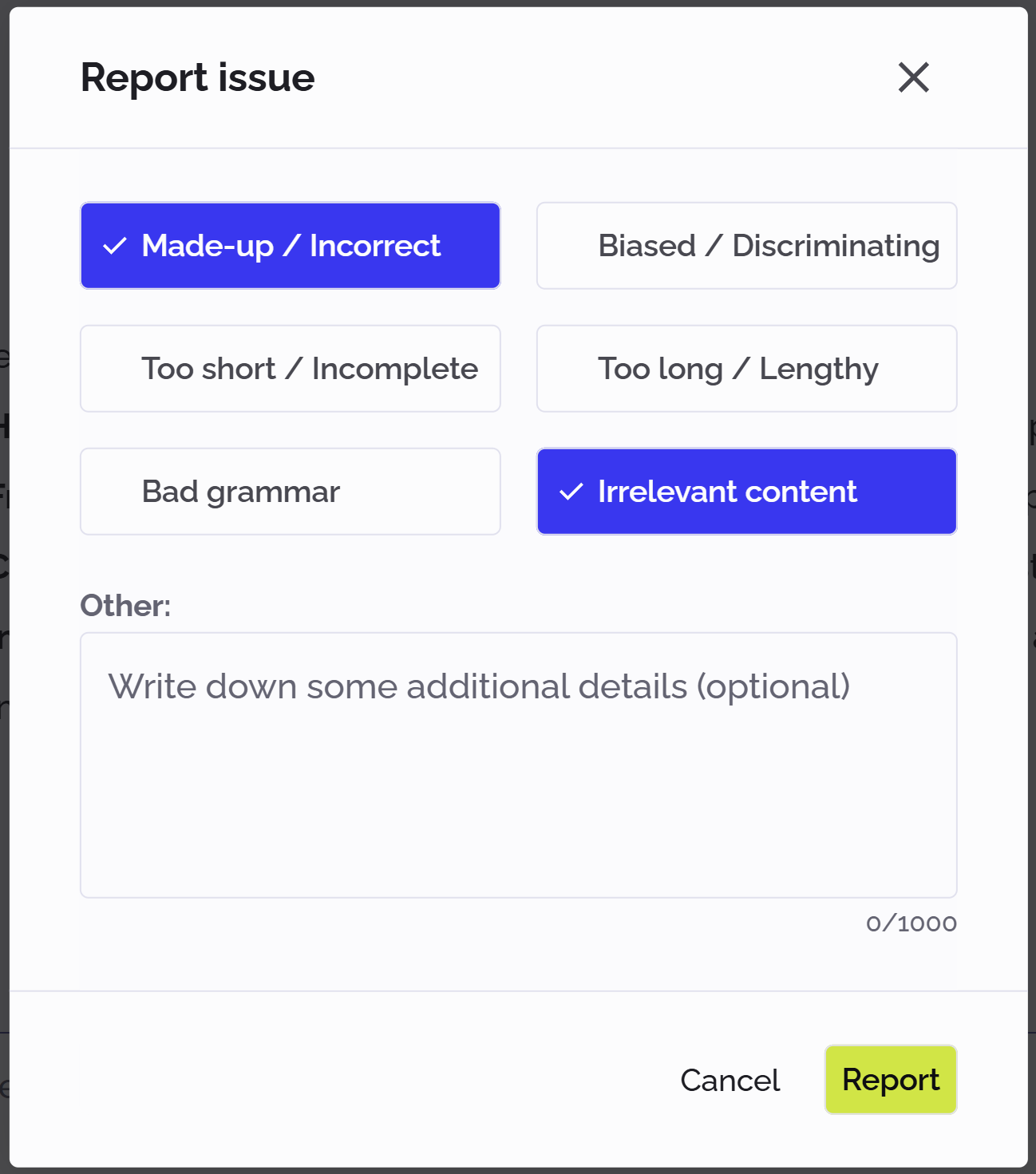
You can select multiple feedback options in the list. Additionally, you can enter a more detailed description of the issue in the Other field. Click Report when you are finished.