Configuring SSO with an external identity provider
The internal identity provider used by PhariaAI, Zitadel, offers the possibility to integrate external identity providers for single sign-on (SSO). This allows users to log in to PhariaAI with their existing account from a company identity provider, such as Google, Microsoft, or Okta.
Prerequisite
The flag pharia-iam.config.adminEnableZitadelManagement was enabled during the installation of PhariaAI.
See IAM configuration.
Configuring an external identity provider
Open the Zitadel console
-
Navigate to the Zitadel console at
https://login.<YOUR_CONFIGURED_DOMAIN>and log in with your initial user account. -
If you land on the info page of your admin account, navigate to
https://login.<YOUR_CONFIGURED_DOMAIN>/ui/consoleor click the logo in the top left corner. If this has no effect, you probably logged in with the wrong account.
Add an external identity provider
-
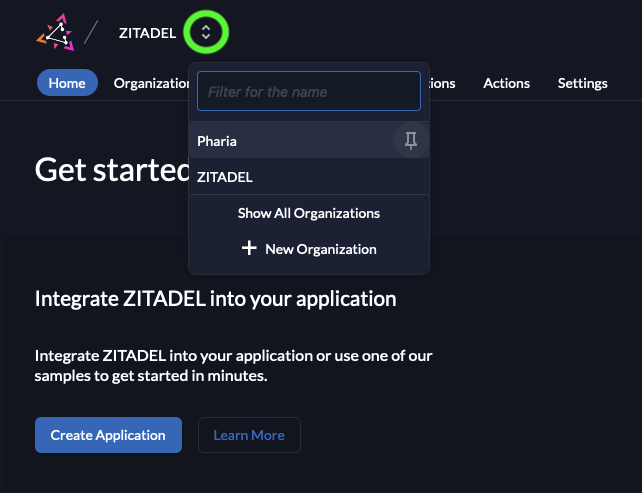
In the Organization field, select Pharia:
-
In the Settings tab, open Identity Providers.
Zitadel displays a list of pre-configured external identity providers. -
Select the desired provider and follow the instructions.
-
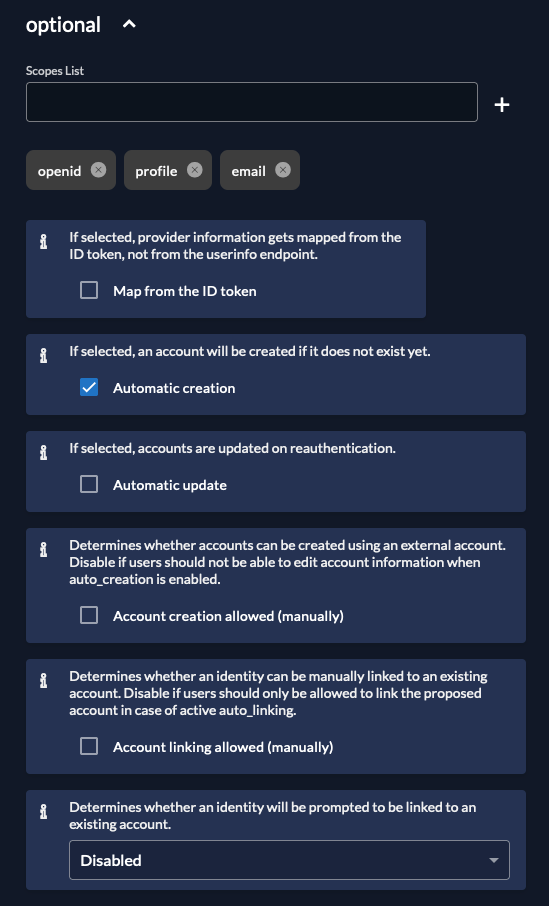
For a seamless user experience, we recommend to allow accounts to be created automatically only. To do this, configure the following settings as shown:
-
Click Activate to activate the identity provider.
For more information on how to configure external identity providers, see the Zitadel documentation.
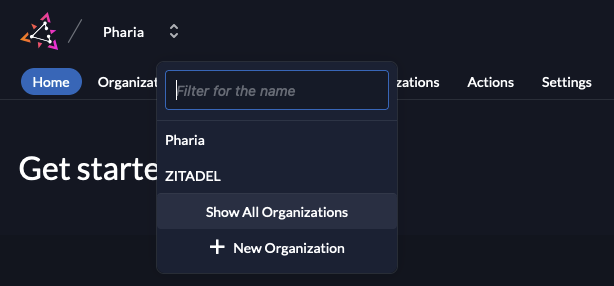
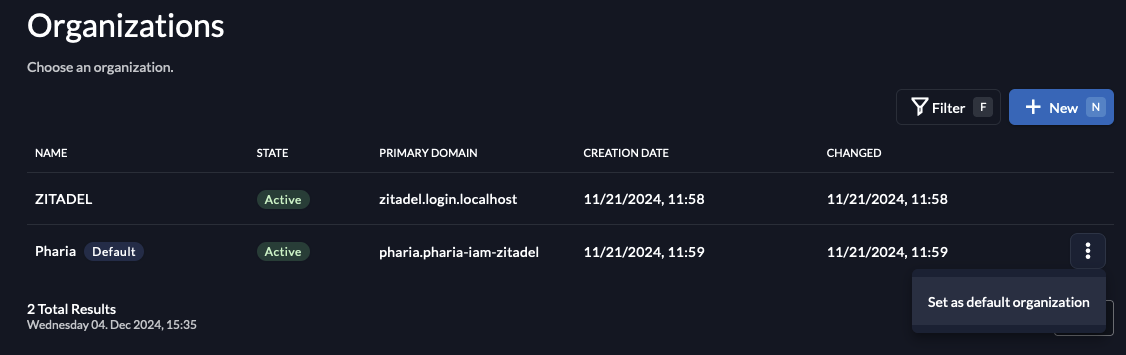
Enabling SSO in the login page

Configuring default roles for federated users
To access resources in PhariaAI, each user must be assigned at least one role (see Access control: User roles and permissions). You can configure the default roles to be assigned to federated users on their first login.
Set up role assignment
-
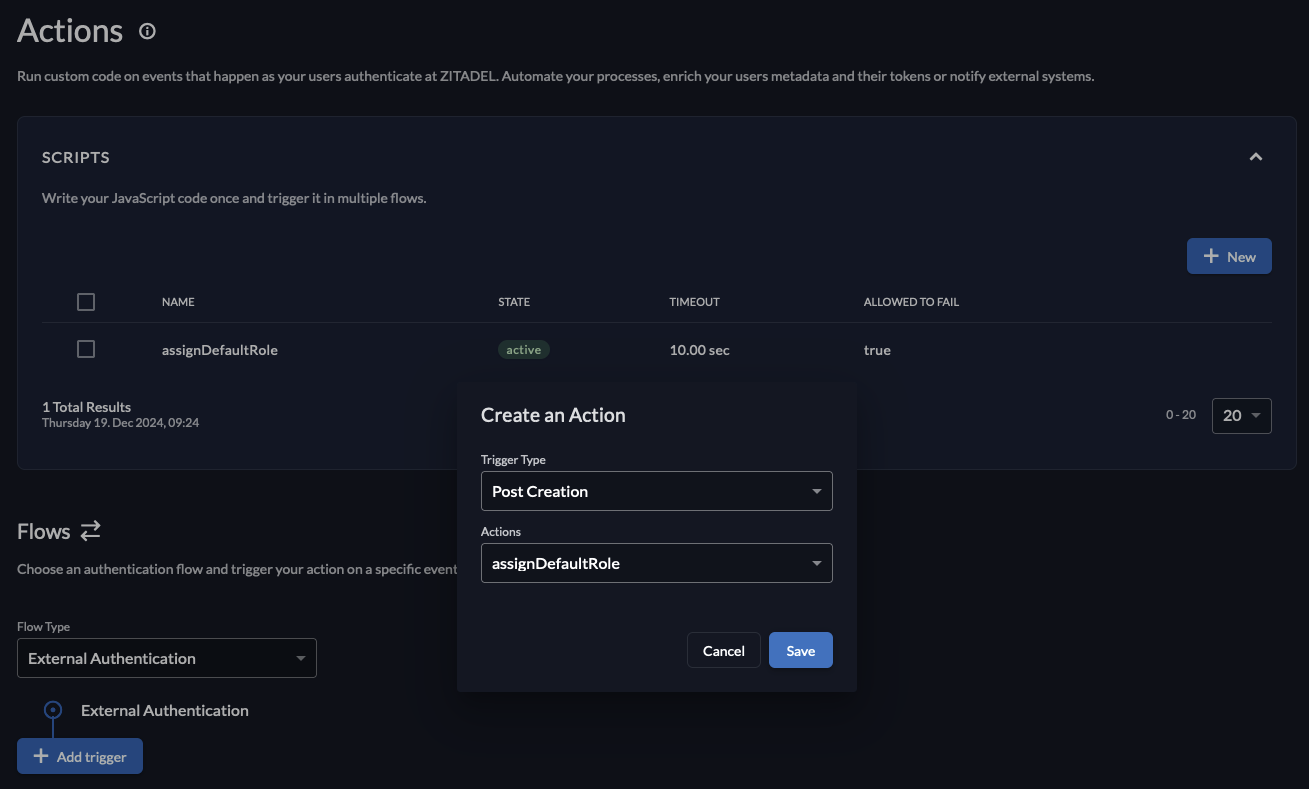
In the Zitadel console, navigate to the Actions tab.
The Scripts table on this page contains a default action calledassignDefaultRole. -
In the Flows section, click to open the Flow Type dropdown menu, and select External Authentication.
-
Click Add Trigger.
The Create an Action window appears. -
In the Trigger Type menu, select Post Creation.
-
In the Actions menu, select the
assignDefaultRoleaction:
-
Click Save.
The factory setting of the assignDefaultRole action is to assign the AssistantUser role (granting access to PhariaAssistant) to new users. To change this, you need to edit the values in pharia-iam.config.defaultRolesForLogin.
|