Configuring user self-sign-up
The internal identity provider used by PhariaAI, Zitadel, provides a self-service registration flow. This allows users to sign up for an account without the need for an administrator to create an account for them.
During this flow, the user signs up for an account by providing their email address and a password. They then receive a verification email to confirm their email address and complete the registration process.
We recommend to filter the email addresses to only allow users with specific domains to sign up.
Prerequisites
-
The flag
pharia-iam.config.adminEnableZitadelManagementwas enabled during the installation of PhariaAI. See IAM configuration. -
You have an email provider that you can use to send verification emails.
Configuring an email provider
To enable self-sign-up, you must configure an email provider in Zitadel for it to send verification emails to users who sign up for an account. You can select a preconfigured email provider or specify any other email provider, as long as it supports SMTP or API-based email sending.
Open the Zitadel console
-
Navigate to the Zitadel console at
https://login.<YOUR_CONFIGURED_DOMAIN>and log in with your initial user account. -
If you land on the info page of your admin account, navigate to
https://login.<YOUR_CONFIGURED_DOMAIN>/ui/consoleor click the logo in the top left corner. If this has no effect, you probably logged in with the wrong account.
Enabling user self-registration
Open the Zitadel console
-
Return the main screen by clicking the logo at the top left corner of the Zitadel console.
Enable self-sign-up and domain discovery for the Pharia organisation
-
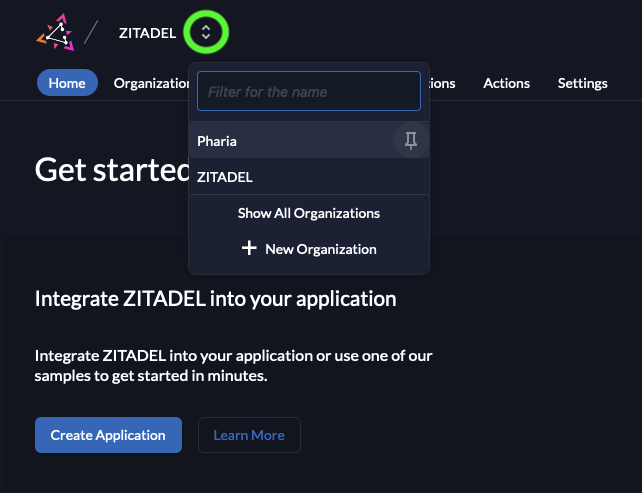
In the Organization field, select Pharia:
-
In the Settings tab, open Login Behavior and Security.
-
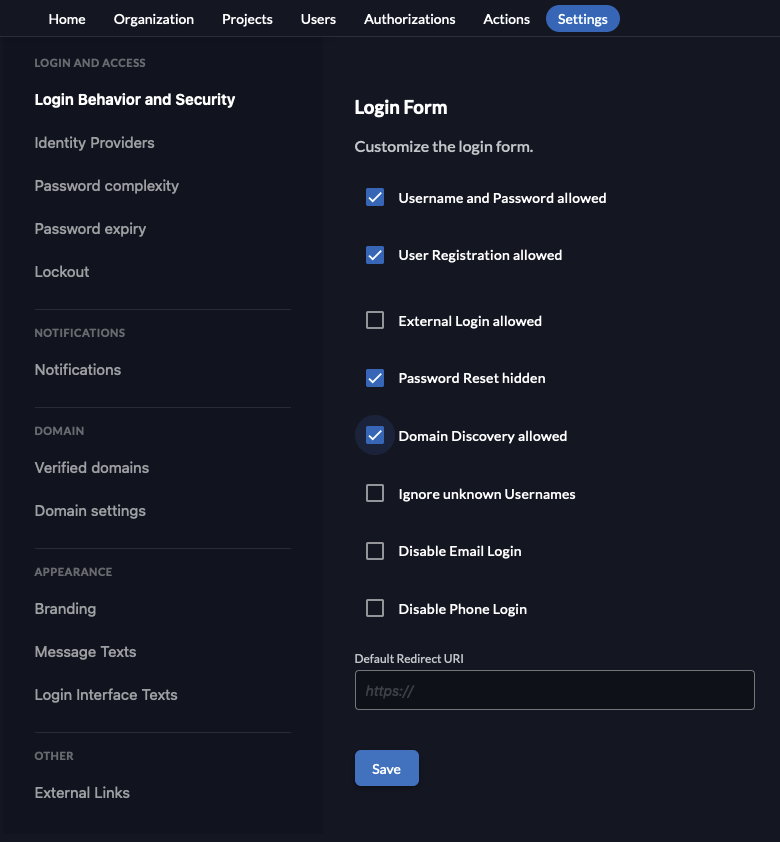
Activate the options User Registration allowed and Domain Discovery allowed in the Login Form section:
-
Click Save.
-
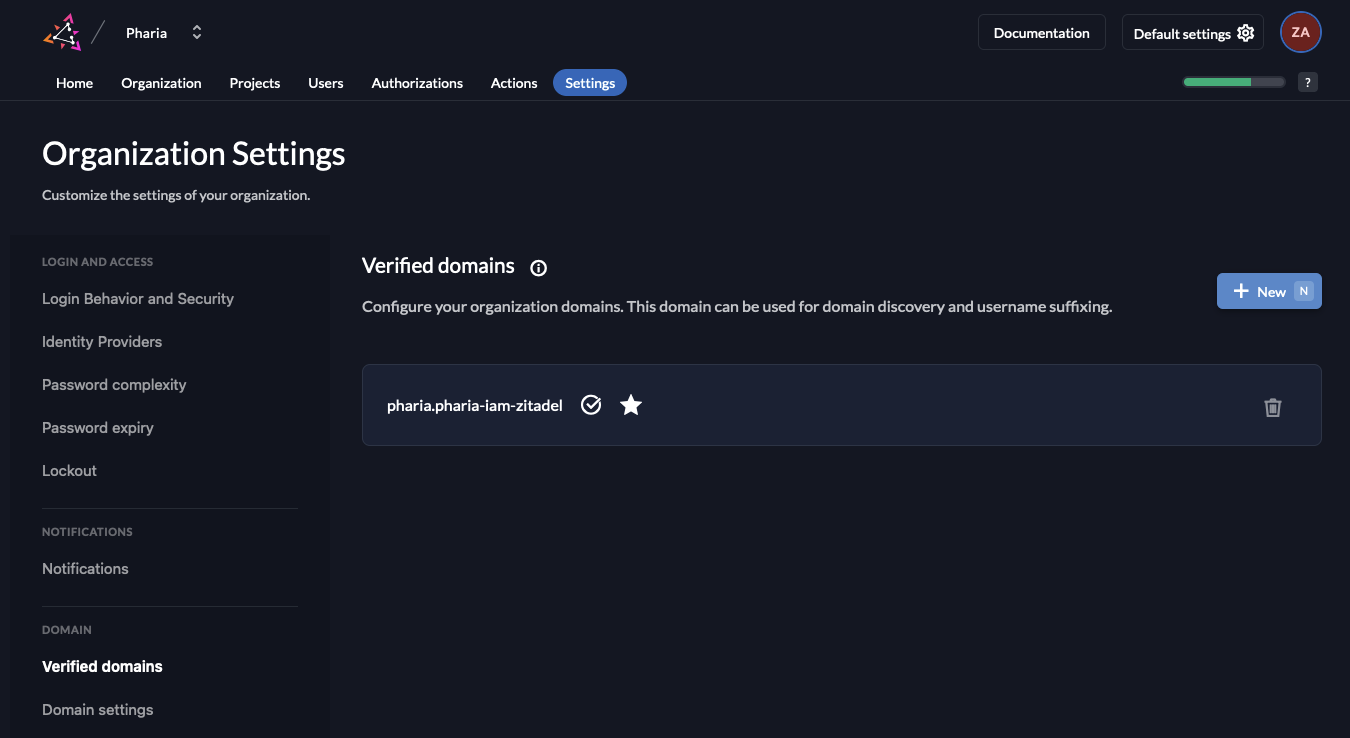
Open the Verified domains page.
-
If the email domain of your company is not already in the Verified domains list, add it by clicking New:
Enable allowed domain check on user sign-up
-
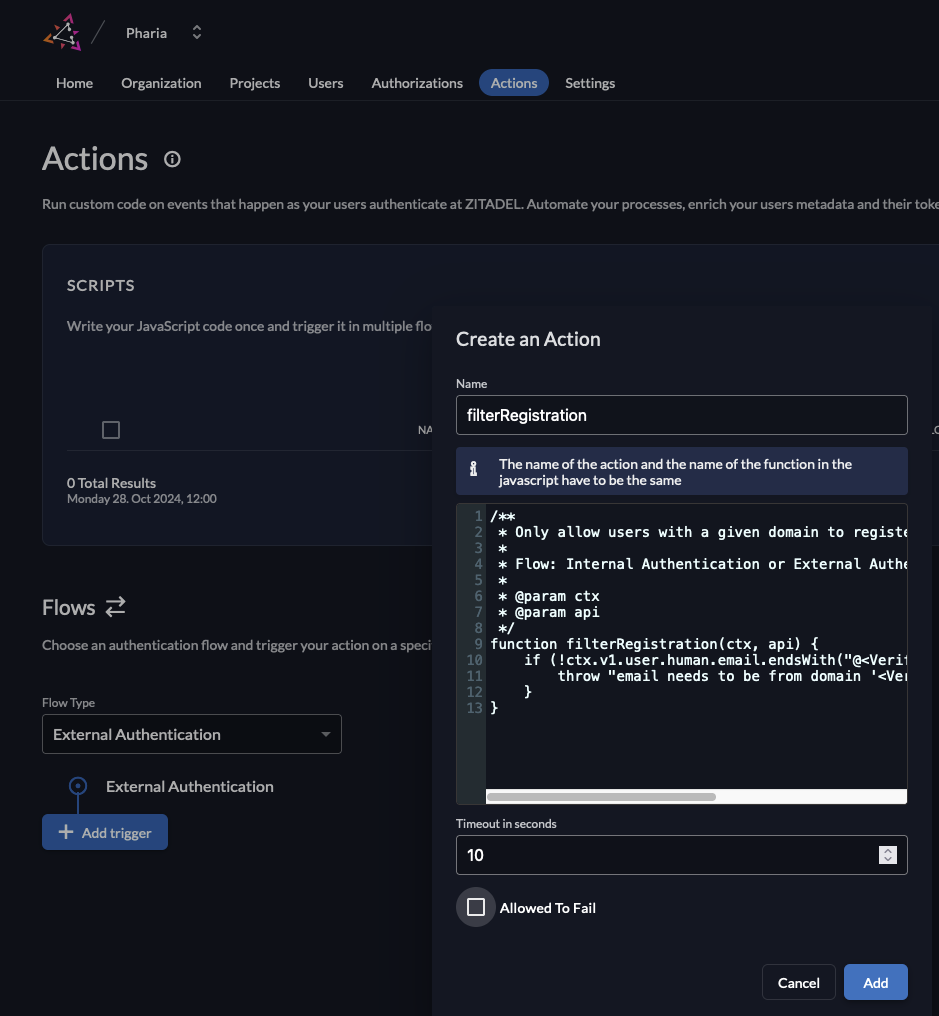
In the Actions tab, click New to create a new action.
-
Give the action the same name as the function defined in the action, which in this example is
filterRegistration. -
Copy the code below and paste it into the action editor. Note that you need to replace the example domains with the domains you want to allow for sign-up; you can also add more domains if required.
(For further information on how to write actions, see the Zitadel documentation.) -
Disable the box Allowed To Fail.
Disabling this checkbox generates a warning, because any coding errors (for example) can prevent users from registering. However, as we specifically want to prevent registration by users with a unacceptable domain, we can dismiss the warning. -
Close the warning message.
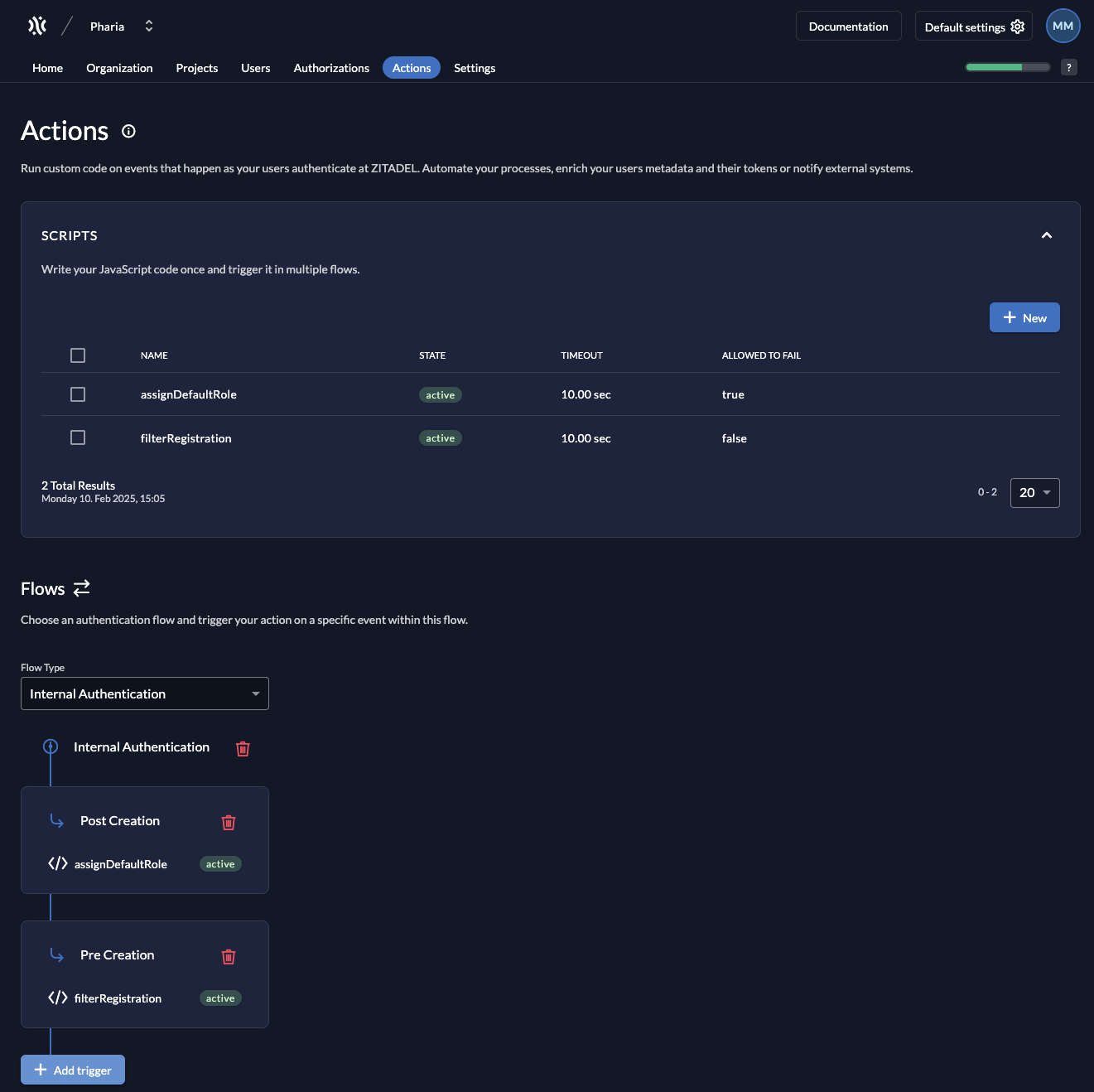
You should now see something like this:
-
Click Add.
-
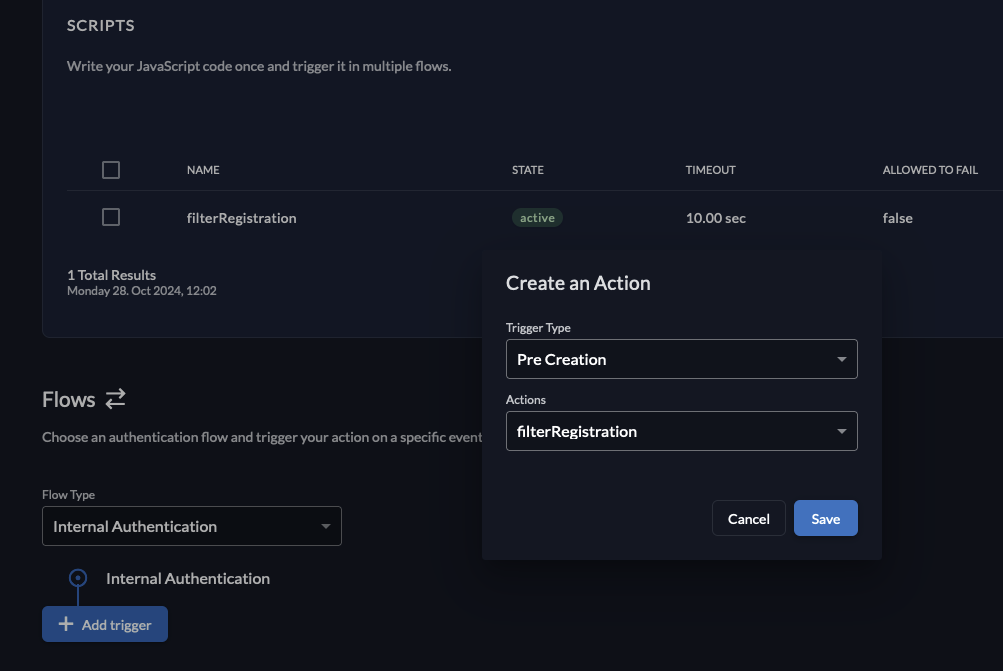
In the Flows section, click to open the Flow Type dropdown menu, and select External Authentication.
-
Click Add Trigger.
-
Select the Trigger Type Pre Creation.
-
Select the action you just created:
-
Click Save.
Code for domain-check action
/**
** Only allow users with a given domain to register
 *
** Flow: Internal Authentication or External Authentication, Trigger: Pre creation
 *
** @param ctx
** @param api
 */
 function filterRegistration(ctx, api) {
 let validDomains = ["domain1.com", "domain2.com"];
 let isValid = false;
 for (const domain of validDomains){
 if (ctx.v1.user.human.email.endsWith("@" + domain)) {
 isValid = true;
 break;
 }
 }
 if (!isValid){
 throw "email needs to be from domain " + validDomains.join(", ");
 }
 }
Configuring default roles for self-sign-up users
To access resources in PhariaAI, each user must be assigned at least one role (see Access control: User roles and permissions). You can configure the default roles to be assigned to self-sign-up users on their first login.
Set up role assignment
-
In the Zitadel console, navigate to the Actions tab.
The Scripts table on this page contains a default action calledassignDefaultRole. -
In the Flows section, click to open the Flow Type dropdown menu, and select Internal Authentication.
-
Click Add Trigger.
The Create an Action window appears. -
In the Trigger Type menu, select Post Creation.
-
In the Actions menu, select the
assignDefaultRoleaction. -
Click Save.
The factory setting of the assignDefaultRole action is to assign the AssistantUser role (granting access to PhariaAssistant) to new users. To change this, you need to edit the values in pharia-iam.config.defaultRolesForLogin.
|
The pipeline for user self-sign-up will look something like this: