Assigning resources to groups
You can assign resources to be accessible to members of user groups. This allows you to manage efficiently the access permissions for multiple users at once. Currently, you can assign applications and collections to groups.
Permission levels for resources
Multiple permission levels can be assigned to groups to determine the type of access group members are granted. The permission levels depend on the type of resource.
Assigning applications to a user group
-
In PhariaOS, click User Groups in the left navigation panel.
The User Groups page appears and displays the list of groups. -
Click the group to which you want to assign applications.
The Permissions tab is open, and you can view the existing app assignments, if any, under Apps. -
Click Add app.
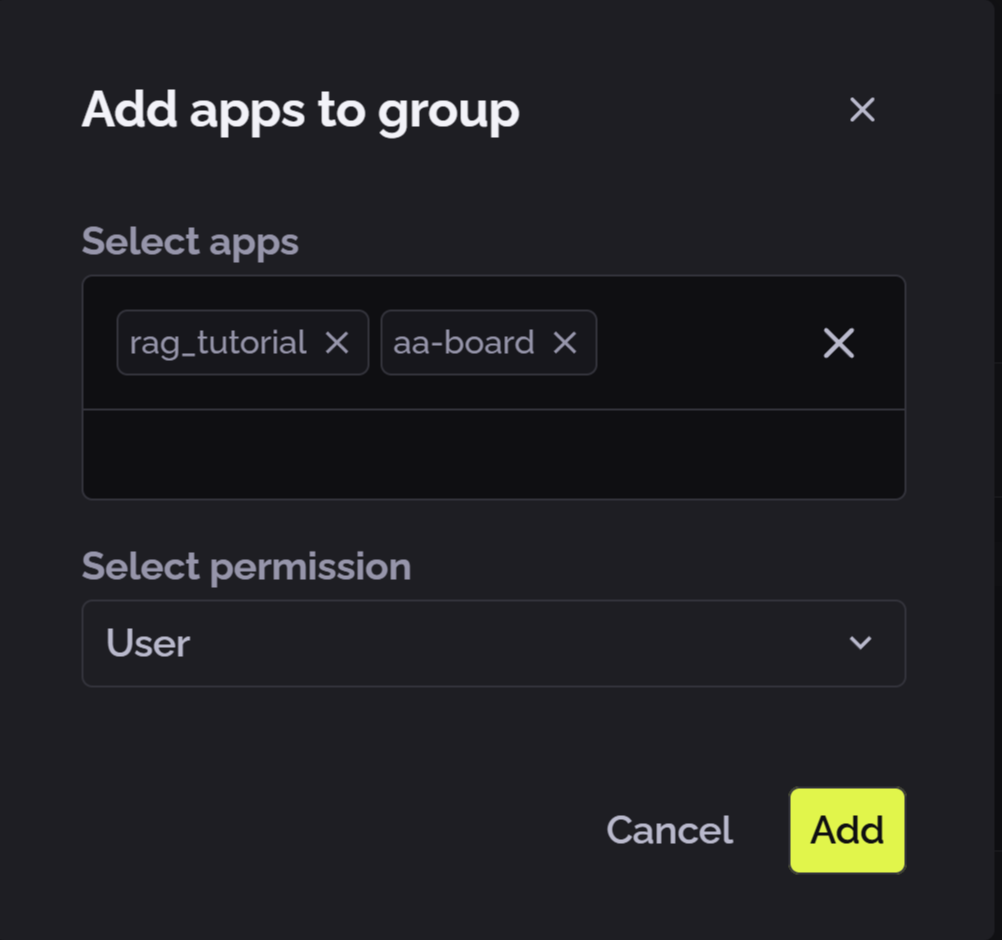
The Add apps to group popup appears. -
In the Select apps field, start typing letters included in the name of an app you want to add.
-
When you find the app’s name, select it.
-
Continue searching and adding more apps, as required.
-
Select the permission level for the group for the selected apps: User or Owner.
-
When you are finished, click Add.
The apps list is displayed again, now including the newly added apps.
Removing an app assignment from a group
-
In the apps list, at the end of the line representing an app, click the kebab menu icon
 .
. -
Select Remove from group.
The app is deleted from the apps list.
Assigning collections to a user group
-
In PhariaOS, click User Groups in the left navigation panel.
The User Groups page appears and displays the list of groups. -
In the User Groups page, click the group to which you want to assign collections.
The Permissions tab is open, and you can view the existing collection assignments, if any, under Collections. -
Click Add collection.
The Add collections to group popup appears. -
In the Select collection field, start typing letters included in the name of a collection you want to add.
-
When you find the collection’s name, select it.
-
Continue searching and adding more collections, as required.
-
Select the permission level for the group for the selected collections: Viewer or Writer.
-
When you are finished, click Add.
The collections list is displayed again, now including the newly added collections.