Managing models
View the installed models
To view the models installed in your PhariaAI instance, click Models in the PhariaOS sidebar.
Models are listed with their details:
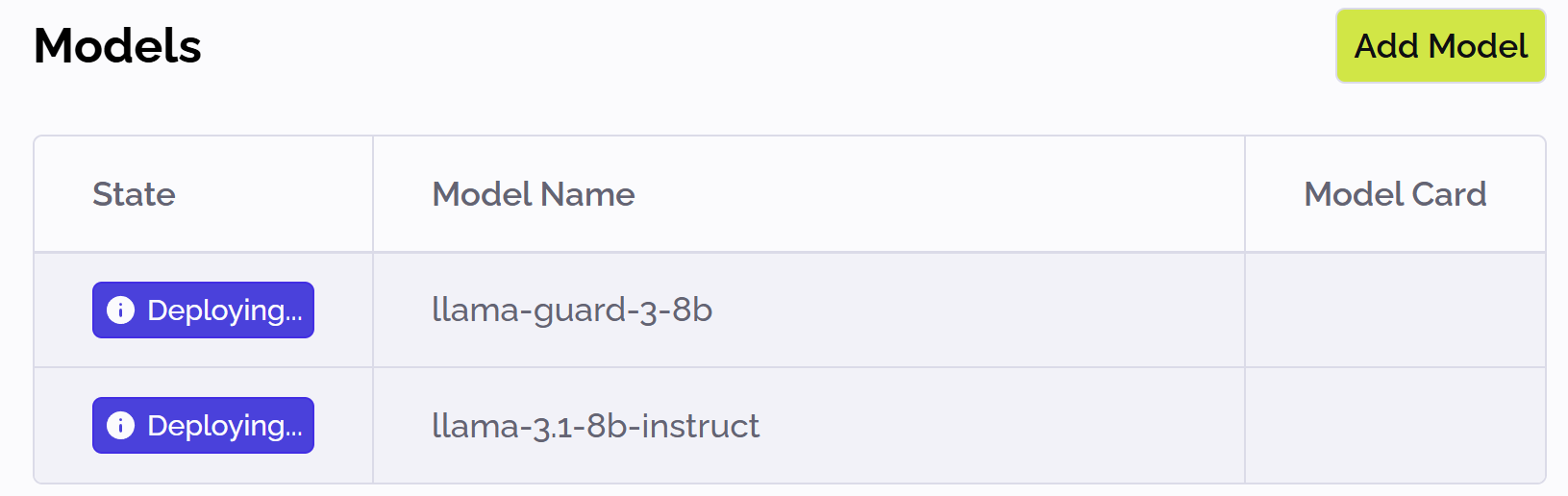
The status of your model can be one of the following:
-
Running: The model has been successfully deployed and is ready for use.
-
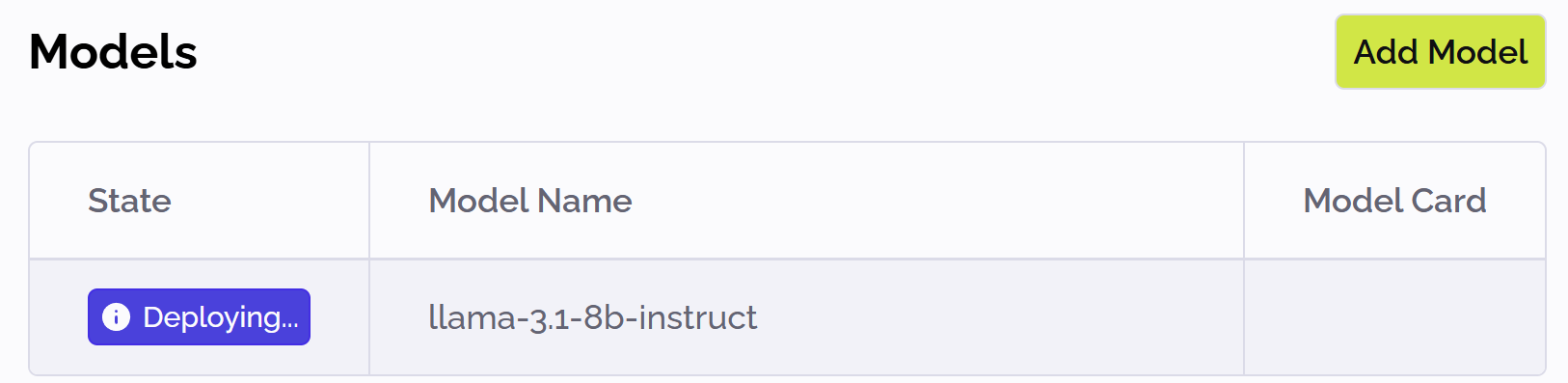
Deploying: The model weights are downloading and the scheduler is waiting to find enough resources to deploy the model.
-
Failed: The model was not deployed; this could be caused by timeout, resources not available, or other reasons.
Click a model in the list to view details about its deployment.
Install a model
To install a new model:
-
Click Models in the PhariaOS sidebar.
-
Click Add model at the top right.
The Select a New Model list looks something like the following: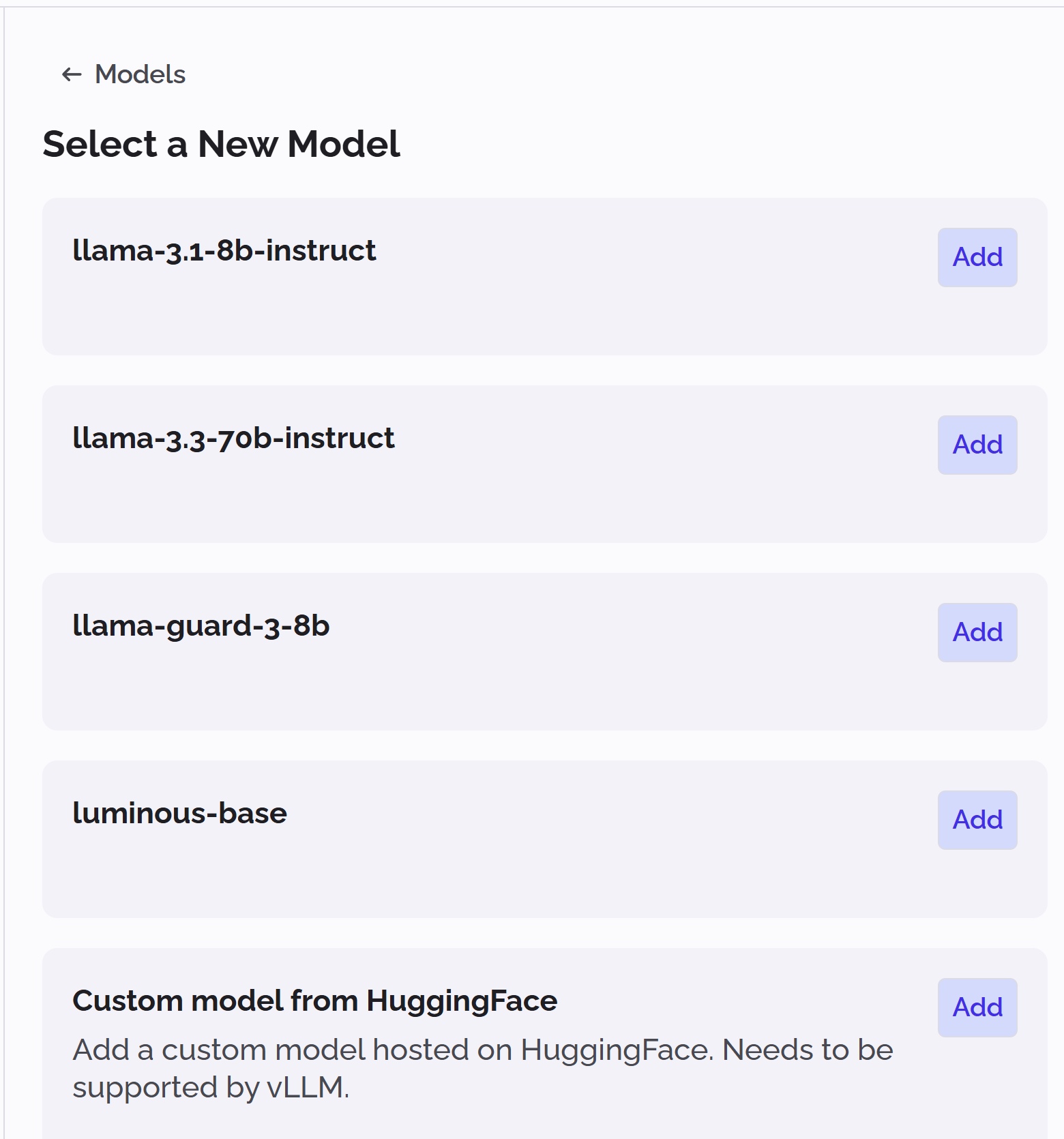
-
Click Add in the card of the Aleph Alpha model you wish to install, or click Custom model from Hugging Face.
-
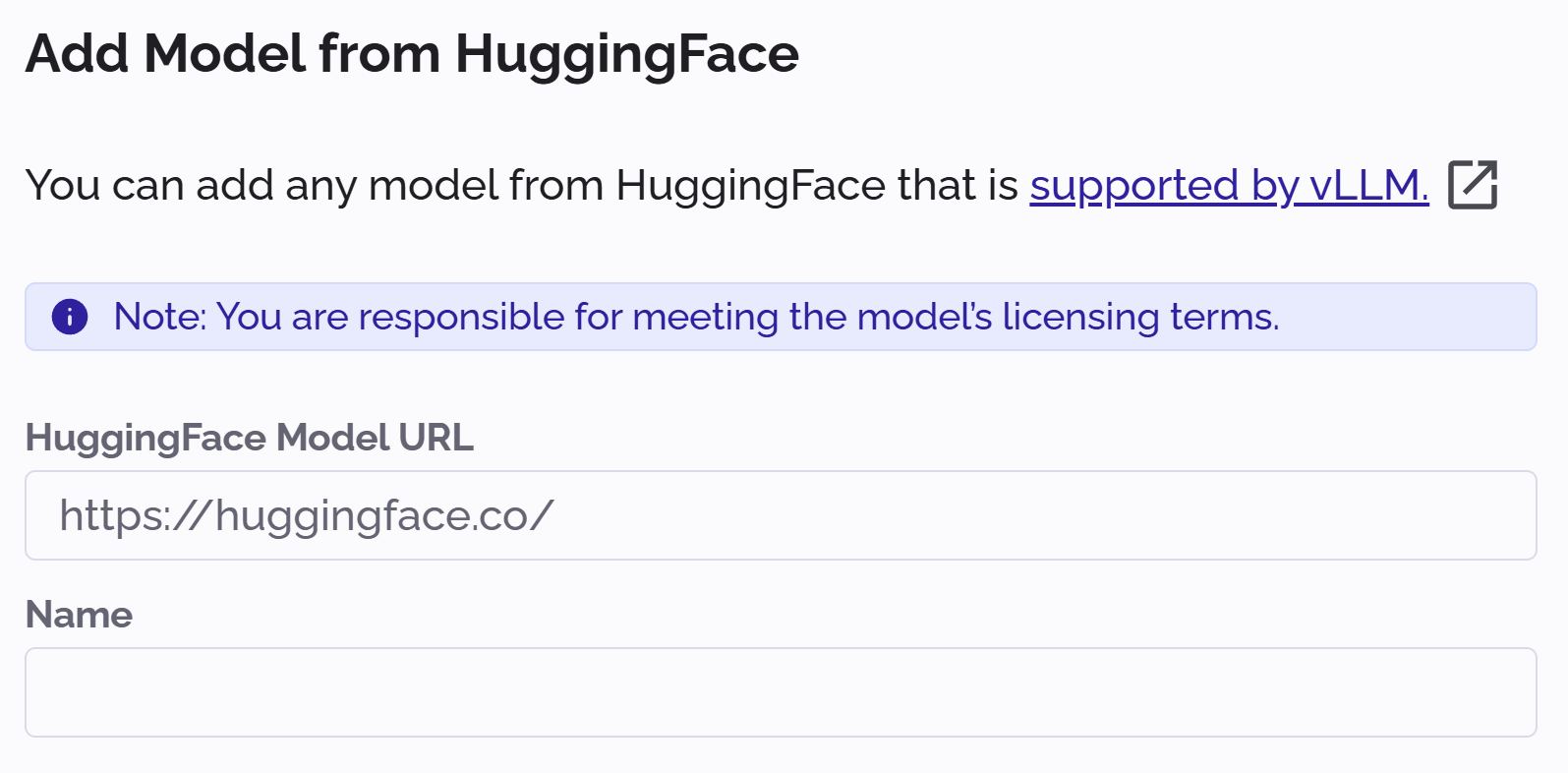
If you selected to install a model from Hugging Face, specify a name and the URL for the model:
-
For either the Aleph Alpha or Hugging Face model you selected, specify the hardware requirements and tolerations.
Contact your Kubernetes operator to determine which hardware and tolerations to use for your desired outcome. You can also see the Kubernetes documentation for requests and limits and tolerations.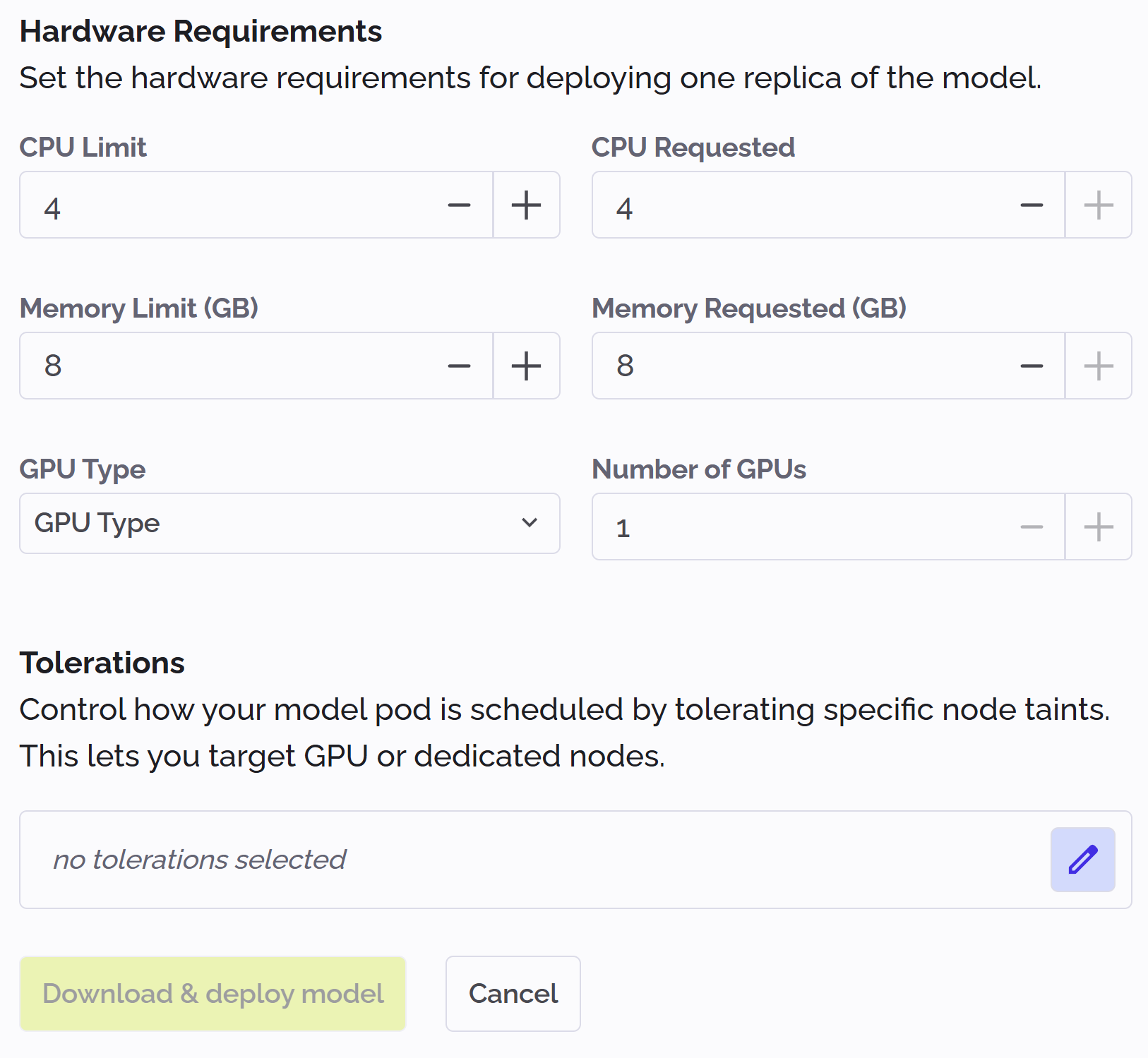
-
When you are finished, click Download & deploy model.
The model takes the status Deploying:
Edit a model
To change the configuration parameters of an installed model:
-
Click Models in the PhariaOS sidebar.
-
Click the model in the list that you want to edit.
The model’s deployment status and configuration are displayed. -
Click Edit to the right of the page.
-
Edit the hardware requirements and tolerations as required.
-
Click Save.
The model is redeployed, and takes the status Deploying.
Remove a model
To remove an installed model:
-
Click Models in the PhariaOS sidebar.
-
Click the model in the list that you want to remove.
The model’s deployment status and configuration are displayed. -
Click the kebab menu icon
 at the top right, and select Remove.
The model is undeployed and removed from the list.