Working with manually created groups
Manually created groups are created and managed in PhariaOS. You can edit the list of members of the group, and assign resources (such as applications and collections) to the group.
Creating a user group
-
In PhariaOS, click User Groups in the left navigation panel.
The User Groups page appears and displays the list of existing groups. -
Click Create group.
-
In the Create group popup, enter a name for the group. It must be unique.
-
Click Create.
The list of groups is displayed again with the new group at the top.
Renaming a group
-
In the User Groups page, at the end of the line representing a group, click the kebab menu icon
 .
. -
Select Rename group.
-
In the Rename group popup, enter a new name for the group.
-
Click Edit.
The groups list reappears, showing the new name for the selected group.
Deleting a group
-
In the User Groups page, at the end of the line representing a group, click the kebab menu icon
. -
Select Delete.
The group is deleted from the groups list.
Adding members to a group
-
In the User Groups page, click on a group to which you want to add members.
-
Click the Members tab.
The list of existing group members, if any, are displayed. -
Click Add member.
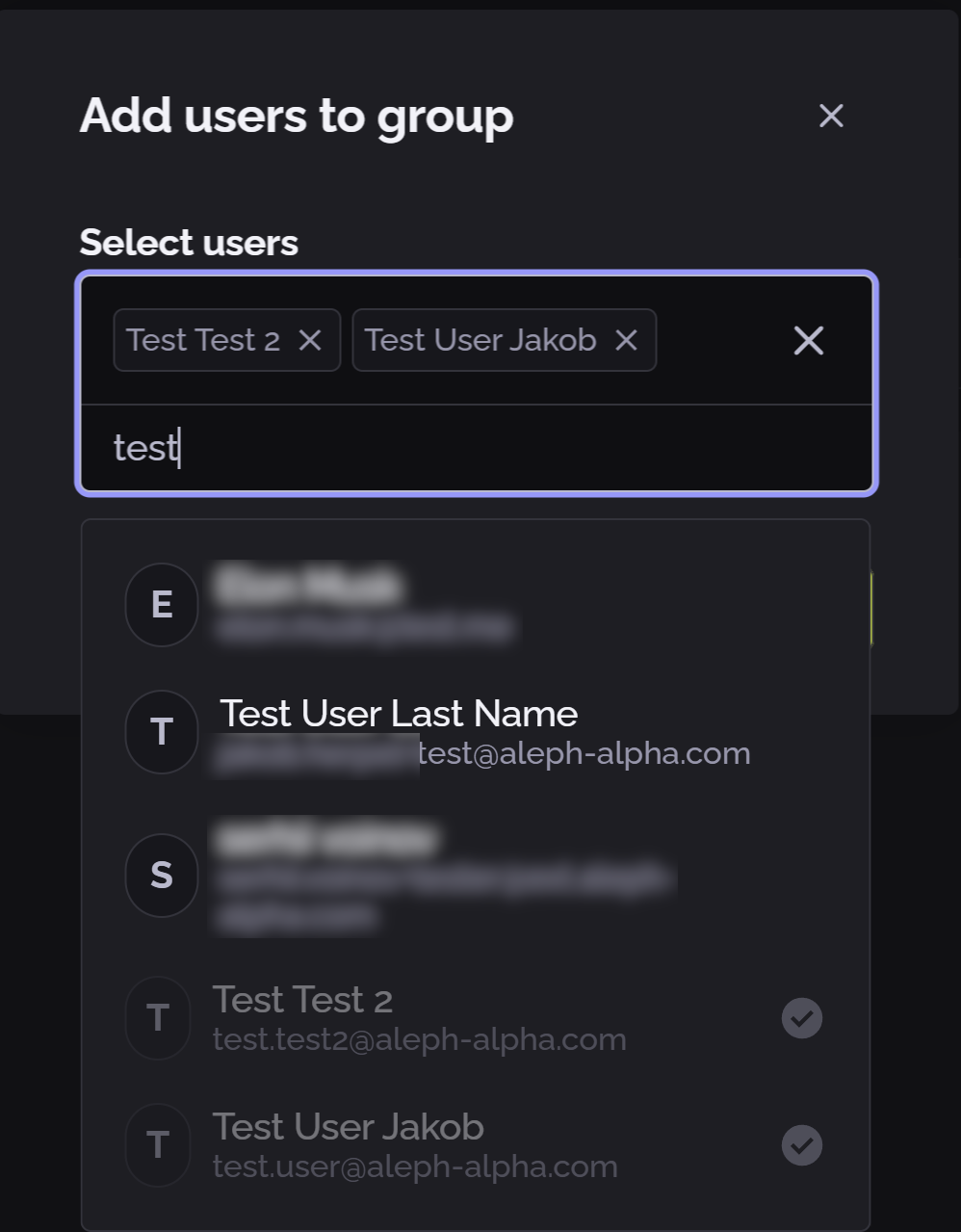
The Add users to group popup appears. -
In the Select users field, start typing letters included in the name of a user you want to add.
-
When you find the user’s name, select it.
-
Continue searching and adding more names, as required.
-
When you are finished, click Add.
The members list is displayed again, now including the newly added members.