Managing credentials and tokens
You need credentials to generate and manage API tokens to authenticate and connect your systems to the PhariaAI stack. Security is ensured through encryption, expiration policies, and access controls. With the ability to create, monitor, and revoke tokens as needed, our solution enables reliable and secure integration with our services.
Each credential can be assigned different access roles. A credential can hold one or more API tokens with different expiration dates.
Viewing credentials
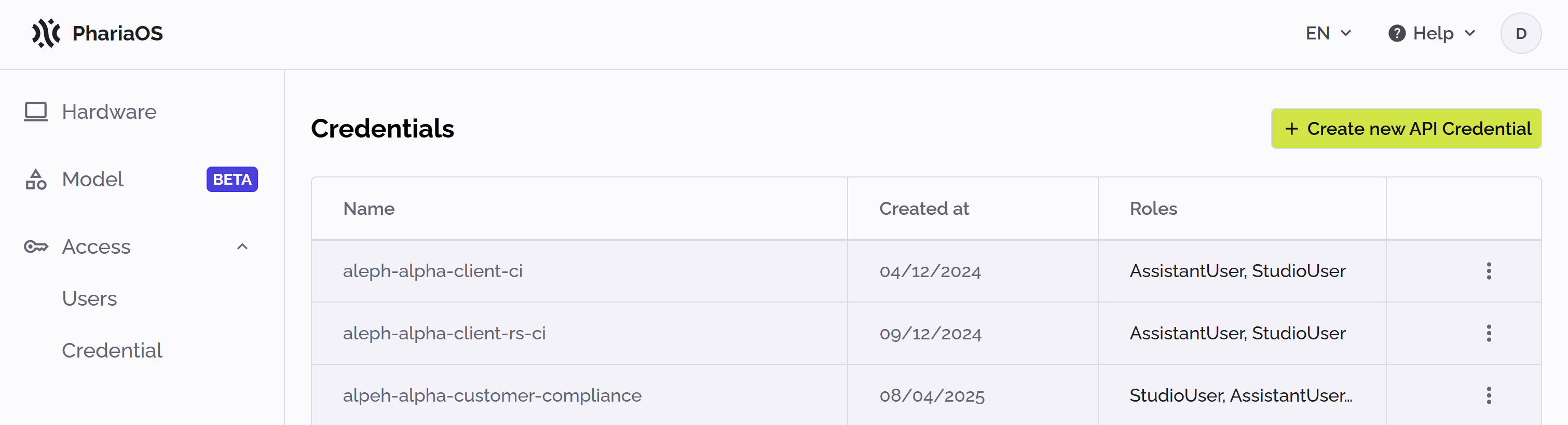
To view your credentials, click Credentials under Access in the PhariaOS sidebar.
Credentials are listed with their names, creation dates and roles:
Creating a new credential
To create a new credential:
-
Select Credentials under Access in the PhariaOS sidebar.
-
Click Create new API credential at the top right.
The Create new API credential box opens: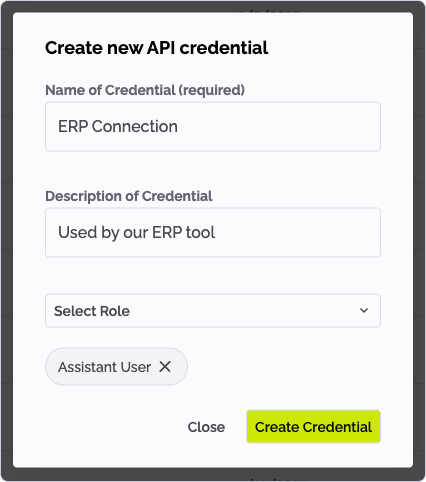
-
Enter the credential details:
-
Enter a name for the credential.
-
Optionally, enter a description.
-
Click Select role and select a role from the dropdown list.
The role is added to the credential. -
Continue selecting roles in this way to associate with the new credential.
-
-
When you are finished, click Create credential.
The new credential is added to the credentials list.
See Access control for more information about roles in PhariaAI.
Adding and removing roles from a credential
| Adding or removing a role from a credential affects all applications using the credential’s associated tokens! |
To edit the list of roles associated with a credential:
-
Select Credentials under Access in the PhariaOS sidebar.
-
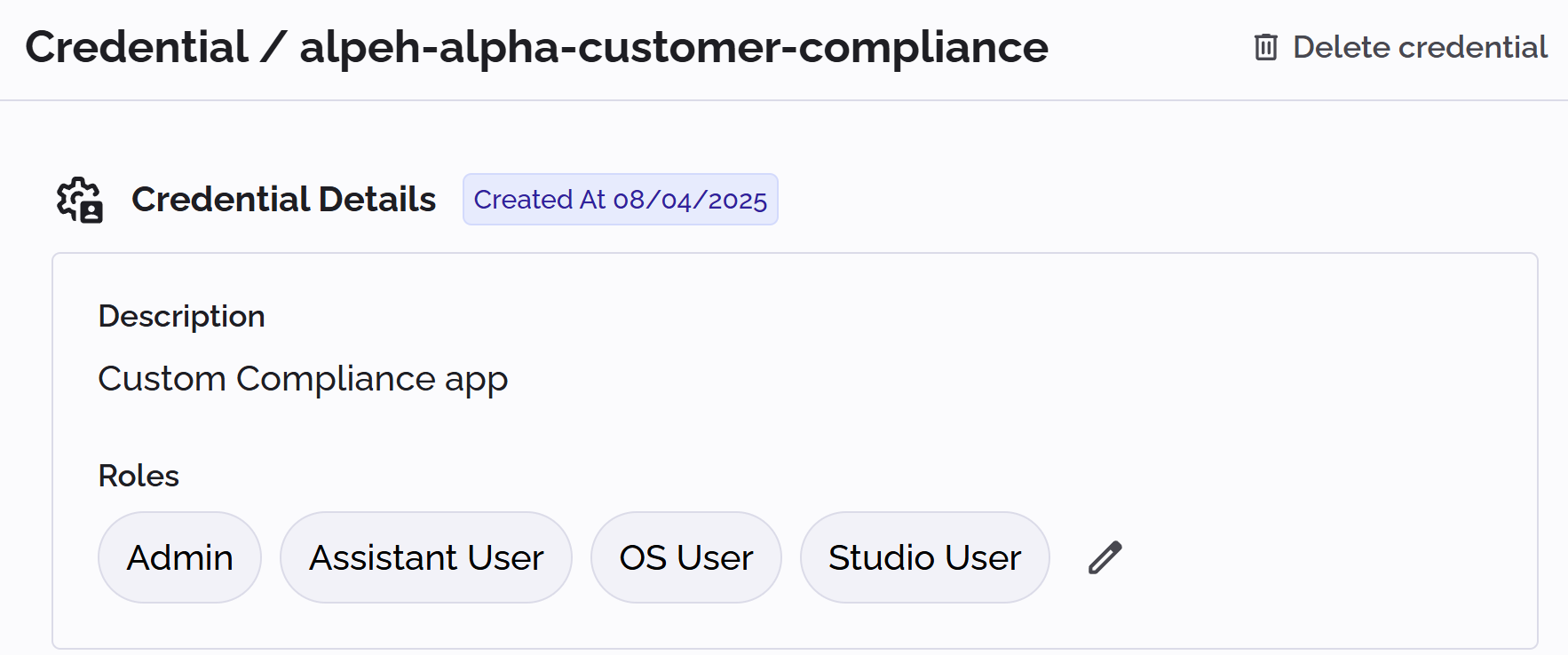
Click the credential to view its details:
-
Click the edit icon
 after the list of assigned roles.
The Edit credentials roles box appears: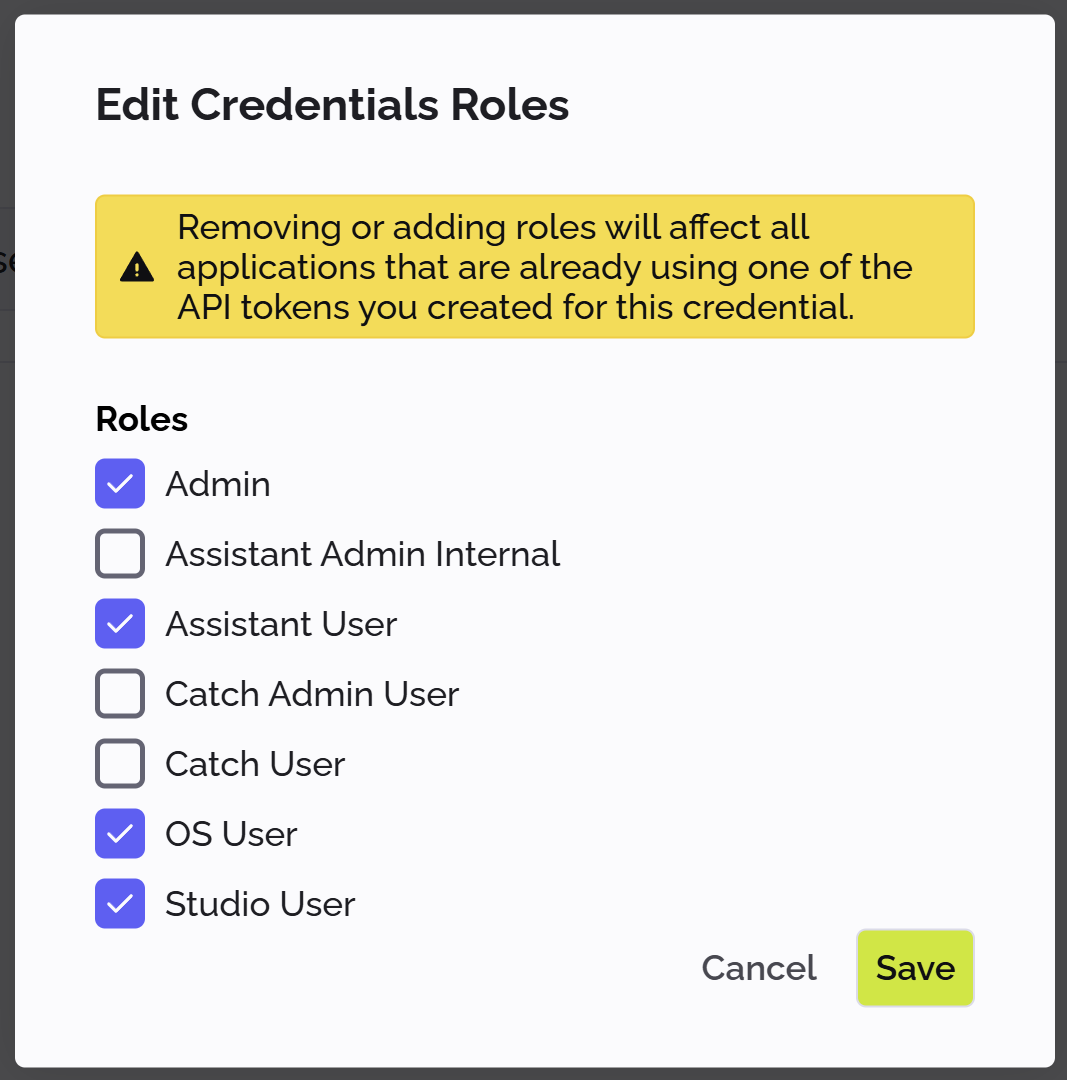
-
Add or remove roles as required.
-
Click Save.
Adding a new token to a credential
To add a new token to a credential:
-
Click the credential to view its details.
-
Click Create new token.
The Add token to <credential name> box opens: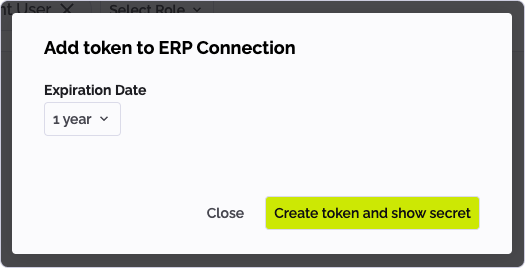
-
Select the time period after which the token expires.
-
Click "Create token and show secret".
The token is created and its secret is displayed: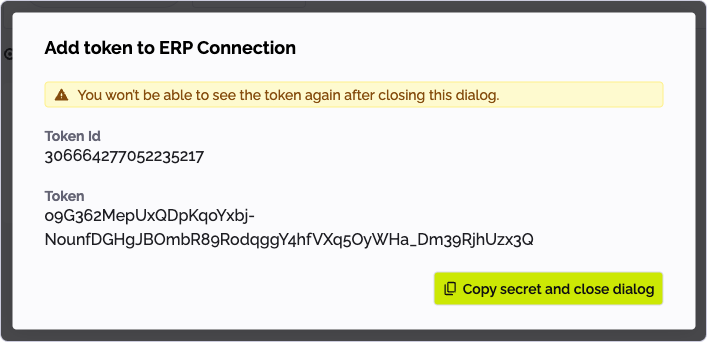
This is the only occasion when you can view the secret! After you close this box, there is no way to recover the secret. -
Click Copy secret and close dialog to copy the token to your clipboard and close the box.
The new token’s ID and creation date are now listed on the credential details page.
Deleting a token
| If you delete a token that is still in use, any system using this token will no longer have access to the PhariaAI platform. |
To permanently delete a token:
-
Click the token in the list of tokens associated with the credential.
The Token box opens, showing the details of the selected token: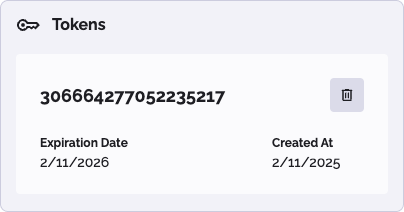
-
Click the delete icon
 .
. -
Confirm the deletion in the warning box.
The token is permanently deleted from the credential.
Deleting a credential
| Deleting a credential also deletes all its associated tokens! Any system using one of these tokens will no longer have access to the PhariaAI platform. |
To delete a credential:
-
Select Credentials under Access in the PhariaOS sidebar.
-
Click a credential in the list to show its details:
-
Click Delete credential at the top right.
-
Confirm the deletion in the warning box.