Connecting PhariaAssistant to external data sources
| You need Administrator privileges to do the following tasks. Also, you need your organisation’s account ID and password for the services you want to connect to. |
You can connect PhariaAssistant to your data sources, in particular cloud storage. First you register the service in PhariaOS, and then you specify in the service itself your Aleph Alpha authentication details.
Registering a data source service in PhariaOS
To connect to external data sources from PhariaAssistant, you need to first register the corresponding service in PhariaOS. To do this:
-
Click Integrations in the left navigation bar.
-
Click the relevant box under Integrations; for example, SharePoint or Google Drive.
A dedicated page appears related to the selected data source. Under Permissions, you can view which permissions the connector will have with respect to the data source account: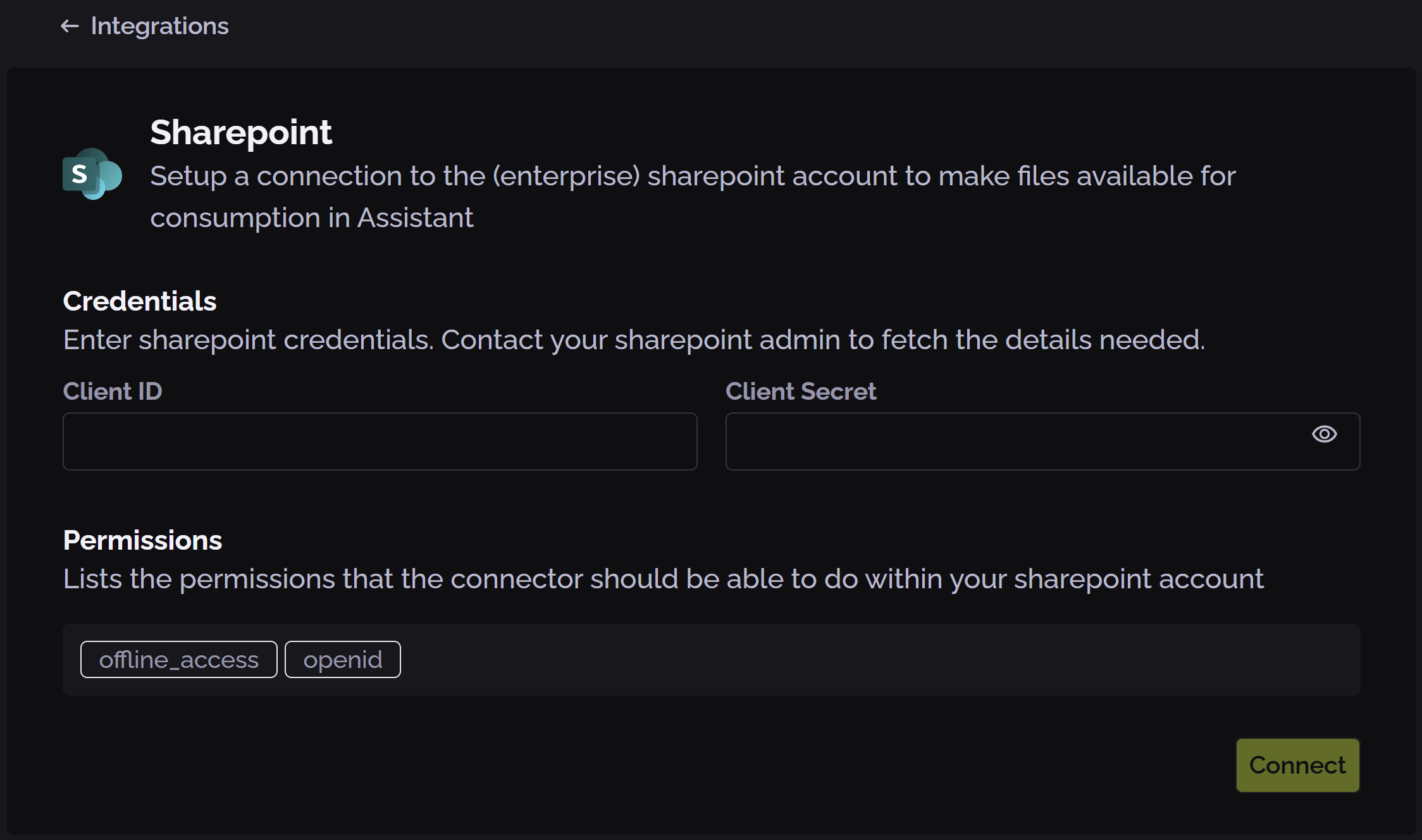
-
Enter your organisation’s credentials (usually client ID and client secret or password).
-
Click Connect.
You may also need to specify a redirect URL for the service to call or permissions that the connector can be assigned.
Specifying to the data source service your Aleph Alpha credentials
You now need to specify in the data source service itself your Aleph Alpha authentication details so that the service allows PhariaAssistant to connect.
After you have done this, Aleph Alpha services can connect and use SharePoint or Google Drive or any other service we have integrated.