Manage access to Applications with PhariaStudio
As mentioned in Pharia applications quick start it is possible to link the application deployment to a project in PhariaStudio by providing the project id during the register command. The project id is available by accessing the project in PhariaStudio, in the URL bar.

cd <your-app-folder>
npx @aleph-alpha/pharia-ai-cli register --project <PROJECT ID>
Once the application is registered, to have it shown in the UI of PhariaStudio, it is necessary to publish and deploy it with the following command:
cd <your-app-folder>
npx @aleph-alpha/pharia-ai-cli publish
npx @aleph-alpha/pharia-ai-cli deploy
Once the application is deployed, it is visible and accessible only to Admin users. Even the developer that deployed the application needs to assign access through PhariaStudio following the next steps.
Manage you applications with PhariaStudio
PhariaStudio offers an application view that list all the applications that are linked to a project. To access the list, you can select the Application menu item in the sidebar.
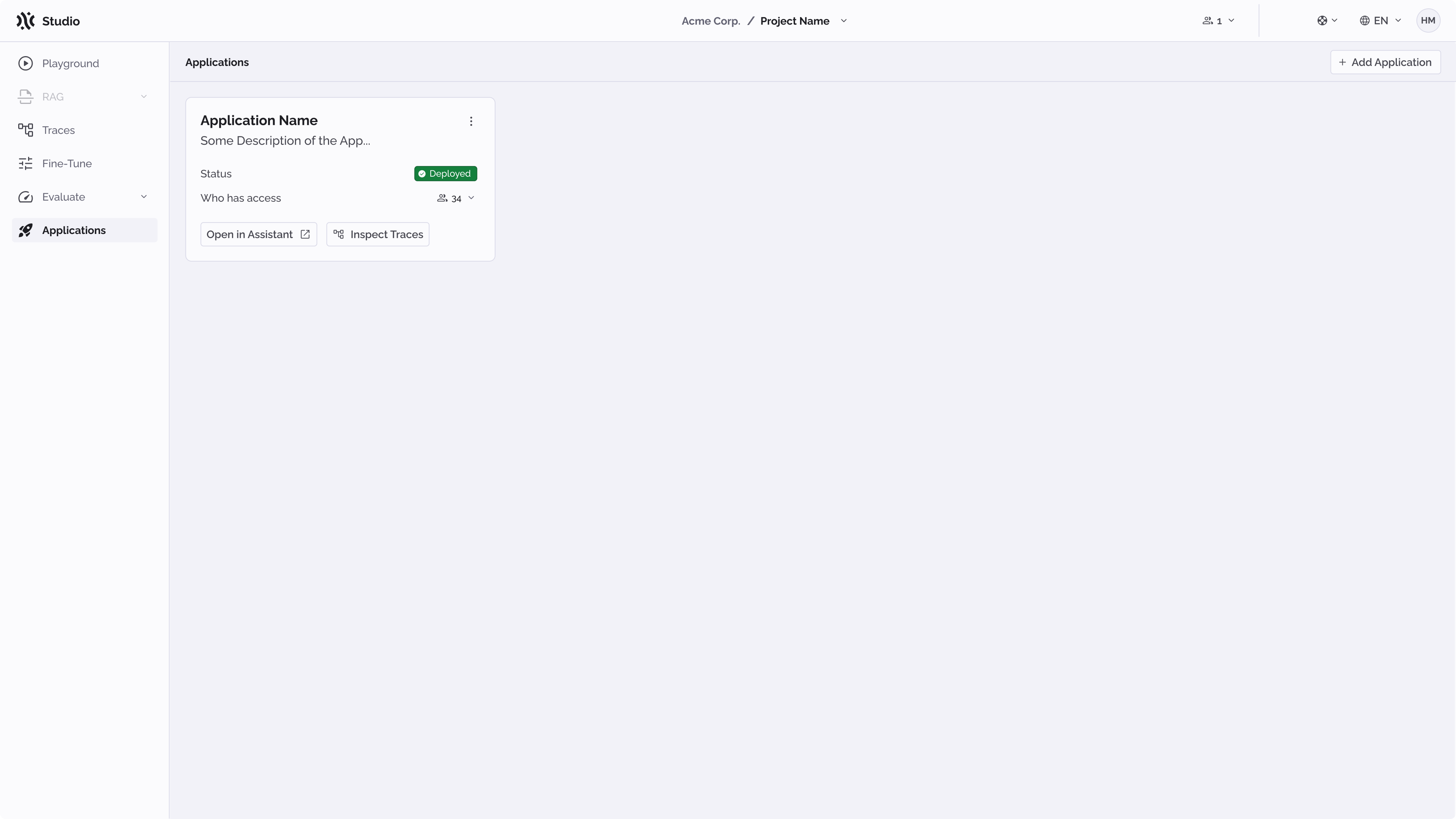
If an application is deployed, it will be listed with status deployed and it will be possible to manage users and access it through PhariaAssistant.
It is possible to undeploy application via the UI by cliking on the three dots menu of the application card.
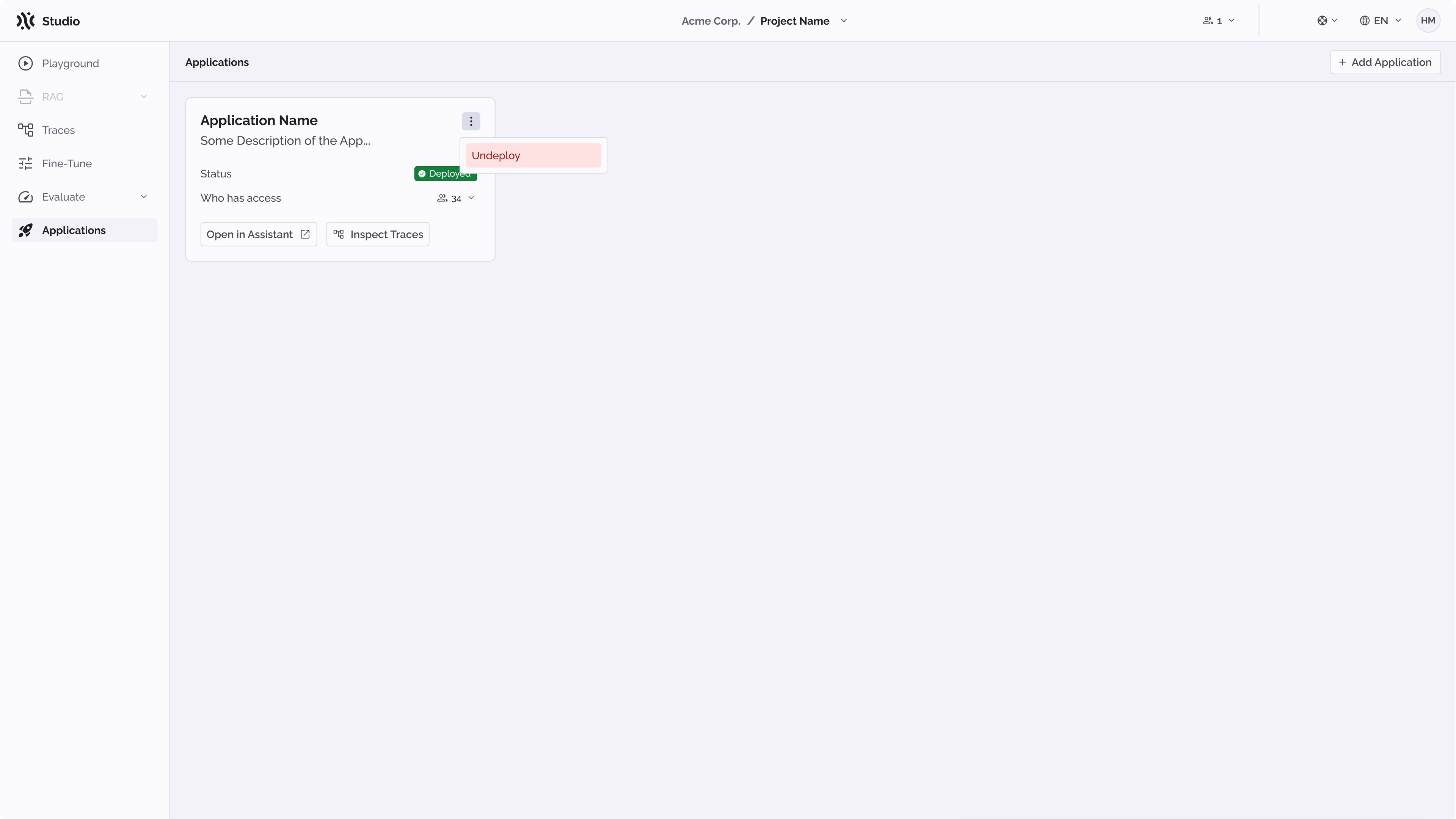
Once the application is undeployed, it will not be visible in PhariaAssistant anymore (or accessible via API), it will be listed as registered and it will not be possible to perform any action with it.
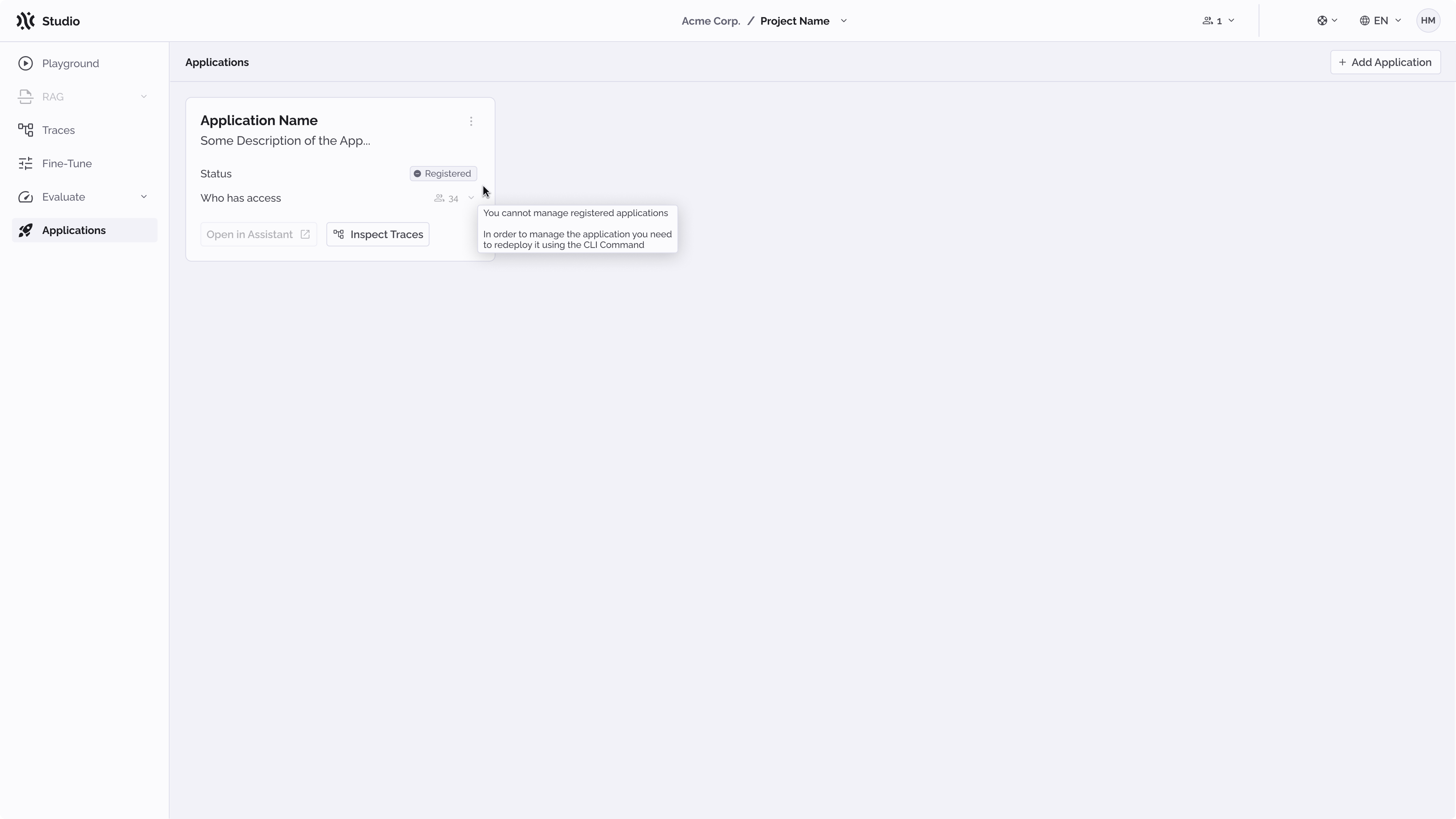
To change its status to deployed, it is necessary to perform the deployment process from the PhariaAI CLI.
Manage access to the Application
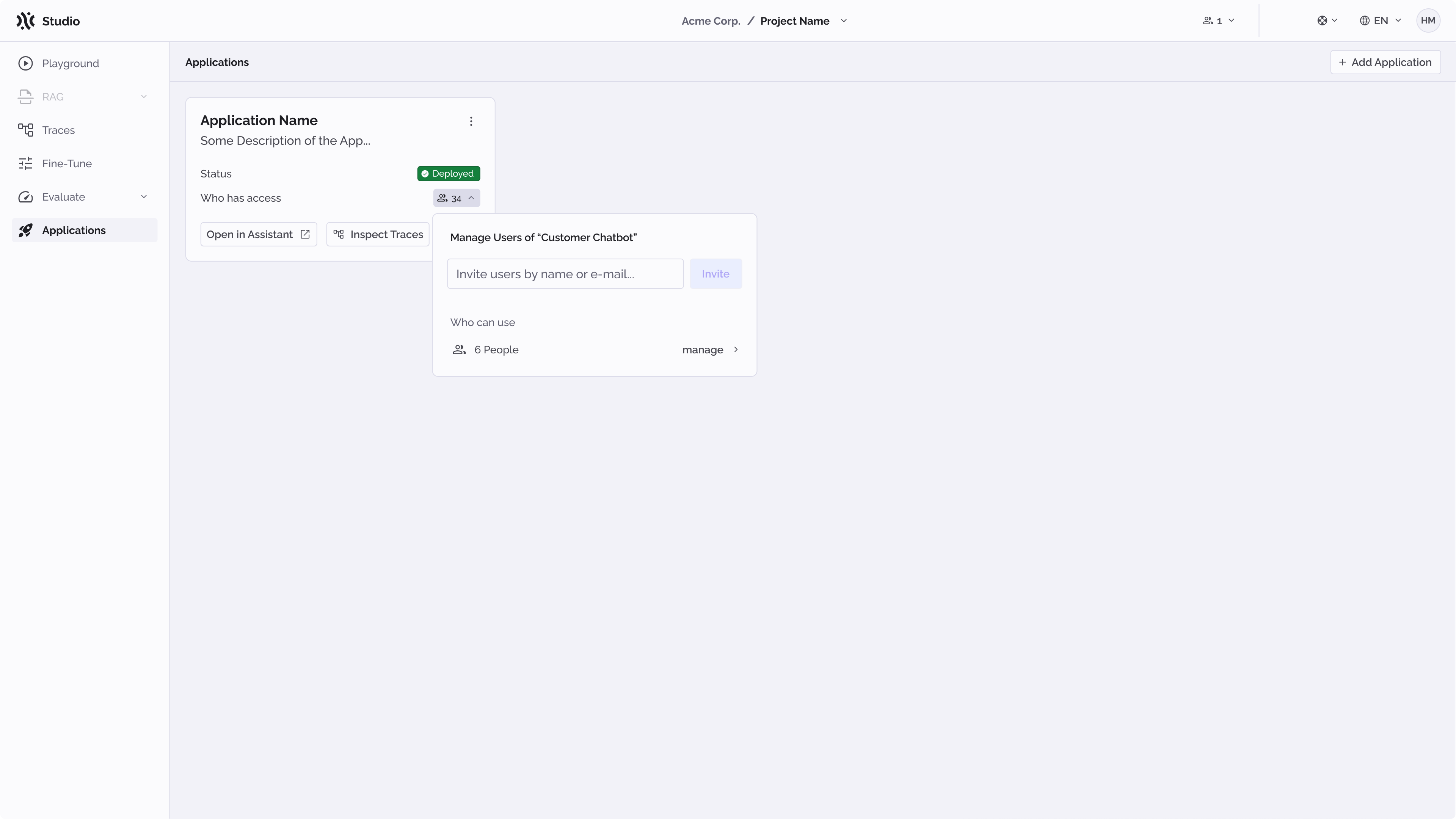
Once deployed, the application is only accessible to admin users. To enable other users (including the one deplying the application), it is necessary to give them access by adding users from the PhariaStudio UI. To do so, you can access the application menu item and select the correct application card from the list. After that, you can grant access to users by clicking on the Add Users button, searching the relevant users by email and invite them to the application.
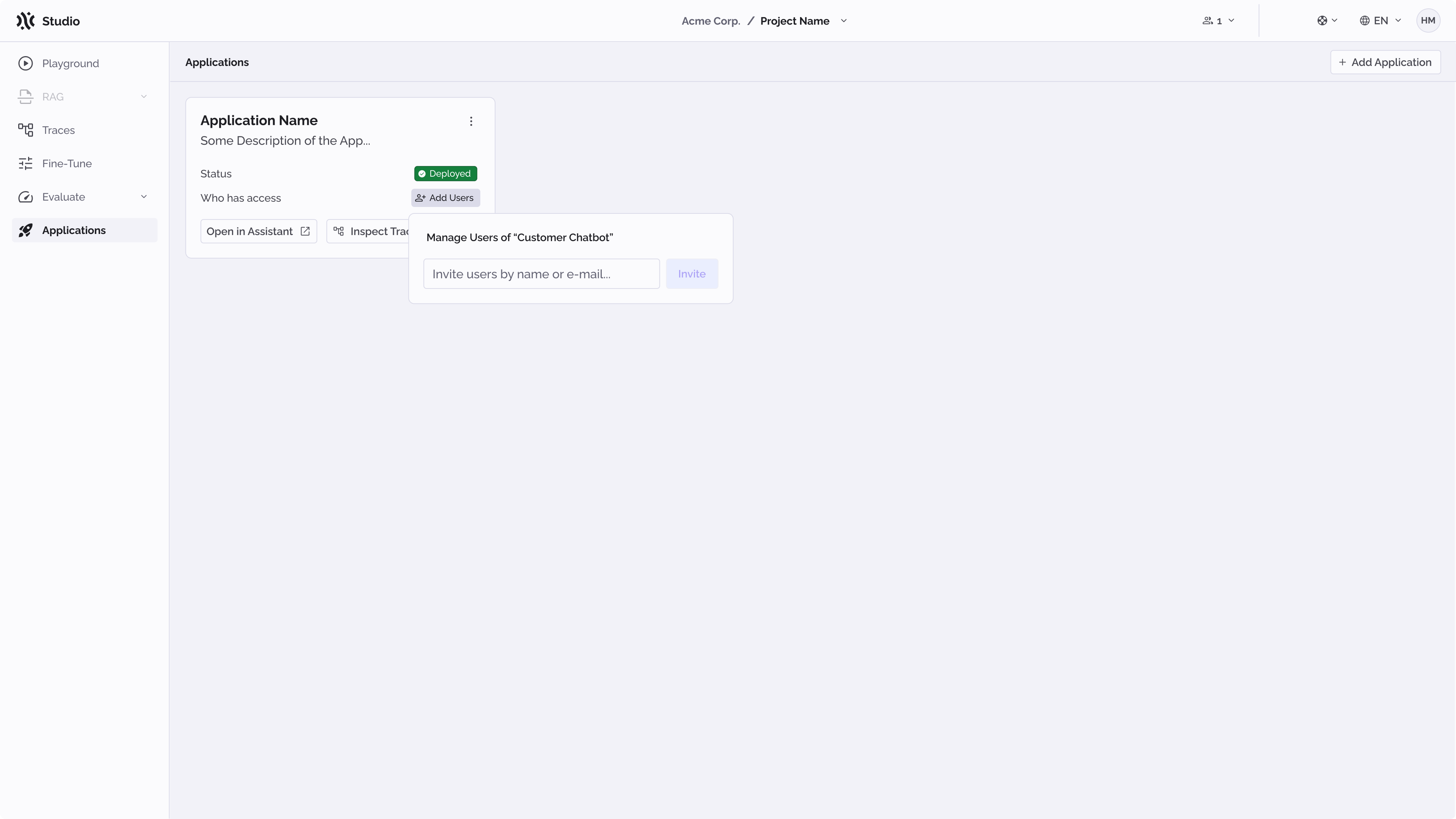
Users will not receive notification for the invitation and will need to be manually notified outside PhariaStudio.
Once users are invited, the button will change to the users icon and the number of users. By clicking that button it will be possible to add more users or manage the list of existing ones.