Task view for annotators
As a domain expert with the annotator role, you have access to all projects that have tasks assigned to you.
Viewing the task list
When you open a project, the corresponding task list is displayed at the right of the project. The following information is displayed to you:
- project details (on the left)
- project name
- short description of the project
- project tags
- task progress
- project due date
- task details (on the right)
- project name
- task instructions (click “Instructions” to open the task instructions)
- task list for open tasks
- task list for completed tasks
Annotating your tasks
To annotate your tasks:
-
Navigate to your project.
-
Click “Start task queue”. (You can also click any task in the open or completed task lists to access a task.)
The annotation view opens. The task view displays the content to be annotated on the left, the available labels and instructions on the right. At the bottom of the screen you can see your progress within the project. -
Read the text snippet of the current data point, as well as the task and label instructions.
-
Select one or several labels, according to the task and label instructions.
-
Click “Finalize and go to next” to save your annotation.
The next task is displayed. -
Continue working through your task queue until all tasks are completed.
Flag a datapoint
As a domain expert with the annotator role, you have the option to flag data points in case you can not make a decision. There can be different reasons why you are prevented from making an annotation decision:
- Inferior results of a pre-processing step can result in incorrect or illegible text presented to you.
- The task or label instructions may be ambiguous or incomplete.
In such cases, you can use the flagging option to let your project manager know that there is an issue with the data point that must be resolved. To flag a data point:
-
Click a task in your task list.
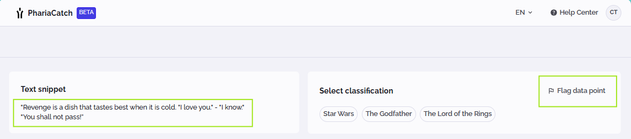
The annotation view opens. In this example, the data point consists not of one, but of several quotes. A single label can not be added:
-
Click “Flag data point”.
The flag data point dialog opens. -
Select one of the options to indicate why the data point is not accurate.
-
Enter an explanation to inform the project manager about the issue and give any details that may help them to resolve it.
-
Click “Submit”.
The flag and comment are saved, and the data point is assigned the “blocked” status. It is not possible to add a label to the data point until the flagged issue is resolved by the project manager.